
Filtering and Sorting Data
This guide covers the most common ways to find and organize items across any grid in the Tag Browser — Equipment, Associated Equipment, Documents, Defects, and Actions. For a complete list of filter operators and technical details, see the Filtering and Sorting reference.
Filtering a Column
Section titled “Filtering a Column”To filter a column, open its column settings and apply a filter condition.
-
Click the Edit Column Settings icon (three-dot menu) next to the Description column header.
-
Select Filter from the dropdown. The available operators depend on the column type:
- Text columns — Contains, Does Not Contain, Starts With, Is Empty, Is Not Empty
- Numeric columns (D and A) — Is equal to, Is greater than, Is less than, and their variants
-
Set the operator and type a value in the field — for example, Contains with
Motor.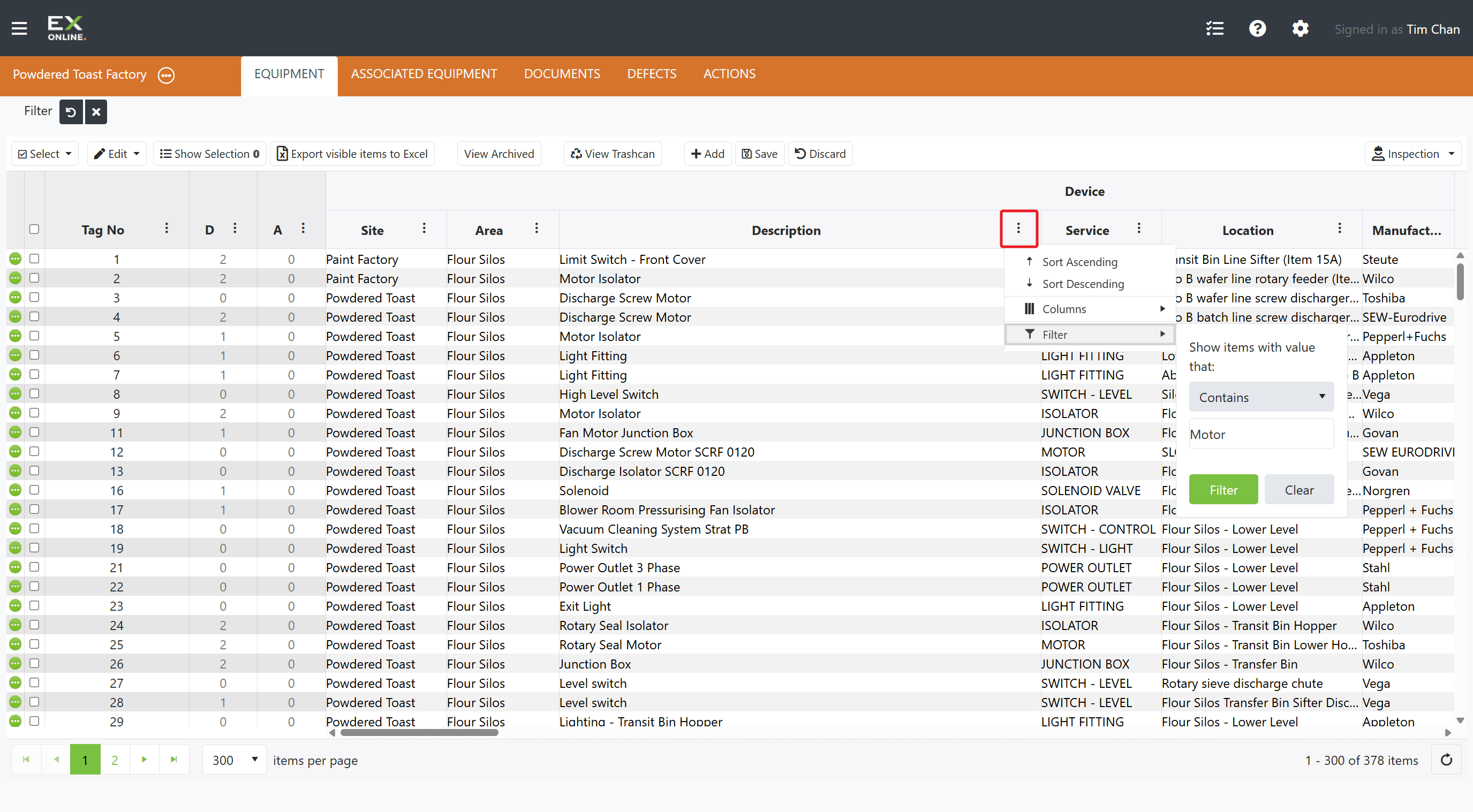
-
Click Filter — the grid now shows only items where Description contains “Motor”, and a filter tag appears in the Filter Bar.
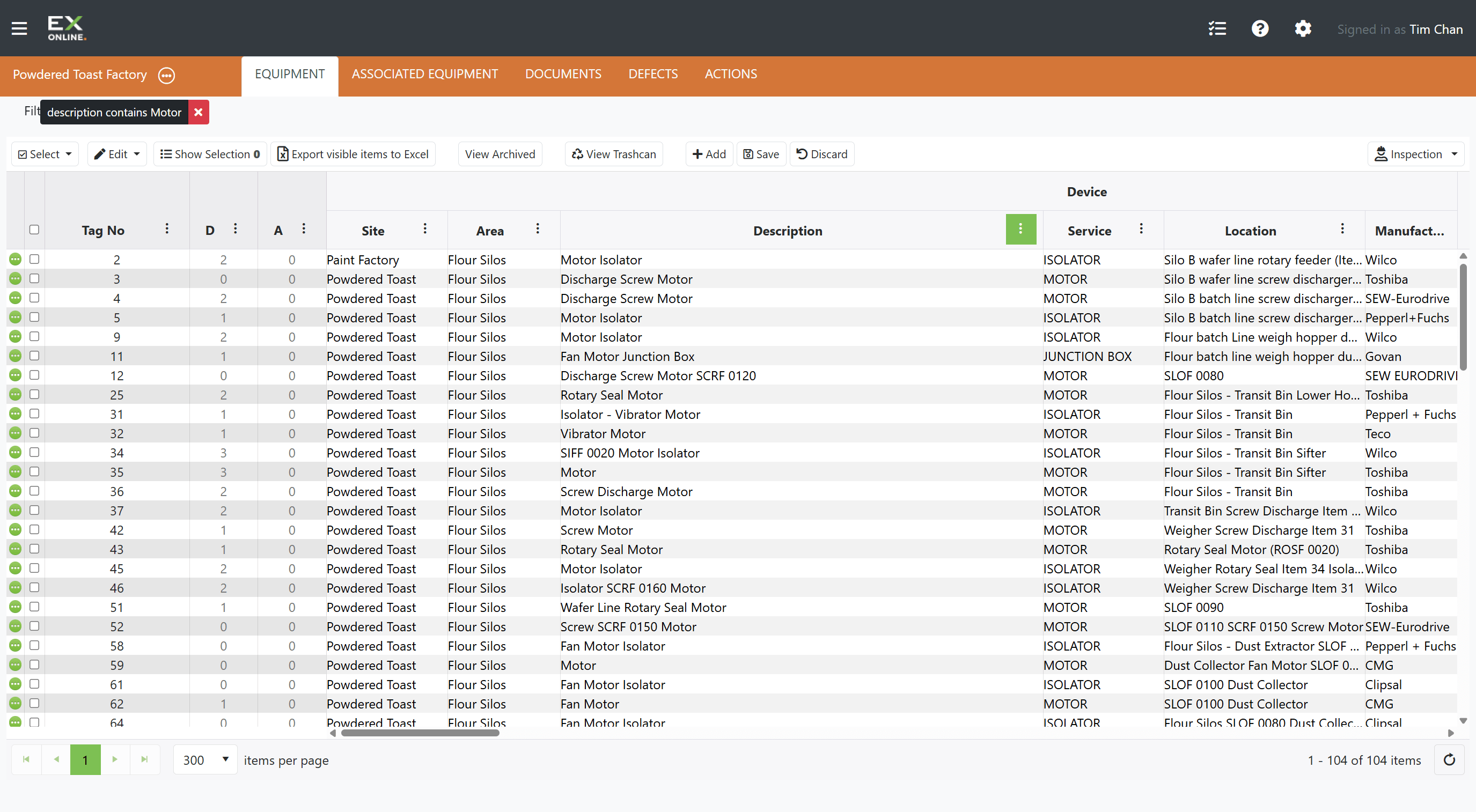
The same steps work on any column. For the full operator list, see the Filtering and Sorting reference.
Combining Filters
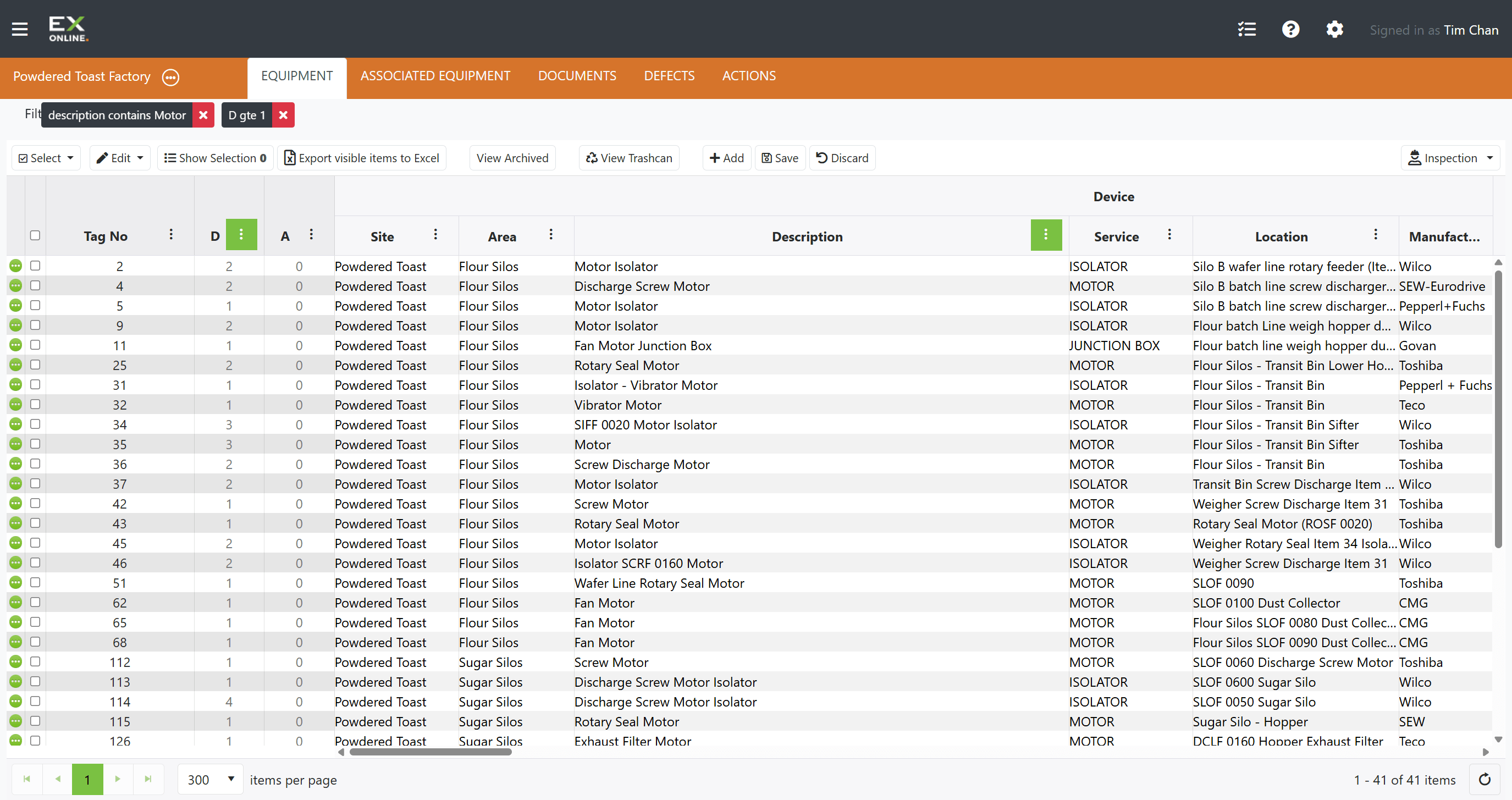
Section titled “Combining Filters”Multiple filters can be active at the same time. Each new filter adds to the existing ones — an item must match every active filter to appear (logical AND).
For example, adding a second filter D gte 1 (defects greater than or equal to 1) alongside the existing “description contains Motor” filter narrows the grid to only Motor items that also have at least one defect.
Toggling and Removing Filters
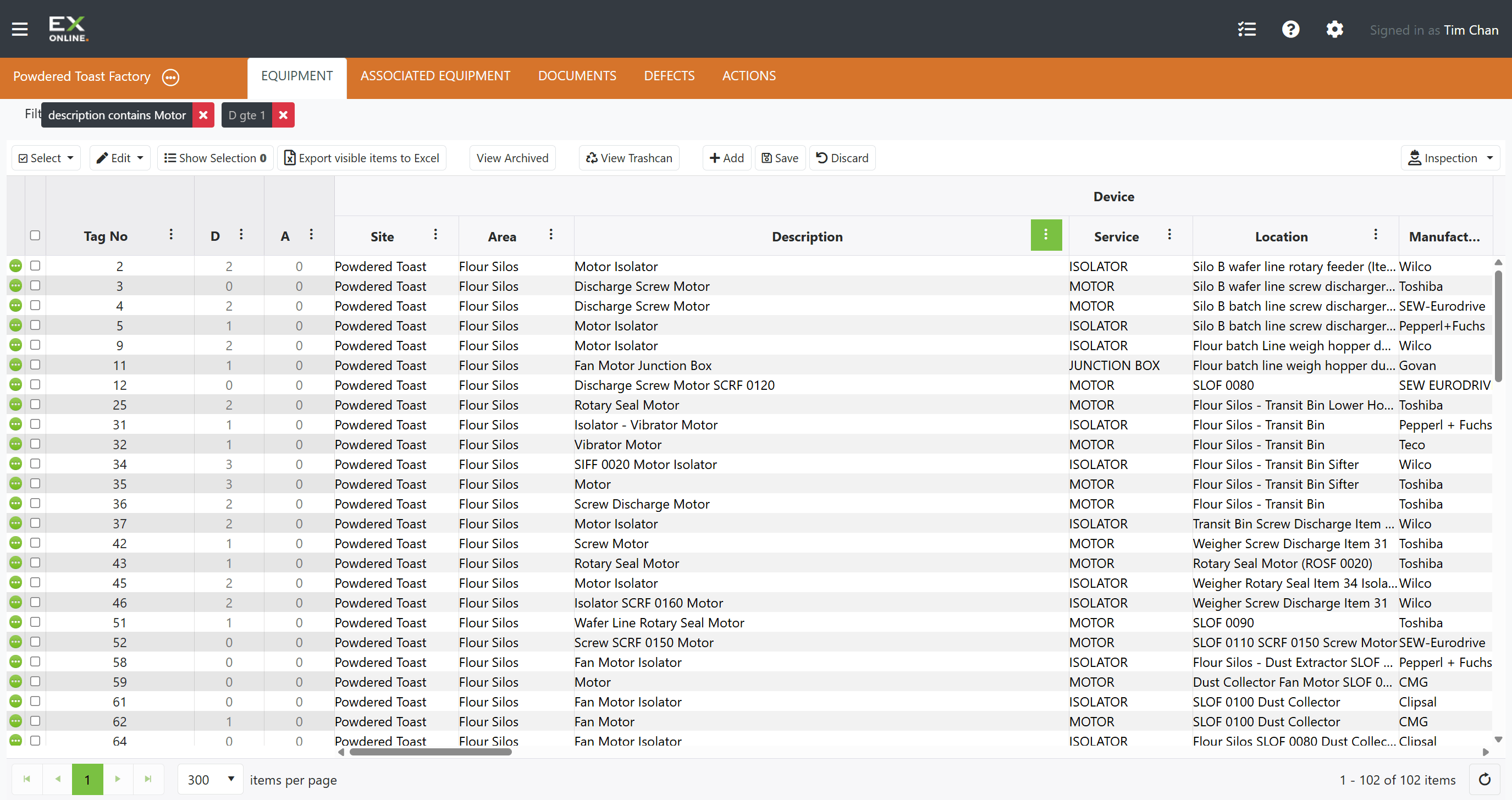
Section titled “Toggling and Removing Filters”The Filter Bar shows all applied filters as tags. Click a tag to toggle it between active and inactive — this lets you temporarily disable a filter without losing it. Click the X on a tag to remove it entirely.
- Active filters appear in full color

- Inactive filters appear greyed out

In the example below, “description contains Motor” is active (full color) while “D gte 1” is inactive (greyed out). The grid shows all Motor items regardless of defect count, because the D filter is not being applied.
Sorting by a Column
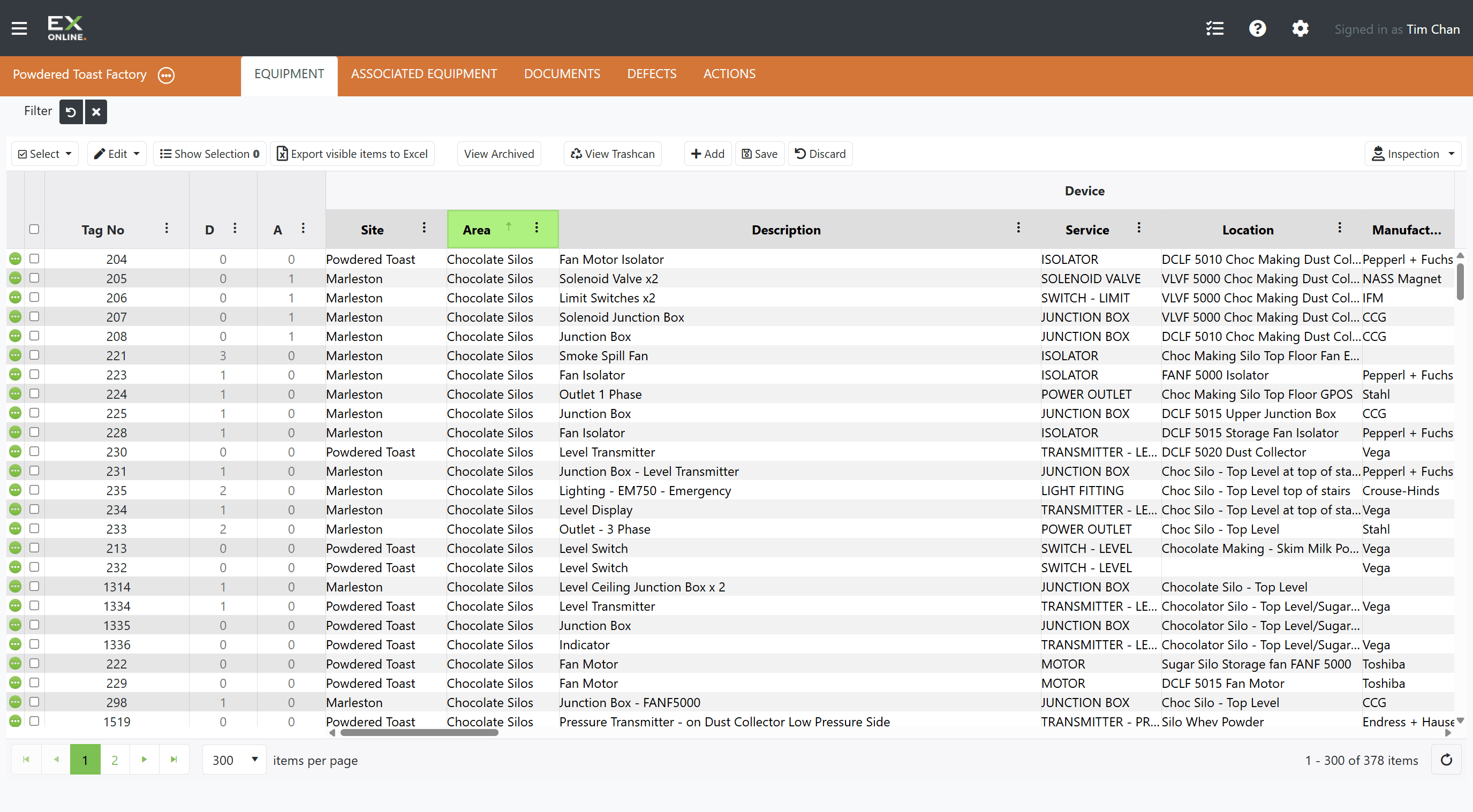
Section titled “Sorting by a Column”Click any column header to sort the grid by that column. Click the same header again to reverse the direction.
Sorting by Multiple Columns
Section titled “Sorting by Multiple Columns”To sort by more than one column, hold Shift and click additional column headers. Each column shows a number indicating its position in the sort order.
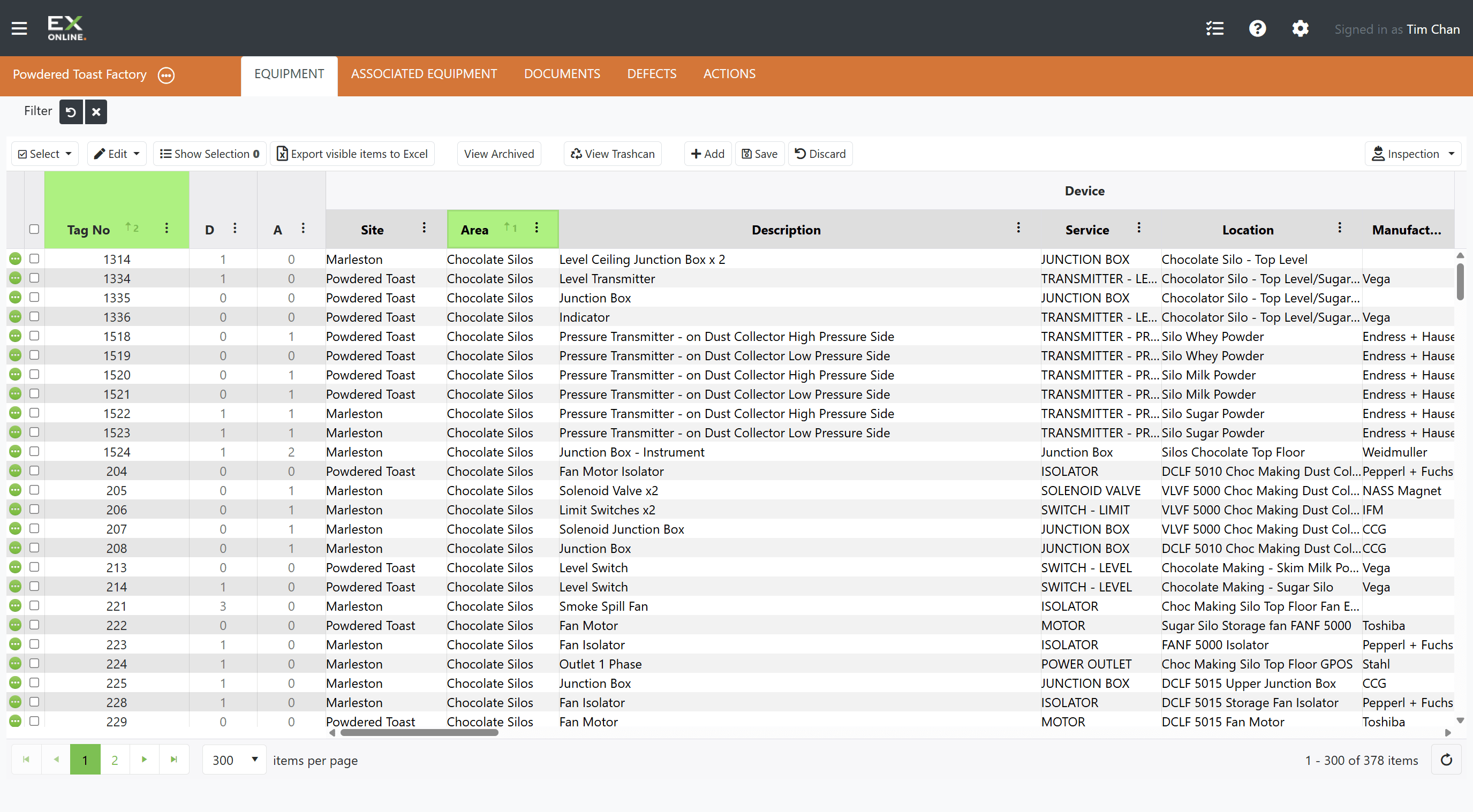
To reset, click any column header without Shift — this clears the stacked sort and starts a new single-column sort.
Related Topics
Section titled “Related Topics”- Filtering and Sorting Reference — Filter types, operators, sort precedence, and Filter Bar details
- Managing Equipment — Adding, editing, and bulk operations on equipment