
Equipment
Equipment items are the primary tagged devices in a project — each record holds certification details, inspection history, linked documents, defects, and actions.
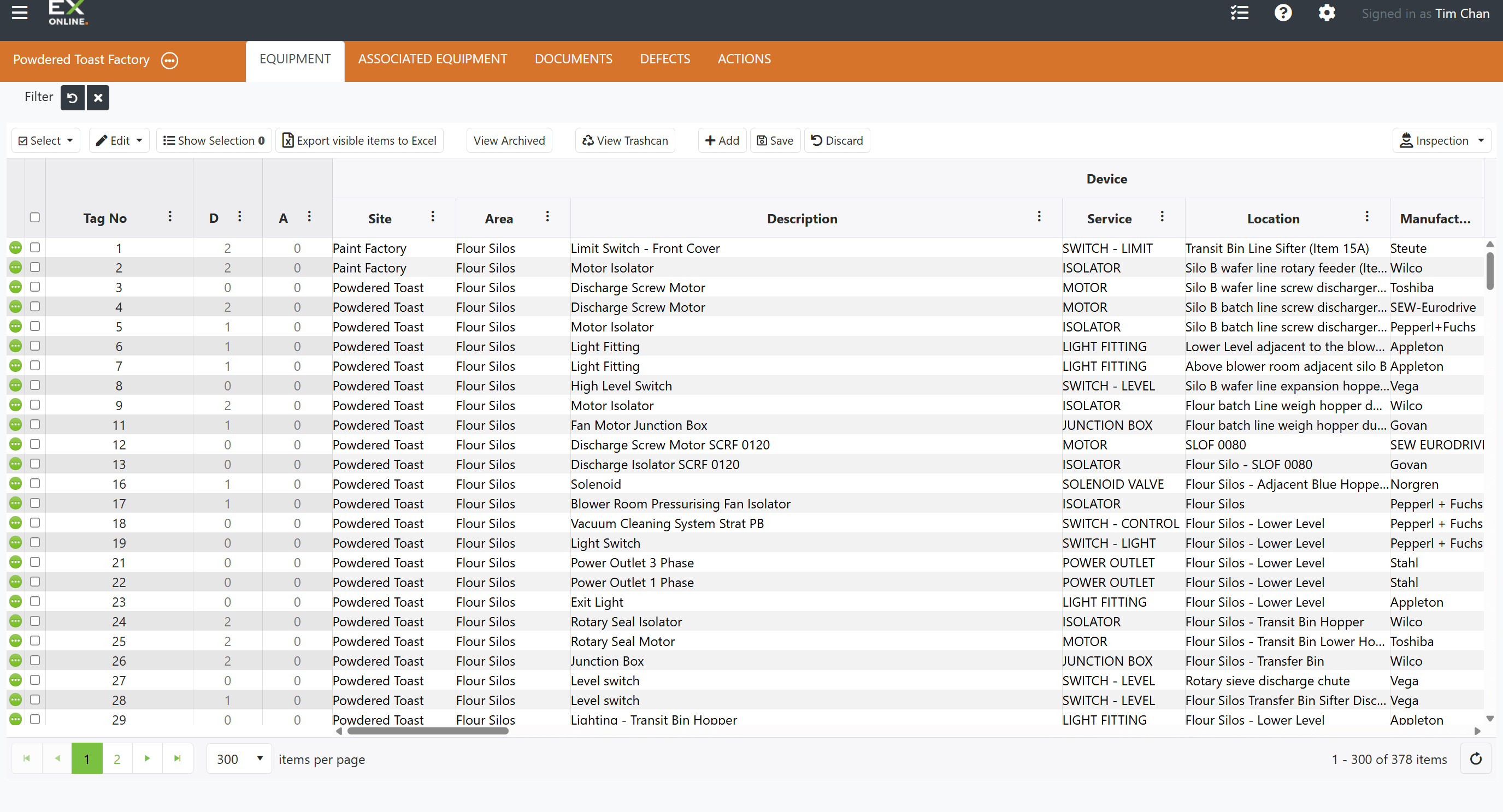
The EQUIPMENT tab is the default view when you open a project. It displays a paginated grid of every equipment item, with a toolbar for adding, editing, selecting, and inspecting items. For a visual overview of the tab layout, see the Project Dashboard interface.
Equipment Toolbar
Section titled “Equipment Toolbar”The toolbar includes filter and sorting controls for narrowing the grid — see Filtering and Sorting for details. The remaining buttons are listed left to right below.
| Button | Description |
|---|---|
| Select | Dropdown with Select All (selects all items on the current page within current filters) and Clear Selection (deselects all items in the project). |
| Edit | Dropdown with bulk operations for selected items — see Edit menu options below. |
| Show Selection | Display only selected items. Other filters remain active — results are the logical AND of all active filters. |
| Export to Excel | Export visible items to a spreadsheet (current page only). Respects current filter and sort settings. |
| View Archived | Show archived equipment. |
| View Trashcan | View deleted items for recovery. |
| Add | Create a new equipment record. |
| Save | Save pending changes (also refreshes the project). |
| Discard | Cancel unsaved changes. |
| Inspection | Dropdown with Download IWP and Upload IWP. See Inspections for details. |
Cells with pending unsaved changes highlight in yellow. The Save button commits changes; Discard cancels them.
Edit menu options
Section titled “Edit menu options”| Option | Description |
|---|---|
| Delete | Delete selected items. Deleted items can be recovered from the View Trashcan. |
| Search / Replace | Find a value across selected items and replace it with a new value. Operates on a chosen field. |
| Move / Copy | Copy or move field values between columns for selected items. |
| Undo | Revert the last bulk change applied to selected items. |
| Add Defect | Create a defect record for every selected item. |
| Add Action | Create an action record for every selected item. |
| Archive | Move selected items to the archive. |
| Duplicate to this project | Create copies of the selected items within the same project. |
| Duplicate to another project | Copy selected items into a different project. |
| Move to another project | Transfer selected items out of this project into another. |
Equipment Grid
Section titled “Equipment Grid”The grid displays column headers and equipment records. Editable cells accept direct input — yellow-highlighted cells indicate unsaved changes. Columns are sortable by header click, filterable via the icon next to each column name, and can be reordered or resized by dragging.
The Edit Column Settings icon next to any column header opens a menu for filtering, sorting, and showing or hiding columns.
| Column | Description |
|---|---|
| Expand icon | Green circle icon — opens the Equipment Window for that item. |
| Checkbox | Select or deselect individual rows for bulk operations. |
| Tag No | Unique identifier for the equipment item |
| D (Defects) | Number of open defects linked to this item |
| A (Actions) | Number of open actions linked to this item |
| Site / Area / Location | Equipment location fields |
| Description | Equipment description |
| Service | Equipment service type |
| Manufacturer / Model / Serial No | Equipment identification |
| Install / Purchase Date | Date the equipment was installed or purchased |
| Date / Grade / Date (IWP Upload) / Interval (MTH) | Last inspection fields — date, grade, IWP upload date, and inspection interval in months |
| Zone / EPL / Group / TClass / Temp Amb Min / Temp Amb Max / IP Rating | Area classification at device location |
| Certificate / EPL / Group / Protection / TClass / Temp Amb Min / Temp Amb Max / IP Rating | Device Ex rating and certification |
| KW / Voltage / Amps / Hz / RPM / Ia/In / tE | Device electrical rating |
| IS Input / IS Output parameters | Intrinsic Safety parameters (Ui, Ii, Pi, Ci, Li / Um, Uo, Io, Po, Co, Lo) |
| Other Associated Equipment Details | Additional associated equipment information |
| User Defined Fields | Customizable fields (SAP Equipment Number, Store Stock Number, P&ID Drawing Number, etc.) |
| Comment_1 / Comment_2 | User comments |
| Updated By / Updated Time | Audit trail — who last modified the item and when |
Pagination controls at the bottom of the grid provide page navigation and items-per-page settings.
Expand Icons
Section titled “Expand Icons”The green circle icons (three dots) on the left edge of each row open the Equipment Window for that item — attributes, linked documents, associated equipment, defects, actions, and change history. The icon turns gray while its window is open. Only one Equipment Window can be open at a time.
Related Topics
Section titled “Related Topics”- Equipment Window — Tabs, primary items, and edit modes
- Managing Equipment — Adding, editing, and deleting equipment
- Associated Equipment — Secondary devices linked to primary equipment
- Filtering and Sorting — Filter types, Filter Bar, column filters, and sorting
- Inspections — IWPs, download dialog, upload, and history