
Associated Equipment
Associated equipment items are secondary devices — glands, seals, stopping plugs, IS barriers — linked to primary equipment. They carry their own certification data and are included in Inspection Work Packs alongside the parent tag.
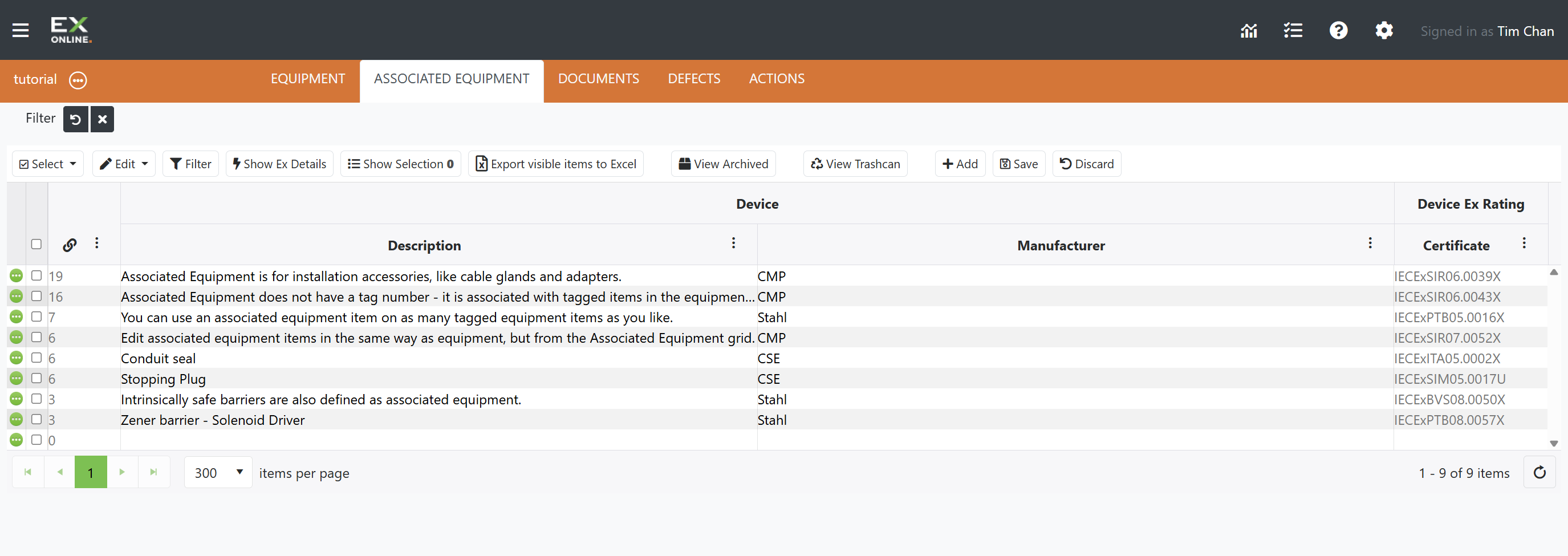
The ASSOCIATED EQUIPMENT tab on the Project Dashboard displays a grid of all associated equipment in the project. For a visual overview of the tab layout, see the Project Dashboard interface.
Certificates of Conformity
Section titled “Certificates of Conformity”The associated equipment register is designed to contain one record per Certificate of Conformity. Duplicate records are prevented from being created during imports, inspections, and from within the cloud portal. This is necessary so associated equipment records can be accurately and reliably linked and unlinked to equipment based on inspection results.
Although one Certificate of Conformity often covers a large range of equipment with multiple protection types, it is not necessary or recommended to record the specific details in the associated equipment register, and the Ex Details fields are therefore hidden by default. Visibility can be toggled by clicking Show Ex Details at the top of the grid if desired. They have also been removed from the Ex-Online import template.
The associated equipment register functions simply as a library of Certificates of Conformity that are in use in a project. We recommend that associated equipment descriptions be aligned with the Certificate of Conformity Equipment field (on page 1 of the certificate), for example, “Cable gland types ABC, XYZ and 123”. Specific details for the actual associated equipment items used with a given equipment item can be recorded (if desired) in the Other Associated Equipment Details field and/or the IS Barrier/Isolator Model field in the Equipment Register. In this way two different equipment items can have the same associated equipment Certificate of Conformity linked, but can detail different specific components used in their installations, for example, “XYZ Cable Glands M20” for item 1 and “ABC Cable Glands M25” for item 2.
Associated Equipment Toolbar
Section titled “Associated Equipment Toolbar”The toolbar buttons are listed left to right below. See Filtering and Sorting for more on narrowing the grid.
| Button | Description |
|---|---|
| Select | Dropdown with Select All (selects all items on the current page within current filters) and Clear Selection (deselects all items in the project). |
| Edit | Dropdown with bulk operations for selected items — see Edit menu options below. |
| Filter | Open the grid’s filter controls. |
| Show Ex Details | Show the Ex Details fields hidden by default. Click again to hide them. |
| Show Selection | Display only selected items. Other filters remain active — results are the logical AND of all active filters. |
| Export visible items to Excel | Export visible items to a spreadsheet (current page only). Respects current filter and sort settings. |
| View Archived | Show archived associated equipment. |
| View Trashcan | View deleted items for recovery. |
| Add | Create a new associated equipment item. |
| Save | Save pending changes (also refreshes the project). |
| Discard | Cancel unsaved changes. |
Cells with pending unsaved changes highlight in yellow. The Save button commits changes; Discard cancels them.
Edit menu options
Section titled “Edit menu options”| Option | Description |
|---|---|
| Delete | Delete selected items. Deleted items can be recovered from the View Trashcan. |
| Search / Replace | Find a value across selected items and replace it with a new value. Operates on a chosen field. |
| Copy to Projects | Copy selected records to other projects in your account. |
| Undo | Revert the last bulk change applied to selected items. |
| Archive | Move selected items to the archive. |
Copy to Projects lists target projects where you have edit rights. If a target project already contains a record with the same certificate number, a warning asks you to confirm updating that record. Confirmation updates its Description, Manufacturer, and any visible Device Ex fields with values from the source project. Equipment links in the target project remain unchanged.
Associated Equipment Grid
Section titled “Associated Equipment Grid”The grid displays column headers and associated equipment records. Editable cells accept direct input — yellow-highlighted cells indicate unsaved changes. Columns are sortable by header click, filterable via the icon next to each column name, and can be reordered or resized by dragging. Some columns are hidden by default, including the additional Ex Details fields.
The Edit Column Settings icon next to any column header opens a menu for filtering, sorting, and showing or hiding columns.
| Column | Description |
|---|---|
| Expand icon | Green circle icon — opens the Associated Equipment Window for that item. |
| Checkbox | Select or deselect individual rows for bulk operations. |
| Tag No. | Number of primary equipment items linked to this associated equipment item. |
| is_simple | Whether the item is a simple device. |
| Description | Short description identifying the item. |
| Service | Service type (e.g., IS Barrier, Gland, Seal, Stopping Plug). |
| Manufacturer / Model | Manufacturer name and model number. |
| Certificate / EPL / Group / Protection / TClass | Device Ex rating and certification. |
| Temp Amb Min / Temp Amb Max / IP Rating | Ambient temperature limits and IP rating. |
| IS Input parameters | Intrinsic Safety input: Ui (V), Ii (mA), Pi (W), Ci (uF), Li (mH). |
| IS Output parameters | Barrier/isolator output: Um (V), Uo (V), Io (mA), Po (W), Co (uF), Lo (mH). |
| Updated By / Updated Time | Audit trail — who last modified the item and when. |
Pagination controls at the bottom of the grid provide page navigation and items-per-page settings.
Expand Icons
Section titled “Expand Icons”The green circle icons (three dots) on the left edge of each row open the Associated Equipment Window for that item — attributes, linked documents, change history, and merge options. The icon turns gray while its window is open. Only one Associated Equipment Window can be open at a time.
Related Topics
Section titled “Related Topics”- Associated Equipment Window — Item Details, Documents, History, and Merge tabs
- Managing Associated Equipment — Adding, linking, merging, and archiving associated equipment
- Equipment Window — Assoc. Eq. tab for linking and unlinking
- Equipment — Primary equipment grid and toolbar
- Filtering and Sorting — Filter types, Filter Bar, column filters, and sorting