
Inspections
The Inspection Work Pack (IWP) system enables offline equipment inspections. Packages are assembled and downloaded from the Tag Browser, completed on a device using the Ex-Online Inspection App (or a PDF editor), and uploaded back to update equipment records and generate defects.
Inspection Dropdown
Section titled “Inspection Dropdown”The Inspection dropdown sits on the right side of the toolbar when the EQUIPMENT tab is active on the Project Dashboard. Equipment items must be selected before downloading an IWP.
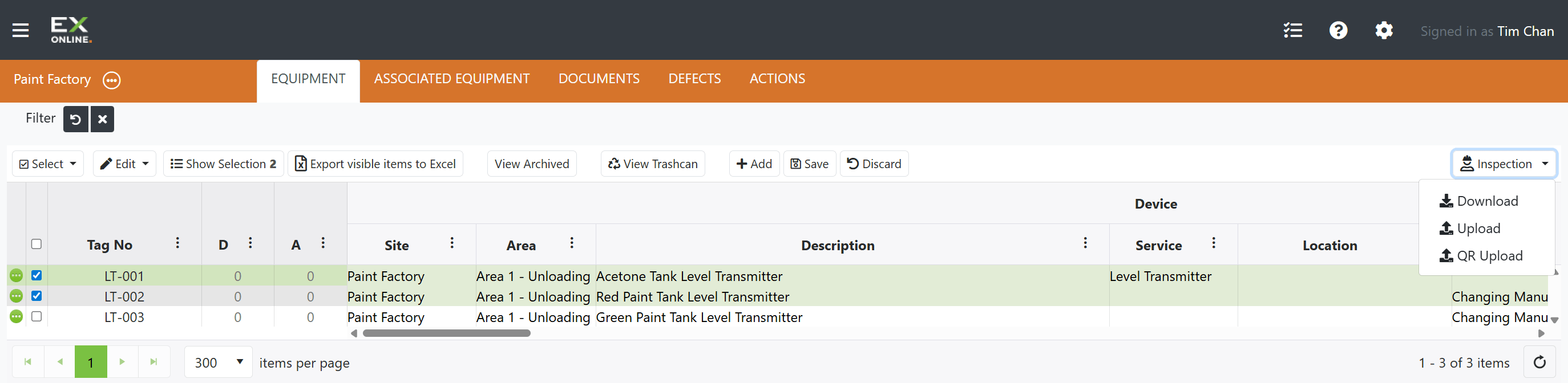
| Option | Description |
|---|---|
| Download | Opens the Checksheet Options dialog to assemble and download an IWP |
| Upload | Opens the Upload dialog to import completed .iwt result files |
| QR Upload | Opens a pairing page with a QR code for direct device-to-browser transfer |
Checksheet Options
Section titled “Checksheet Options”The Download option opens this dialog, titled Checksheet Options in the UI. It configures what goes into the IWP file before download. Only the equipment items selected in the grid are included.
In Ex-Online, a check sheet (also called an Inspection Check Sheet or ICS) is the per-item inspection questionnaire completed later in the Inspection App. This dialog sets the type, grade, bundled documents, and pack metadata — not the on-device check sheets themselves.
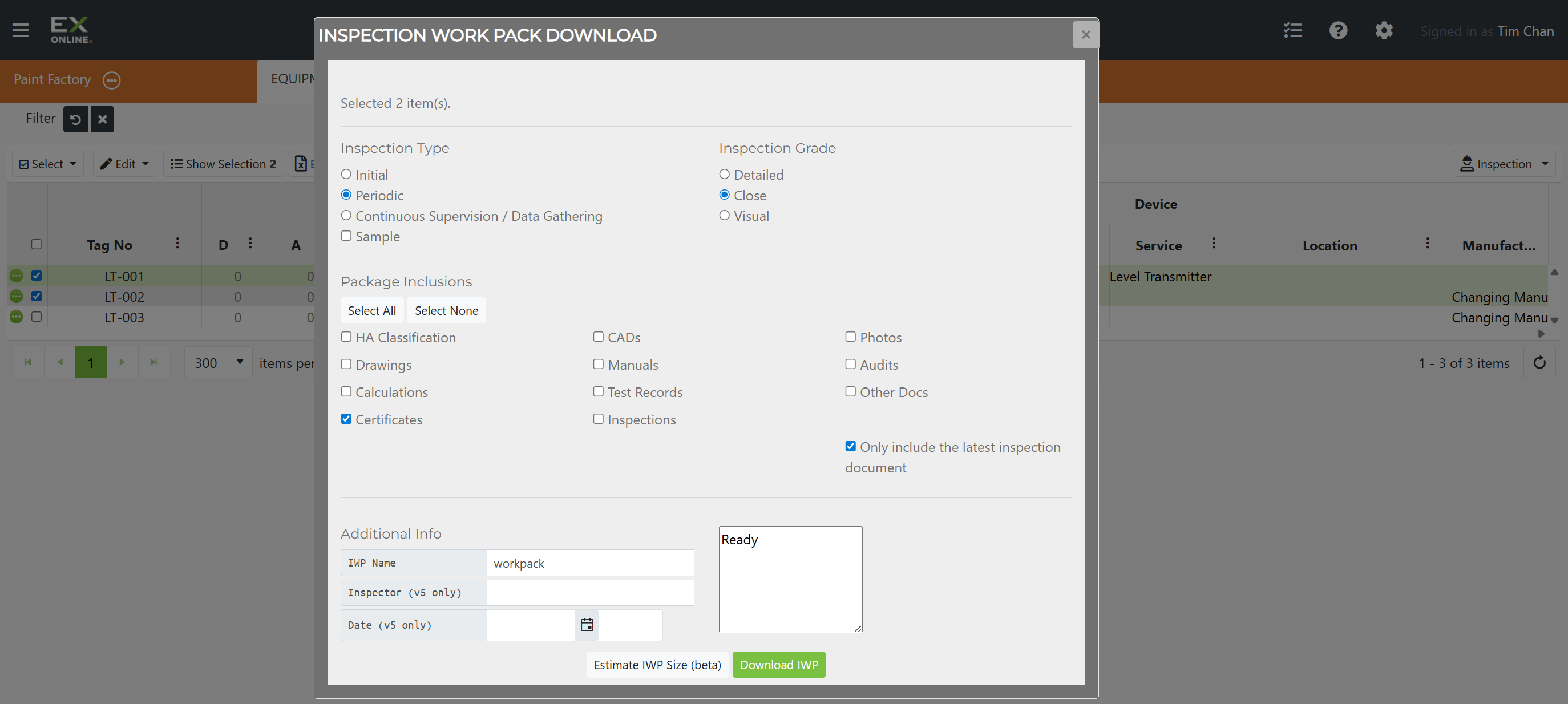
Inspection Type
Section titled “Inspection Type”| Type | Description |
|---|---|
| Initial | First-time inspection of new equipment |
| Periodic | Scheduled recurring inspection |
| Sample | Random sample inspection of equipment |
| Continuous Supervision / Data Gathering | Ongoing monitoring and data collection |
Inspection Grade
Section titled “Inspection Grade”The inspection grade controls which questions appear on the check sheet. Grades are listed from most checks to fewest.
| Grade | Description |
|---|---|
| Detailed | Comprehensive inspection with full documentation |
| Close | Standard inspection with visual and physical checks |
| Visual | Quick visual-only inspection |
| Continuous Supervision | General inspection questions only |
Package Inclusions
Section titled “Package Inclusions”Each checkbox controls whether a document category is bundled into the IWP. Select All and Select None toggle every checkbox at once.
| Option | Description |
|---|---|
| HA Classification | Hazardous area classification documents |
| Drawings | Engineering drawings and diagrams |
| Calculations | Design and engineering calculations |
| Certificates | Compliance and certification documents |
| CADs | CAD files and technical drawings |
| Manuals | Equipment manuals and guides |
| Test Records | Previous test and inspection records |
| Inspections | Historical inspection records for each item |
| Photos | Equipment photographs |
| Audits | Audit records and reports |
| Other Docs | Any other relevant documents |
When Inspections is ticked, the Only include the latest inspection document checkbox (enabled by default) controls how many records are bundled. With the checkbox on, only the most recent inspection record per item is included. Unticking it bundles the full inspection history, which can significantly increase the IWP file size.
Additional Info
Section titled “Additional Info”| Field | Description |
|---|---|
| IWP Name | Name for the inspection work pack file |
| Inspector (v5 only) | Inspector name, pre-filled on the check sheet. Only used when generating a PDF-based IWP (version 5 format) rather than an Inspection App package. |
| Date (v5 only) | Inspection date, pre-filled on the check sheet. Only used for PDF-based IWPs (version 5 format). |
Download Controls
Section titled “Download Controls”- Estimate IWP Size (beta) — previews the download size before generating the pack.
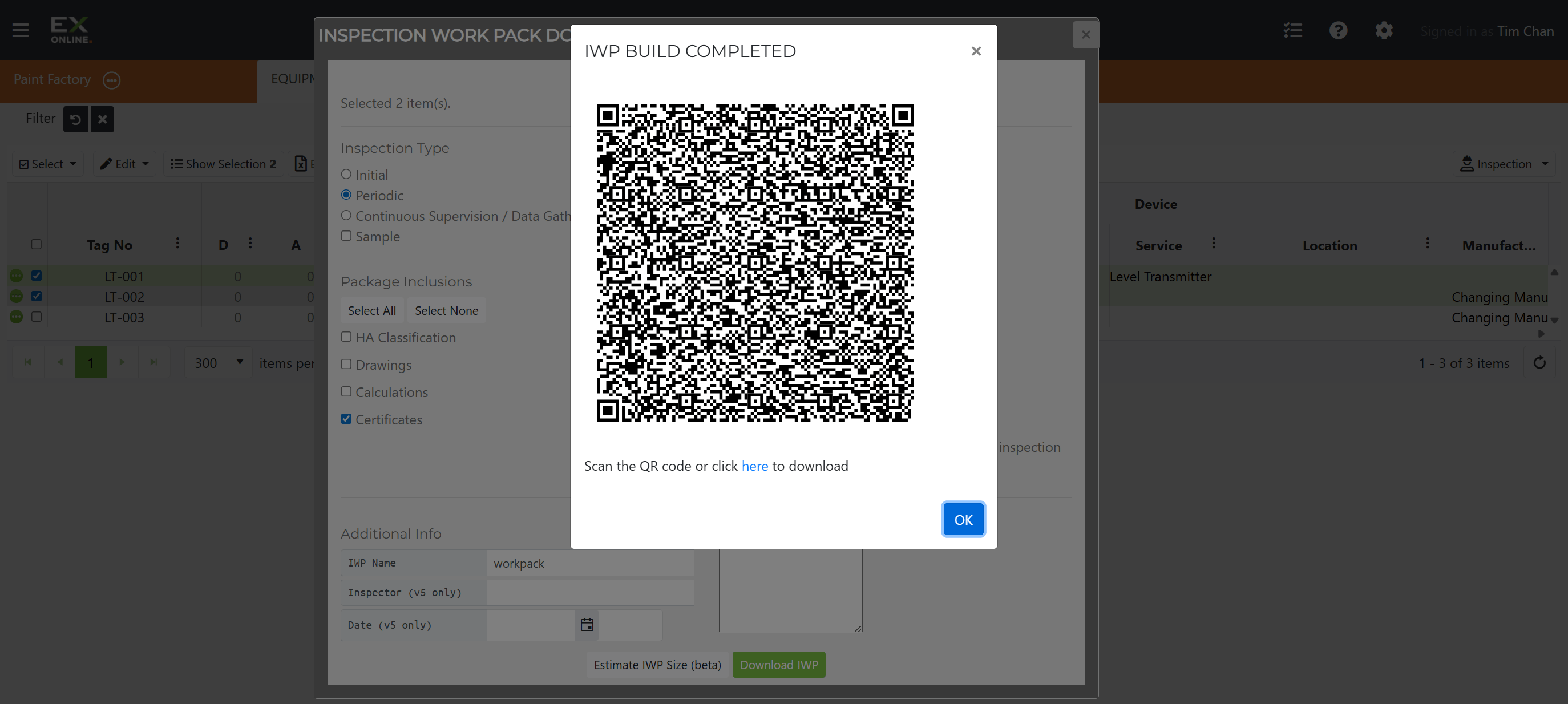
- Download IWP — generates and downloads the package. A completion dialog then displays a QR code for the Inspection App and a direct download link.
Upload Dialog
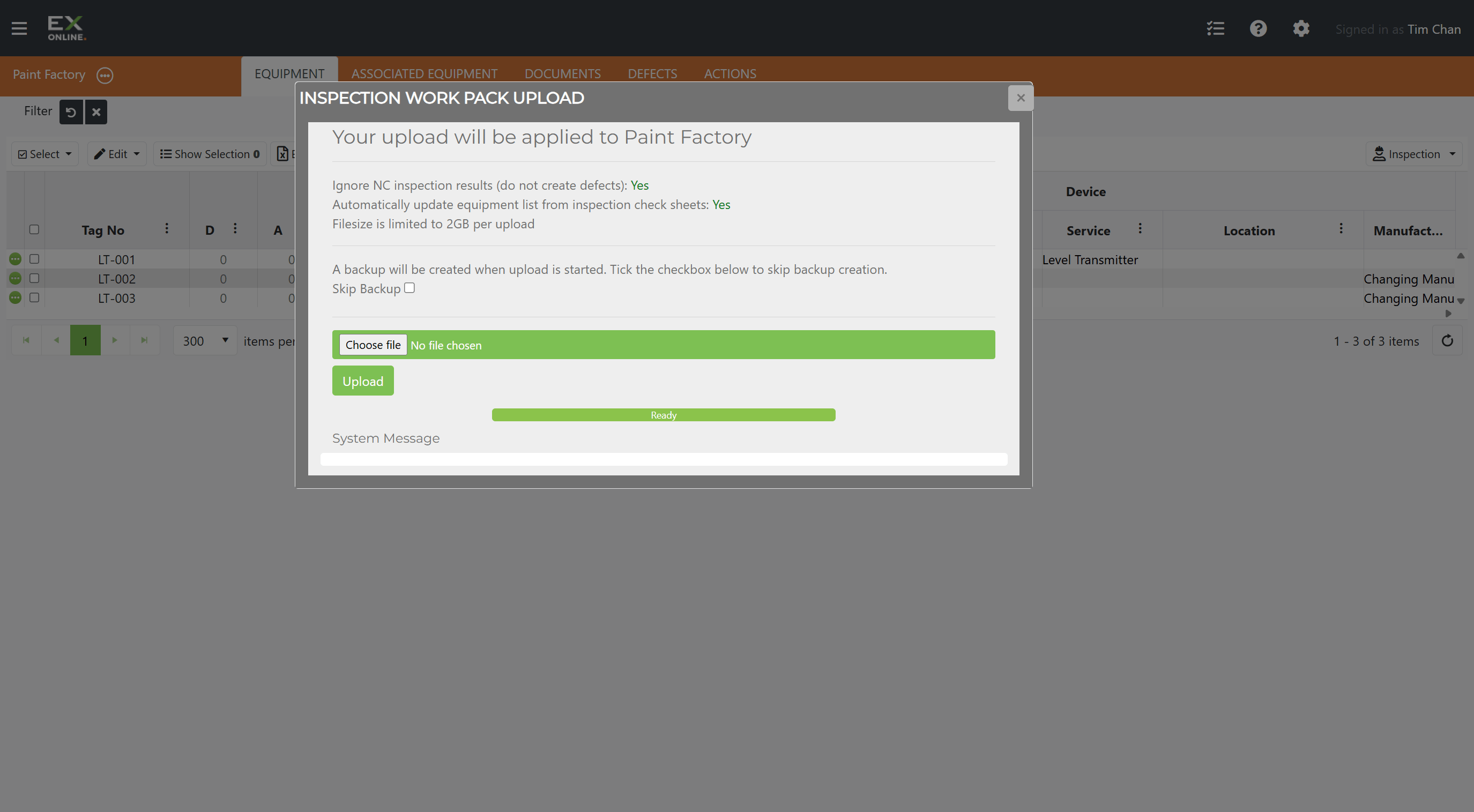
Section titled “Upload Dialog”The Upload option in the Inspection dropdown opens the Inspection Work Pack Upload dialog. It accepts .iwt transfer files created in the Inspection App (or completed PDF-based IWPs).
| Option | Description |
|---|---|
| Ignore NC inspection results | When set to Yes, Not Checked (NC) findings do not create defects |
| Automatically update equipment list | When set to Yes, equipment field values are updated from check sheet data. When No, changes require manual approval. |
| Skip Backup | Bypasses the automatic pre-upload backup (faster but less safe) |
A backup is created automatically before processing begins unless Skip Backup is checked. The maximum upload file size is 2 GB.
What Happens After Upload
Section titled “What Happens After Upload”- Equipment records are updated with inspection dates and results
- NC findings create new defects (unless Ignore NC inspection results is Yes)
- Inspection history is recorded for each equipment item
- The D (Defects) column in the equipment grid reflects new findings
For a step-by-step walkthrough, see Uploading Inspection Results.
QR Upload Page
Section titled “QR Upload Page”The QR Upload option opens a dedicated page that pairs a mobile device with the current project. The page displays a QR code and a time-limited upload URL. Scanning the code in the Inspection App’s Upload by QR Code flow initiates a direct transfer — no .iwt file is needed.
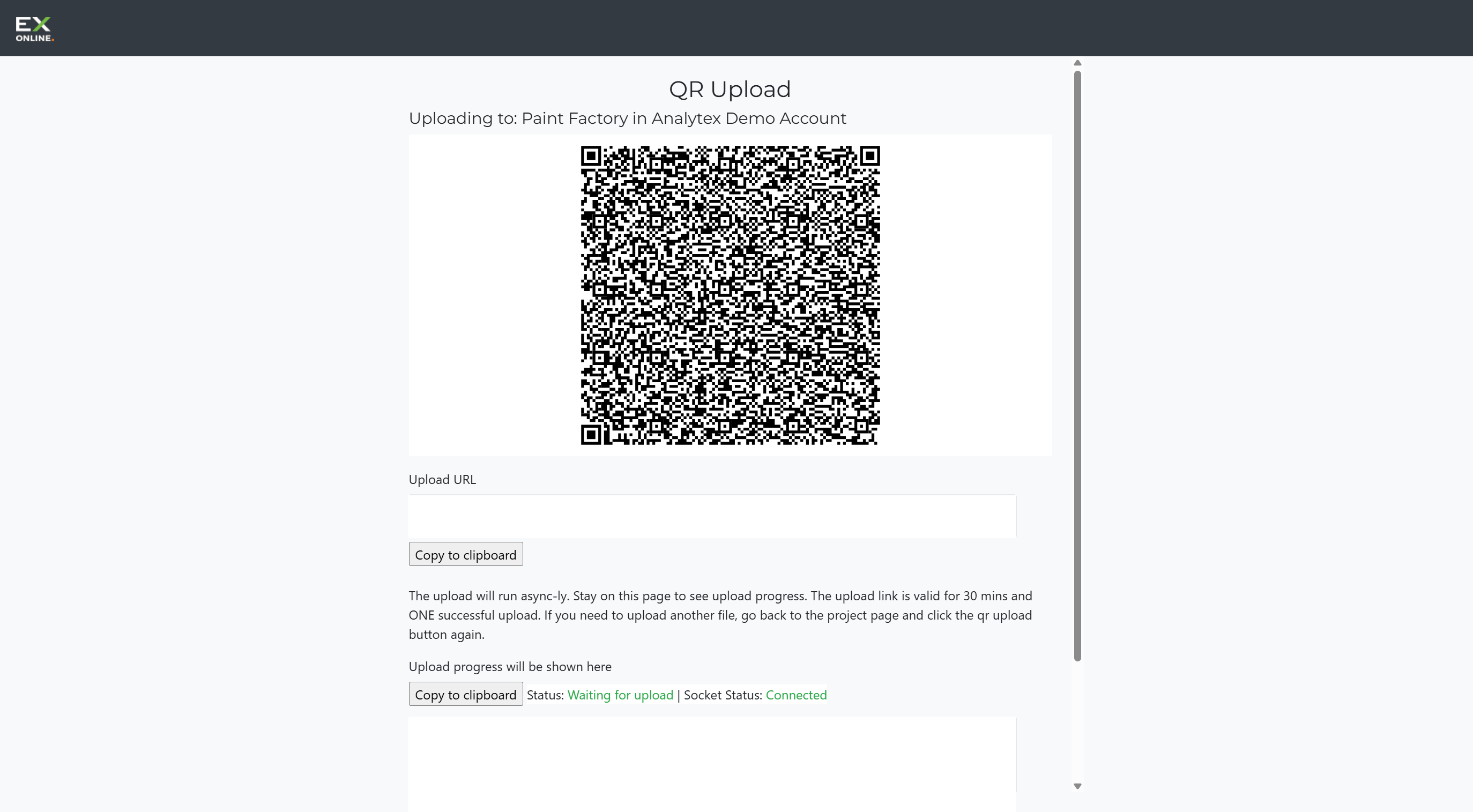
The upload link is valid for 30 minutes and one successful upload. Uploading another file requires returning to the Project Dashboard and selecting QR Upload again.
Inspection Columns
Section titled “Inspection Columns”After an IWP is uploaded, several columns in the equipment grid reflect the results:
| Column | Description |
|---|---|
| Date | Date of the most recent inspection for the item |
| Grade | Inspection grade used (Detailed, Close, or Visual) |
| D | Count of defects linked to the item, including any generated from NC findings |
| IWP Upload Date | Date and time the most recent IWP was uploaded for the item |
Inspection history for a specific item is available in the Equipment Window HISTORY tab, which logs every IWP import with timestamps and the uploading user.
Related Topics
Section titled “Related Topics”- Inspection App — App screens, check sheets, sign-off, and transfer
- Downloading an IWP — Step-by-step IWP download guide
- Uploading Inspection Results — Upload results via file or QR code