
Documents
Documents are files attached to a project or to individual equipment items — certificates, technical drawings, inspection reports, personnel qualifications, and more. They can be filtered by type, linked to equipment, versioned, and archived.
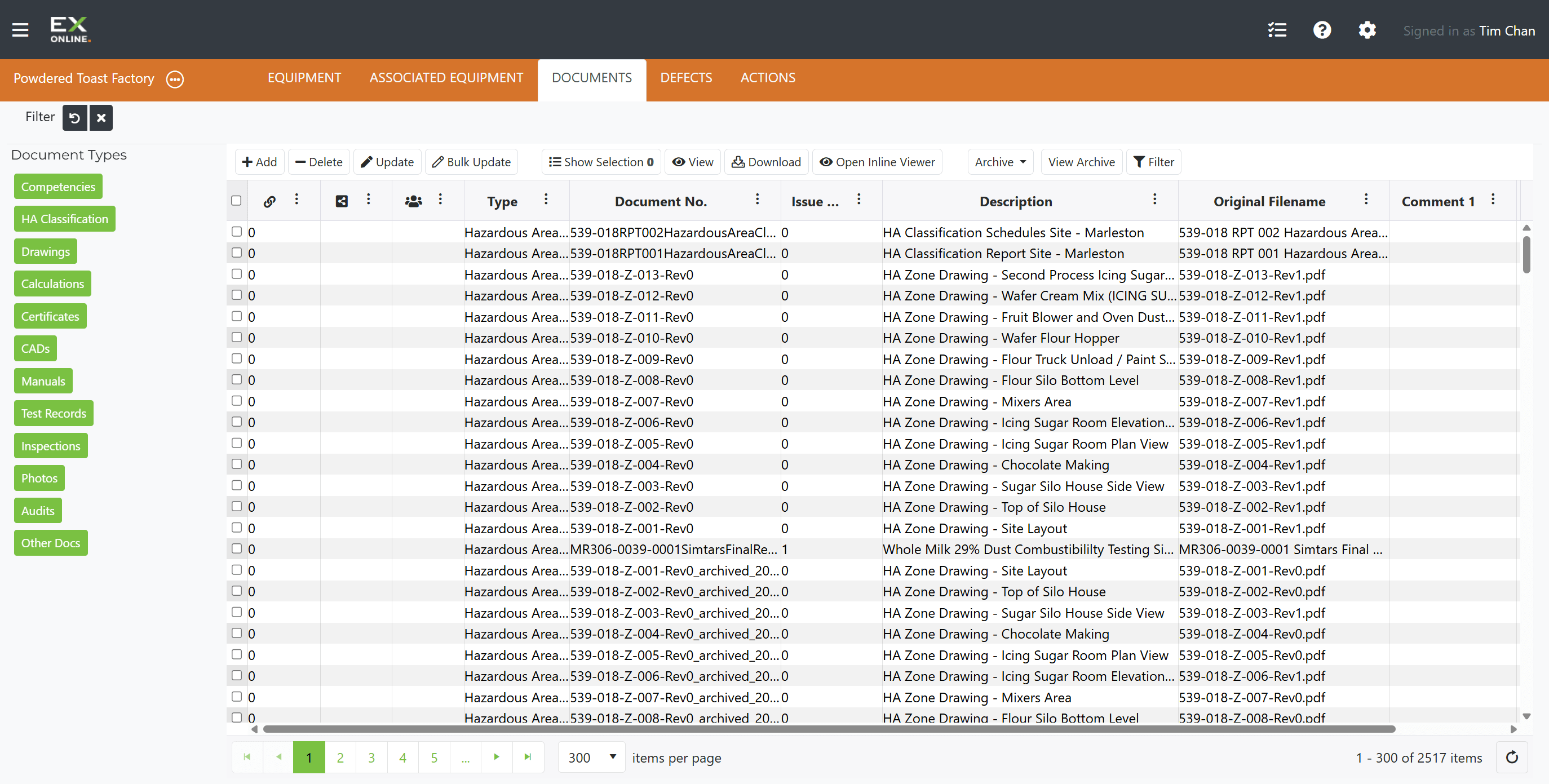
The DOCUMENTS tab displays all documents pertaining to a project. It supports uploading, filtering by type, linking to equipment, archiving, and version tracking.
Document Types
Section titled “Document Types”Documents in Ex-Online are categorized by type to help organize and identify them. The document type affects how documents are displayed and filtered.
| Type | Description |
|---|---|
| Certificate | Certificate of Conformity (IECEx, ATEX, ANZEx). Each equipment item can only have one Certificate attached — adding a second prompts replacement. |
| Annex | Supplementary sheets associated with a Certificate of Conformity |
| Photo | Photographs or images of equipment (nameplates, condition photos, installation records) |
| Drawing | Technical drawings other than hazardous area classification drawings (wiring diagrams, layouts, details) |
| Justification | Justification for use of equipment with alternative or non-standard certification (e.g., Conformity Assessment Documents) |
| Inspection | Inspection records, check sheets, and reports |
| Calculation | Engineering calculations (Intrinsic Safety, heat dissipation, cable calculations) |
| Haz. Area Class. Doc | Hazardous Area Classification drawings, reports, and schedules |
| Manu. Doc. | Manufacturer documentation (installation instructions, operation manuals, maintenance guides) |
| Qualification | Personnel qualification and competency documents (certifications, CVs, training records) |
| Other | Miscellaneous documents that don’t fit other categories |
Sidebar Filter Categories
Section titled “Sidebar Filter Categories”The sidebar groups documents into filter categories:
| Category | What It Includes |
|---|---|
| Competencies | Personnel qualifications and competency certificates |
| HA Classification | Hazardous area classification documents and drawings |
| Drawings | Technical drawings and schematics |
| Calculations | Engineering calculations and analysis documents |
| Certificates | ATEX, IECEx, UL, CSA, and other certification documents |
| CADs | CAD files and models |
| Manuals | Manufacturer documentation and operating manuals |
| Test Records | Test results and verification documents |
| Inspections | Inspection reports and checksheets |
| Photos | Equipment photographs and inspection images |
| Audits | Audit reports and compliance documents |
| Other Docs | Miscellaneous project documentation |
Selecting a category in the sidebar filters the grid. The Reset Filter button clears the selection.
Supported File Formats
Section titled “Supported File Formats”| Format | Extension |
|---|---|
.pdf | |
| JPEG | .jpg, .jpeg |
| PNG | .png |
| GIF | .gif |
Documents Toolbar
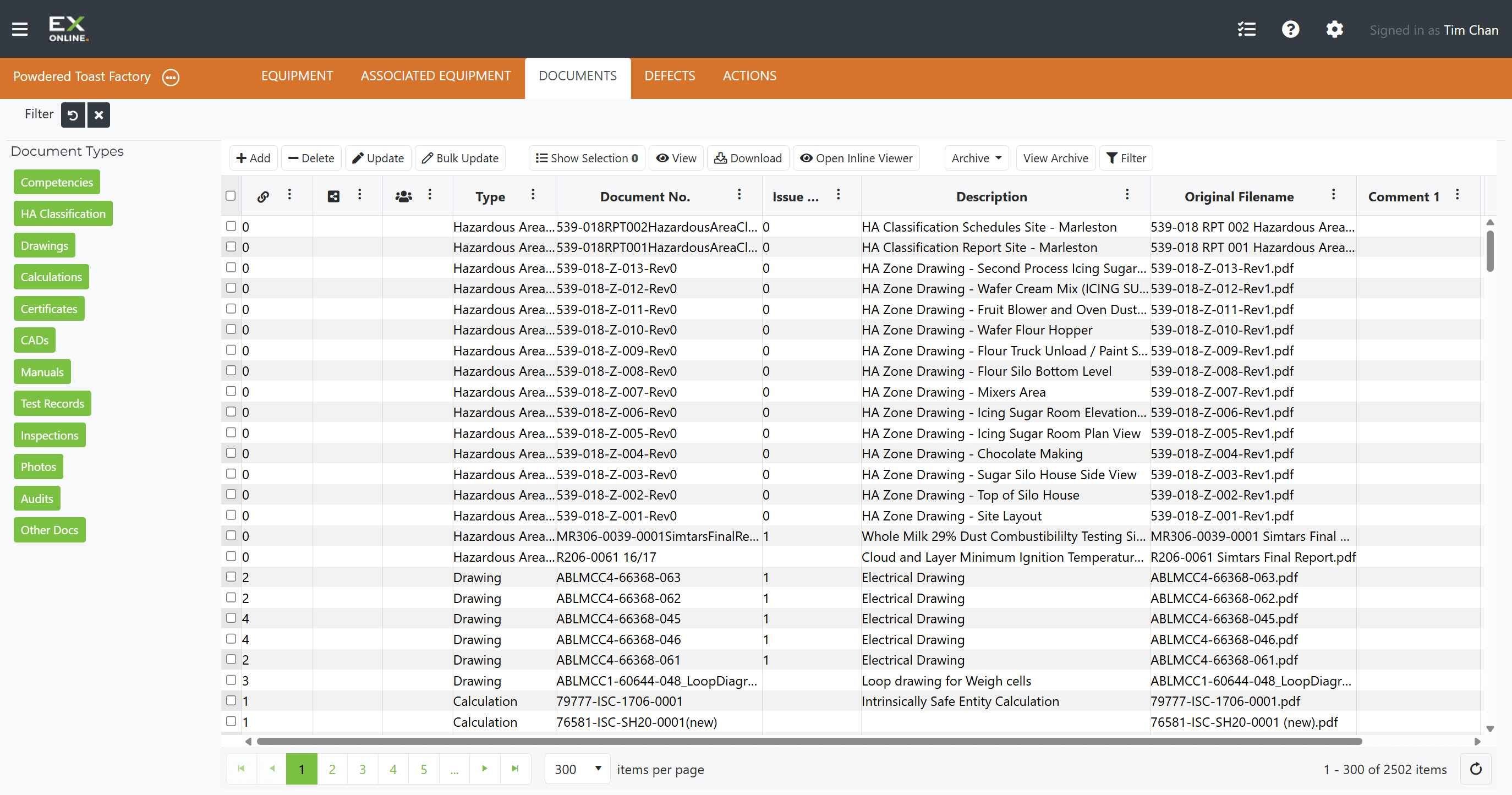
Section titled “Documents Toolbar”The toolbar provides actions for managing your documents.
| Button | Description |
|---|---|
| Add | Create a new document entry |
| Delete | Remove selected documents from the project. Deleted documents cannot be retrieved and will be automatically unlinked from relevant equipment items. |
| Update | Edit the selected document’s metadata and file. Disabled if more than one document is selected. |
| Bulk Update | Edit shared fields across multiple selected documents |
| Show Selection | Filter grid to show only selected documents |
| View | Open the selected document in the Ex-Online document viewer |
| Download | Download the selected document to your computer |
| Open Inline Viewer | Preview the document within the application |
| Archive | Move selected documents to the archive |
| View Archive | Toggle view to include archived documents |
The toolbar also includes filter and sorting controls for narrowing the grid — see Filtering and Sorting for details.
Adding Documents
Section titled “Adding Documents”Documents can be added in three ways depending on the type and intended association:
| Method | Where | What it creates |
|---|---|---|
| Equipment Document | Equipment Window > Documents tab > Add | A document linked to a specific equipment item (certificates, datasheets, calculations) |
| Project Document | DOCUMENTS tab toolbar > Add | A project-level document with metadata (Doc Type, Issue, Doc No, Description, Expiry Date) and an uploaded file |
| Personnel Document | Project Window > Personnel tab | A document attached to a personnel record (qualifications, licences) |
Account-level documents shared across all projects are managed via Account Resources and appear with a black dot icon in the project document browser.
For step-by-step instructions, see Managing Documents.
Updating Documents
Section titled “Updating Documents”Documents cannot be edited inline in the grid. The Update button opens a dialog where metadata fields and the attached file can be changed. Replacing a file offers an Archive existing document checkbox to preserve the previous version. No changes take effect until the dialog is confirmed.
The Bulk Update button applies shared field changes across multiple selected documents at once — empty fields in the dialog are ignored.
Document Grid Columns
Section titled “Document Grid Columns”Column header controls provide sorting, filtering, and show/hide options. The Edit Column Settings icon next to any column header shows or hides columns.
| Column | Description |
|---|---|
| Linked Equip. | Number of equipment items linked to this document. Clicking the number filters Equipment/Associated Equipment to show only linked items. |
| Share icon | Document is shared via Account Resources (black dot) |
| Personnel icon | Document is associated with personnel records |
| Type | Document type/category |
| Document No. | Document identifier |
| Issue No. | Revision/issue number |
| Description | Document description |
| Original Filename | Name of uploaded file |
| Comment 1 | User notes |
| Comment 2 | Additional user notes |
Archiving Documents
Section titled “Archiving Documents”The Archive button moves selected documents out of the default view. Archived documents are not deleted — they can be shown again by clicking View Archive in the toolbar, which toggles archived items into the grid.
Document Linking
Section titled “Document Linking”The Filter button in the Documents toolbar filters Equipment and Associated Equipment to show items linked to the selected documents. The Linked Equip. column shows how many items each document is linked to.
Related Topics
Section titled “Related Topics”- Managing Documents — Step-by-step guide for uploading, updating, and organizing documents
- Equipment — Link documents to equipment items
- Inspections — Manage inspection documents and checksheets