
Import Package Format
An import package is a ZIP file uploaded from the IMPORT/EXPORT tab in the Project Window to bulk-load data into a project. It contains:
- One or more Excel spreadsheets with equipment data, personnel, and document references. The spreadsheet drives the import — every record and link starts here.
- Document files (optional) — certificates, photos, drawings, or any other files referenced in the spreadsheet. Place them in the ZIP next to the spreadsheet — do not nest them in subfolders.
A typical import package looks like this inside the ZIP:
MyImport.zip├── Equipment.xlsx ← spreadsheet with equipment data├── IECEx-12345.pdf└── ANZEx-67890.pdf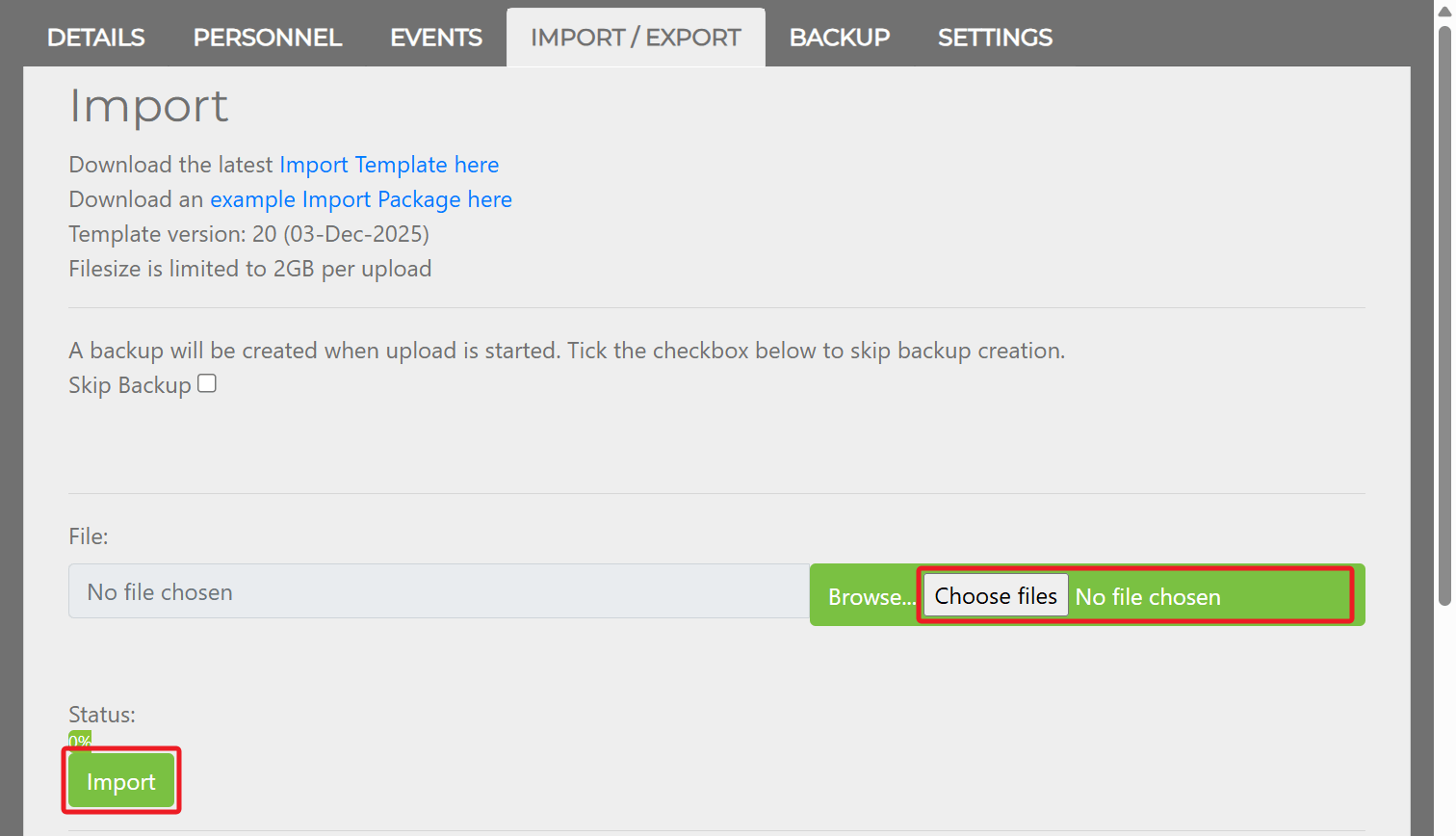
Spreadsheet Tabs
Section titled “Spreadsheet Tabs”The template contains multiple tabs. Not every tab needs to be filled — partial imports are supported.
| Tab | Purpose |
|---|---|
| Equipment | Main equipment register — tag numbers, locations, certification, Ex ratings, and electrical data |
| Equipment-Docs | Links documents (drawings, manuals, etc.) to tagged equipment |
| Associated Equipment | Untagged items (IS barriers, cable glands) linked to tagged equipment |
| Associated Equipment-Docs | Links documents to associated equipment items |
| Personnel | Plant personnel and their operational roles |
| Personnel Docs | Qualifications, competencies, and CVs linked to personnel |
| Project Docs | Project-level documents (HAC drawings, installation specs, GA drawings) |
Equipment Tab
Section titled “Equipment Tab”The Equipment tab is the largest, with columns organised into these groups:
| Group | What it covers |
|---|---|
| Device | Tag number, site, area, description, service, location, manufacturer, model, and serial number |
| Dates | Install/purchase date and last inspection date |
| Certificate | Certificate number, issue number, and certificate file name |
| Area Classification | Zone, EPL, group, temperature class, ambient temperature range, and IP rating for the device location |
| Device Ex Ratings | Equipment group, certification framework, protection type(s), EPL, group, temperature class, ambient range, and IP rating for the device itself |
| Electrical Ratings | Rated power, voltage, current, frequency, and speed |
| Ex e Motor Data | Start current ratio (Ia/In) and locked rotor time (tE) |
| IS Input Parameters | Simple device flag, Ui, Ii, Pi, Ci, and Li |
| IS Output Parameters | Barrier/isolator model, Um, Uo, Io, Po, Co, Lo, and other associated equipment details |
| User Defined Fields | Six free-text fields — labels are set in the header row |
| Comments | Two free-text comment fields |
| Associated Devices | Comma-separated item numbers linking to the Associated Equipment tab |
All fields are optional except tag number — it is required for every equipment row and is used to link documents. See Tag Numbers.
Associated Equipment Tab
Section titled “Associated Equipment Tab”The only required fields on the Associated Equipment tab are the item number and Cert #. All other fields are optional. The item number is used to link the associated equipment record to equipment through the Associated Devices column on the Equipment tab.
During import, if a record with the same certificate number already exists in the project, the existing record is linked to the relevant equipment items. If no record exists for that certificate number, a new record is created and linked.
Documents
Section titled “Documents”Document files are included alongside the spreadsheet in the ZIP. They are linked to equipment through the Equipment-Docs tab or the certificate columns on the Equipment tab.
File Rules
Section titled “File Rules”- File names are case-sensitive and must include the extension (e.g.
certificate.pdf, notCertificate). - Paths in the spreadsheet are relative to the ZIP root.
- Supported file types: PDF, JPG, PNG, GIF.
Certificates
Section titled “Certificates”- IECEx certificates are fetched automatically — the full certificate number is entered without spaces (e.g.
IECExPTB06.0025X). No file is needed in the ZIP. - Non-IECEx certificates (ATEX, ANZEx, CSA, etc.) — the file is included in the ZIP with the file name entered in the spreadsheet. If the file is not available yet, the system creates a placeholder record that can be updated later.
Document Type Codes
Section titled “Document Type Codes”These codes are used in the document type column of any Docs tab:
| Code | Description |
|---|---|
cert | Certificate of Conformity |
annex | Certificate annex or supplementary sheet |
justification_cad | Justification for use / Conformity Assessment Document |
hac_doc | Hazardous Area Classification document |
hac_dwg | Hazardous Area Classification drawing |
drawing | Drawing (electrical, layout, installation detail — not HAC) |
calc | Calculation (e.g. IS loop, heat dissipation) |
test_record | Test record |
insp | Inspection record |
audit_insp | Audit inspection record |
photo | Photograph or image |
mfr_doc | Manufacturer document (manual, installation instructions) |
qual | Qualification, CV, or competency document |
other | Miscellaneous |
other_1 – other_4 | User-defined document types |
Data Rules
Section titled “Data Rules”All date columns must use the format YYYY-MM-DD (e.g. 2025-08-15).
Formatting Notes
Section titled “Formatting Notes”- Protection types — entered without the “Ex” prefix, separating mixed techniques with spaces (e.g.
d efor Ex de). - Issue number — must be numeric only (e.g.
2, notRev 2). - Document number — required in every Docs tab row. The system uses it (together with issue number) to identify documents and prevent duplicates. Entered without spaces.
Tag Numbers
Section titled “Tag Numbers”Tag number (tag_no) is required on every equipment row.
- A unique Tag No. is recommended for each equipment item. Duplicate Tag Nos. are allowed, but they can produce unpredictable results.
- Do not use Import to update equipment that is already in the project. To change existing items, use Group Editing or the Equipment Window.
- For a document-only import, leave the Equipment tab empty and fill in Equipment-Docs. Enter the existing Tag No. in the Tag No column for the item each document should link to.
Limits
Section titled “Limits”| Limit | Value |
|---|---|
| Maximum package size | 500 MB |
| Maximum single file | 100 MB |
| Maximum items per import | 10,000 |
Validation
Section titled “Validation”The system checks each row on import and reports the result in an import summary.
| Check | What it means | How to fix |
|---|---|---|
| TAG_NO required | Every equipment row must have a tag number | Add the missing identifier |
| File paths valid | File names must match actual files in the ZIP | Correct the path or add the missing file |
| Date format | Date fields must be YYYY-MM-DD | Reformat the date column |
| File type supported | Only PDF, JPG, PNG, and GIF are accepted | Convert unsupported files to PDF |
Each row receives one of these statuses:
| Status | Meaning |
|---|---|
| Imported | Successfully added |
| Ignored | Skipped during this import |
| Failed | Error during import — expand the row for details |
Related Topics
Section titled “Related Topics”- Importing Data — Step-by-step import guide
- Documents — Document management reference
- Backing Up Projects — Back up before importing