
Project Info Panel
The Project Info Panel opens when you click the green circle icon on a project row in the Accounts Page. It provides a quick overview of a project without navigating away.
The panel has three tabs: INFO, USERS, and EVENTS.
INFO tab
Section titled “INFO tab”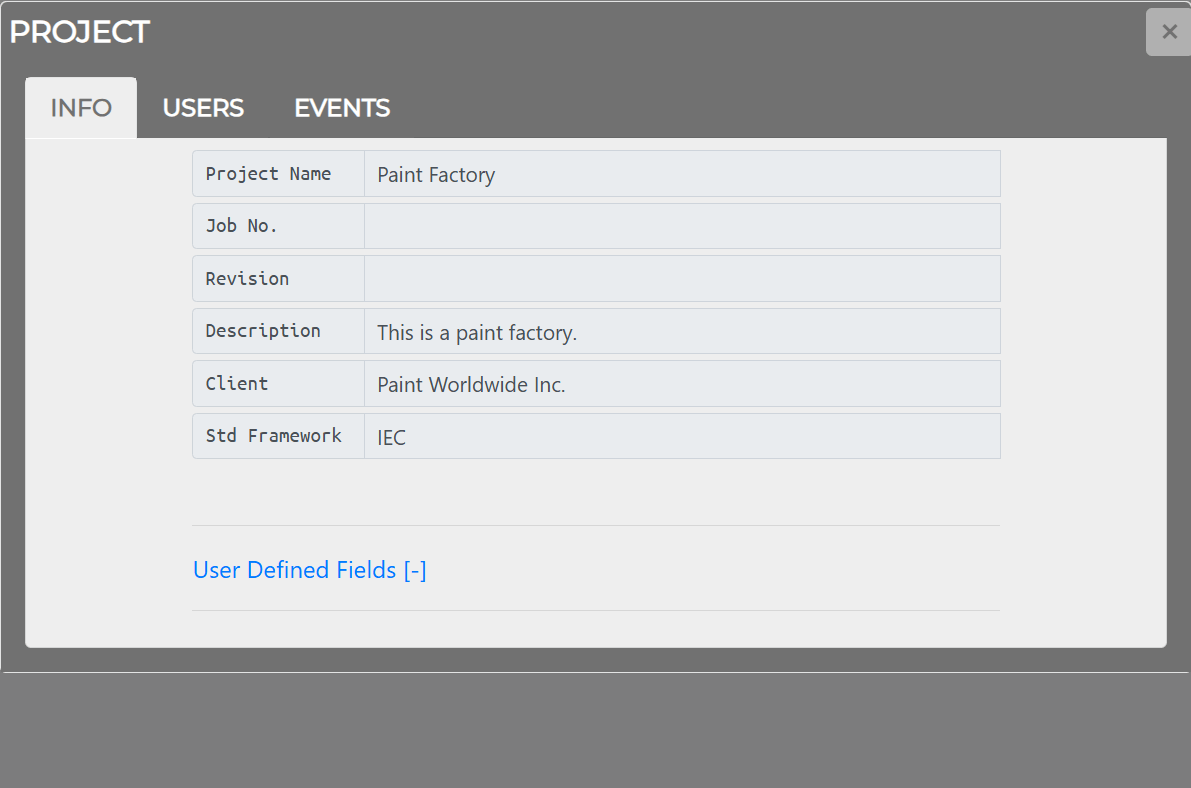
The INFO tab displays the project’s core details:
| Field | Description |
|---|---|
| Project Name | The display name of the project |
| Job No. | The job number assigned to the project |
| Revision | The current revision number |
| Description | A short summary of the project |
| Client | The client the project belongs to |
| Std Framework | The standards framework (e.g. IEC, ATEX) applied to the project |
| User Defined Fields | Expandable section with any custom fields configured for the project |
USERS tab
Section titled “USERS tab”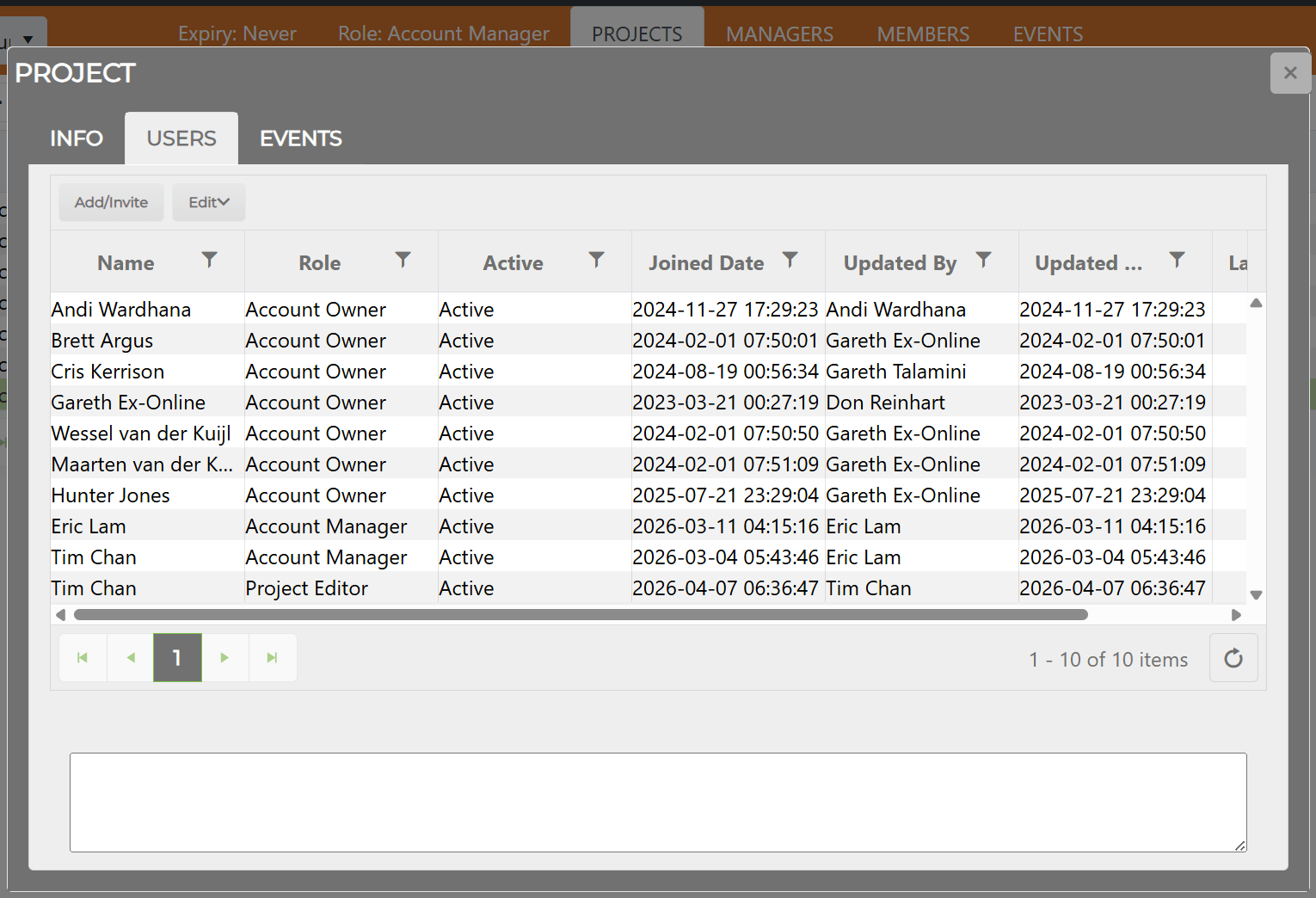
The USERS tab lists everyone assigned to the project and provides controls for inviting, editing, and removing users.
| Column | Description |
|---|---|
| Name | The user’s display name |
| Role | Their role on the project (e.g. Account Manager, Project Editor) |
| Active | Whether the user is currently active |
| Joined Date | When the user was added to the project |
| Updated By | Who last modified the user’s record |
| Updated Date | When the record was last modified |
| Last Project Access | When the user last opened the project |
Toolbar
Section titled “Toolbar”| Button | Description |
|---|---|
| Add/Invite | Opens the invite form to add a user to the project by email address. See Inviting Users. |
| Edit | Dropdown with actions for the selected user (see below). |
Edit dropdown
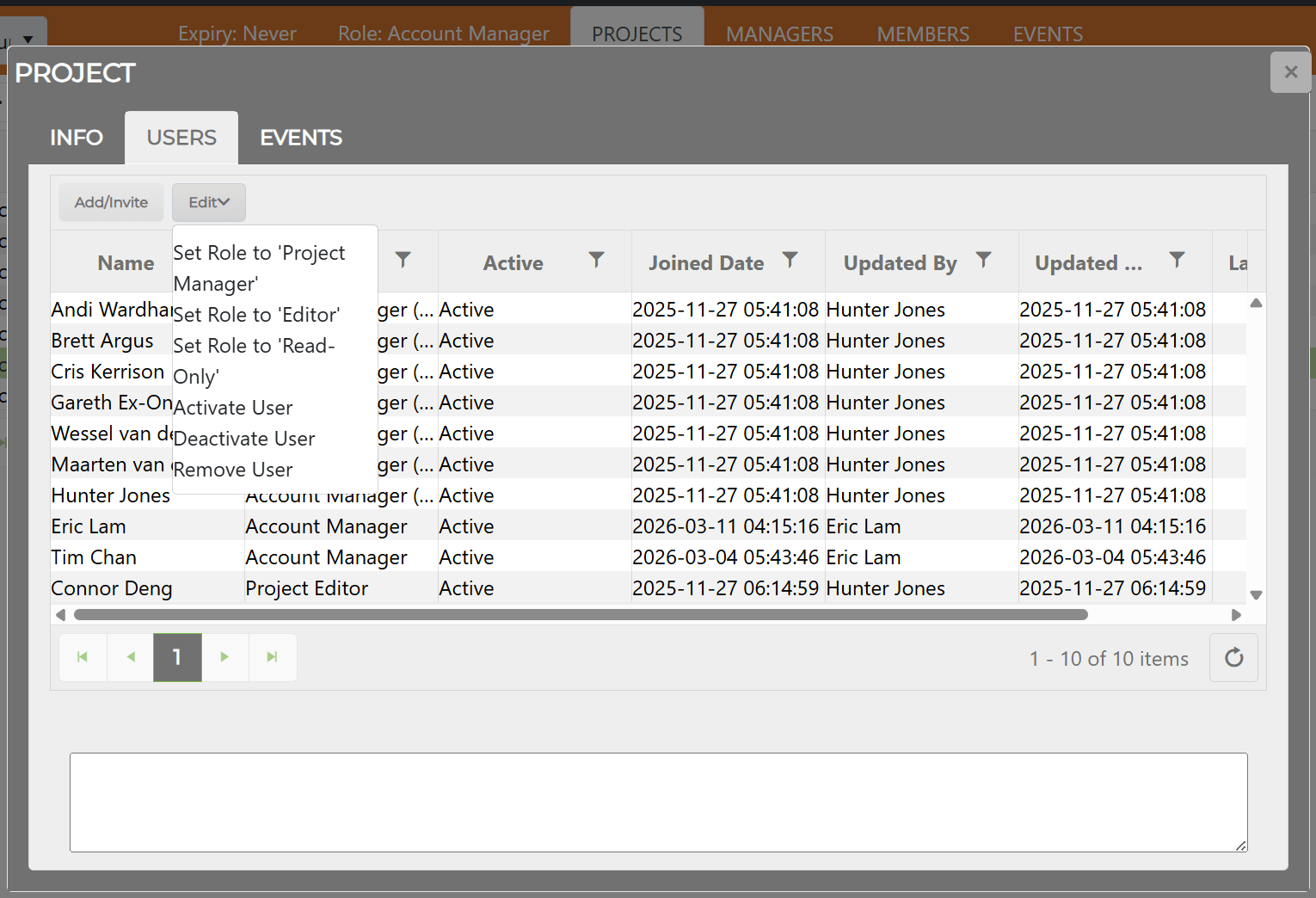
Section titled “Edit dropdown”Select a user row, then click Edit to access the following actions:
| Action | Description |
|---|---|
| Set Role to ‘Project Manager’ | Grants the selected user full project management access. |
| Set Role to ‘Editor’ | Allows the user to view and make changes. |
| Set Role to ‘Read-Only’ | Restricts the user to viewing only. |
| Activate User | Restores access for a previously deactivated user. |
| Deactivate User | Temporarily blocks the user from accessing the project. The user remains in the user list and can be reactivated later. |
| Remove User | Removes the user from the project entirely. Re-inviting is required to restore access. |
EVENTS tab
Section titled “EVENTS tab”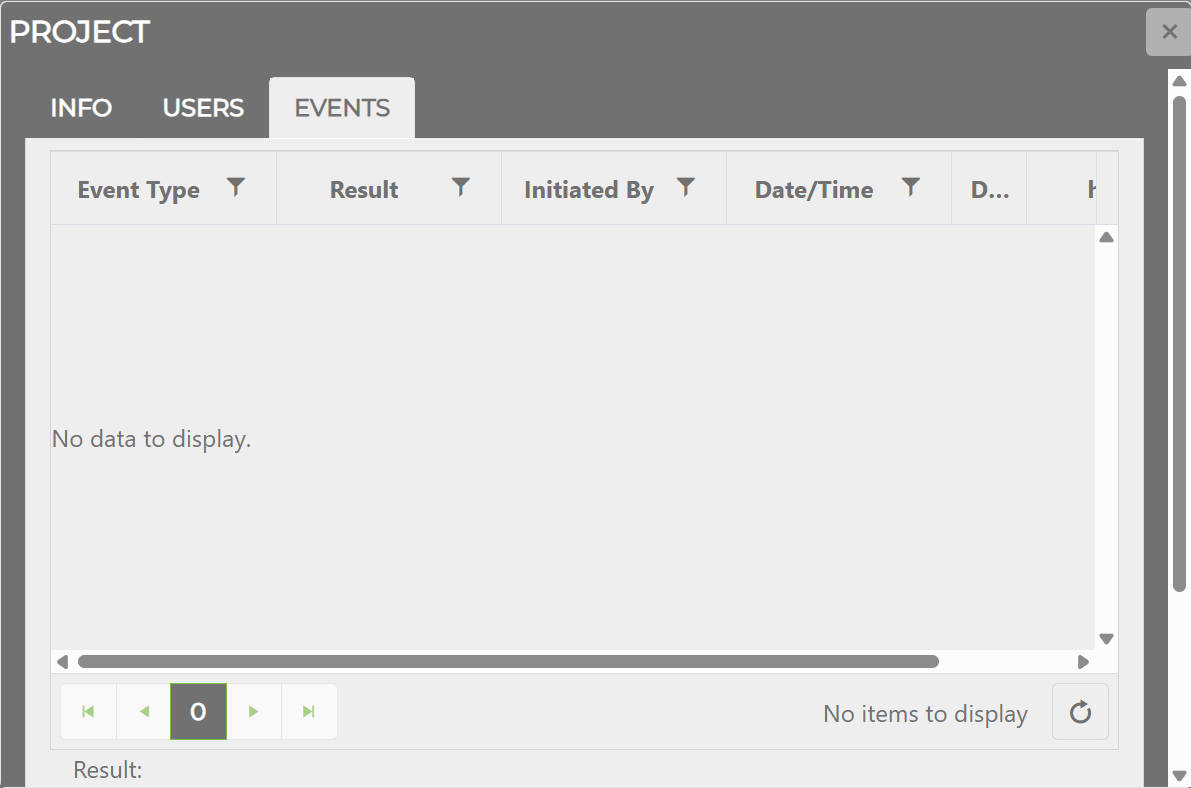
The EVENTS tab shows recent activity for the project. Columns include:
| Column | Description |
|---|---|
| Event Type | The kind of event (e.g. import, export, backup) |
| Result | Whether the event succeeded or failed |
| Initiated By | The user who triggered the event |
| Date/Time | When the event occurred |
| Download | A link to download the event’s output file, if available |
Related Topics
Section titled “Related Topics”- Accounts Page Interface — Main screen layout, toolbar, and project grid
- Owner & Manager View — Additional controls visible to Owners and Managers
- Inviting Users — Adding users via the USERS tab