
Defects
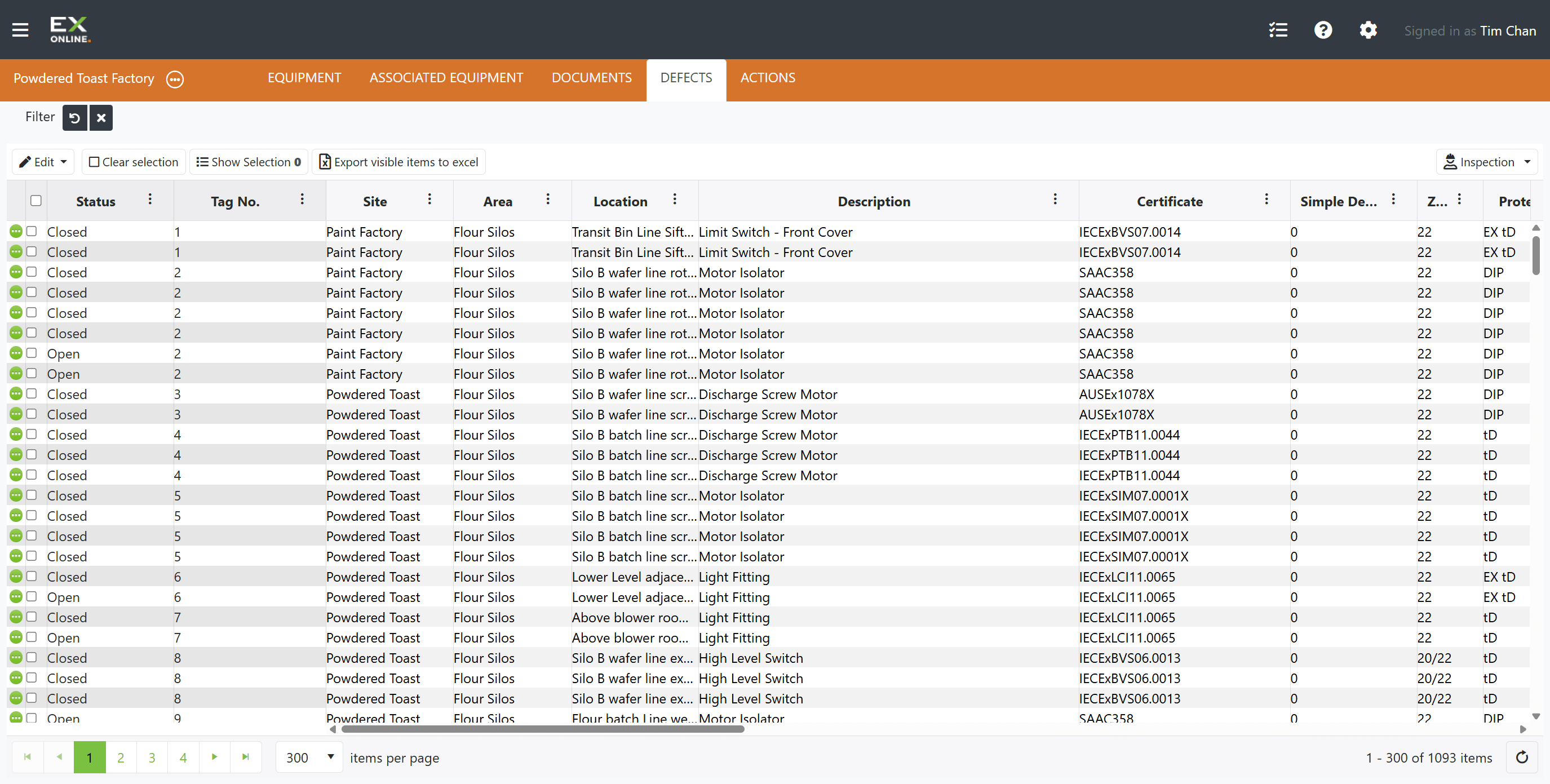
Defects document equipment issues and non-conformances — typically findings from inspections. The DEFECTS tab on the Project Dashboard displays a paginated grid of all defects in the project, with toolbar controls for editing, filtering, and exporting.
How Defects Are Created
Section titled “How Defects Are Created”Auto-generated from inspections: When inspection results are uploaded, any non-conformance (N) or Not Checked (NC) findings automatically create defects linked to the equipment item and inspection.
Manual entry: The Add Defect button in the Equipment Window’s Defects tab or the Edit menu on the DEFECTS tab creates a new defect manually.
Defects Toolbar
Section titled “Defects Toolbar”The toolbar includes filter and sorting controls for narrowing the grid — see Filtering and Sorting for details. The remaining buttons are listed left to right below.
| Button | Description |
|---|---|
| Edit | Access edit options — see Edit menu options below. |
| Clear selection | Clear all selected defects. |
| Show Selection | Display only selected defects. Other filters remain active — results are the logical AND of all active filters. |
| Export visible items to Excel | Export visible defects to a spreadsheet. Respects current filter and sort settings. |
| Inspection | Access inspection-related options. |
Edit menu options
Section titled “Edit menu options”| Option | Description |
|---|---|
| Open | Reopen previously closed defects |
| Close | Close selected defects with an optional comment |
| Change Priority | Set priority to High, Medium, Low, or Unassigned |
| Add Comment | Append a comment to selected defects |
| Update Rectification | Update rectification notes for selected defects |
| Update Other | Set values for User Defect 1/2 custom fields |
| Move / Copy | Transfer data between fields — Copy keeps the source value, Move clears it |
All Edit menu operations support bulk selection — select multiple items to apply changes in one step.
Defects Grid Columns
Section titled “Defects Grid Columns”Column header controls provide sorting, filtering, and show/hide options. The Edit Column Settings icon next to any column header opens a menu for filtering, sorting, and showing or hiding columns.
| Column | Description |
|---|---|
| Expand icon | Green circle icon — opens the Defect Window for that defect. |
| Checkbox | Select or deselect individual rows for bulk operations. |
| Status | Open or Closed indicator |
| Tag No. | Equipment tag number |
| Site / Area / Location | Equipment location fields |
| Description | Equipment description |
| Certificate | Equipment certificate number |
| Simple Device / Zone / Protection / Group / T Class | Equipment classification and Ex rating fields |
| Item # | Sequential item number |
| Inspection | Inspection that generated the defect. Displays “User Item” for manually created defects. |
| Result | Inspection result code — N (Non-Conformity) or NC (Not Checked) |
| Defect Details | Detailed description of the defect (populated from ICS comments or manual entry; cannot be edited after creation) |
| Priority | High / Medium / Low / Unassigned |
| Rectification | Notes on how to rectify the defect |
| Comment | Latest comment (not printed to generated IWPs) |
| User Defect 1 / 2 | User-defined custom fields (commonly used to link to SAP, Maximo, etc.) |
| Entry Date | Date/time the defect was created (UTC) |
| Latest Change / Last Action By / Last Action Date | Audit trail — most recent change timestamp, who made it, and when |
Expand Icons
Section titled “Expand Icons”The green circle icons (three dots) on the left edge of each row open the Defect Window for that defect — status, comments, custom fields, and change history. The icon turns gray while its window is open. Only one Defect Window can be open at a time.
Related Topics
Section titled “Related Topics”- Defect Window — Status, comments, custom fields, and change history
- Actions — ACTIONS tab on the Project Dashboard
- Managing Defects — Creating, closing, and managing defects
- Filtering and Sorting — Filter types, Filter Bar, column filters, and sorting