
Coming from Classic
Start with these everyday tasks or the quick comparison. For other work, see More task guides or press Ctrl + K for site search.
Open a project
Section titled “Open a project”From Home, open the sidebar with the menu button at the top left.
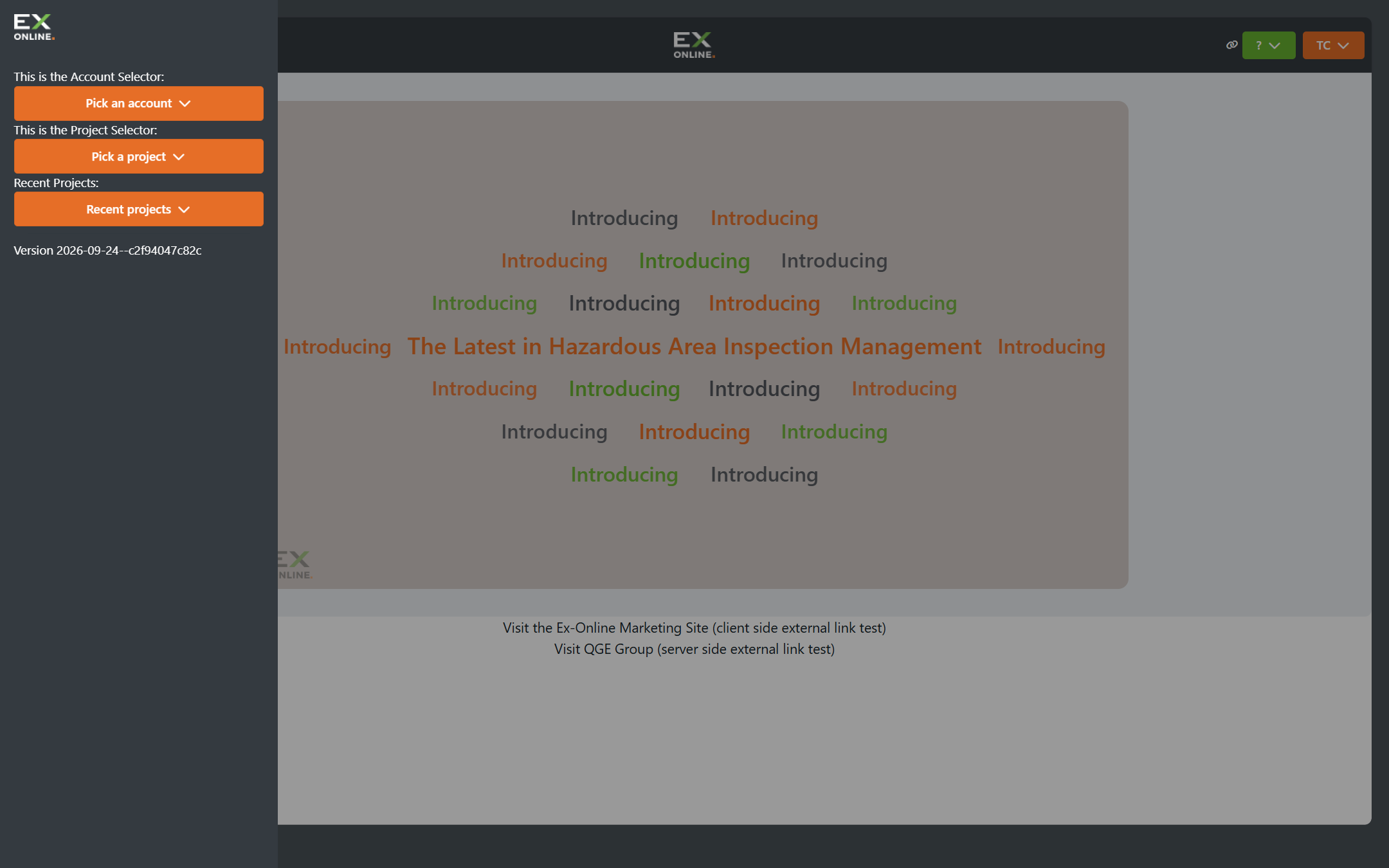
Then choose the option that fits:
- Pick an account: Choose the account that contains your project to open its Projects page. Then locate your project and open it.
- Pick a project: Select a project you can access to open it directly.
- Recent projects: Reopen a project you have used recently.
Open item details
Section titled “Open item details”Classic’s three-dot button has been reworked into two separate controls:
- Three-dot button — opens the item’s details beside the grid.
- Dropdown button — shows more options for the item.
Take the EQUIPMENT tab as an example. Select an equipment row’s three-dot button to open its details beside the grid.
The three-dot button turns green when that item’s details are displayed. To view another item’s details, select its three-dot button .
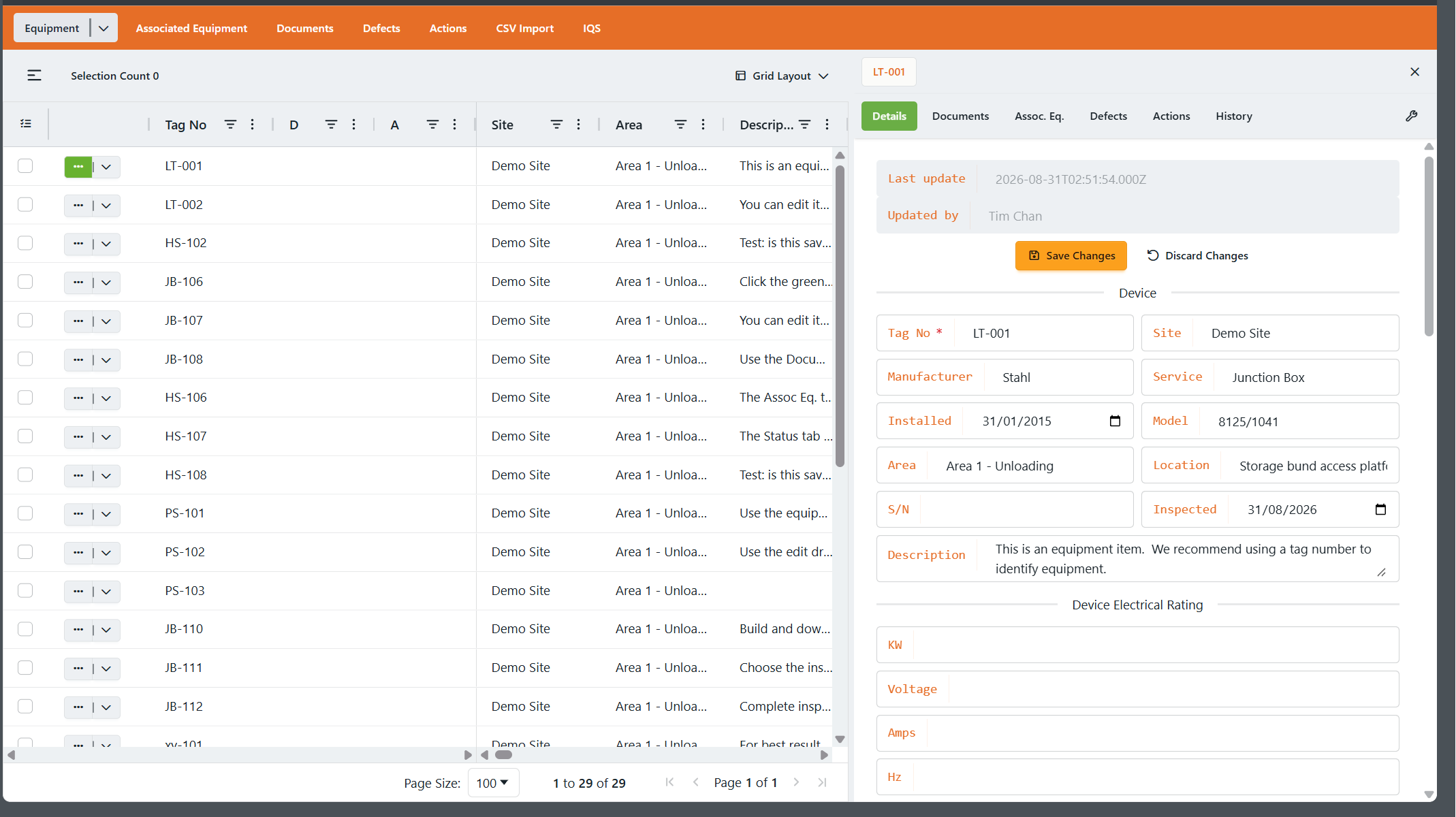
Open the row’s dropdown for more options. Choose View Eq to open the item’s Equipment overview in a new tab.
You’ll find this pattern elsewhere too, including Associated Equipment, Documents, Defects, and Actions: three dots for details, and a dropdown for more options.
Create an IWP
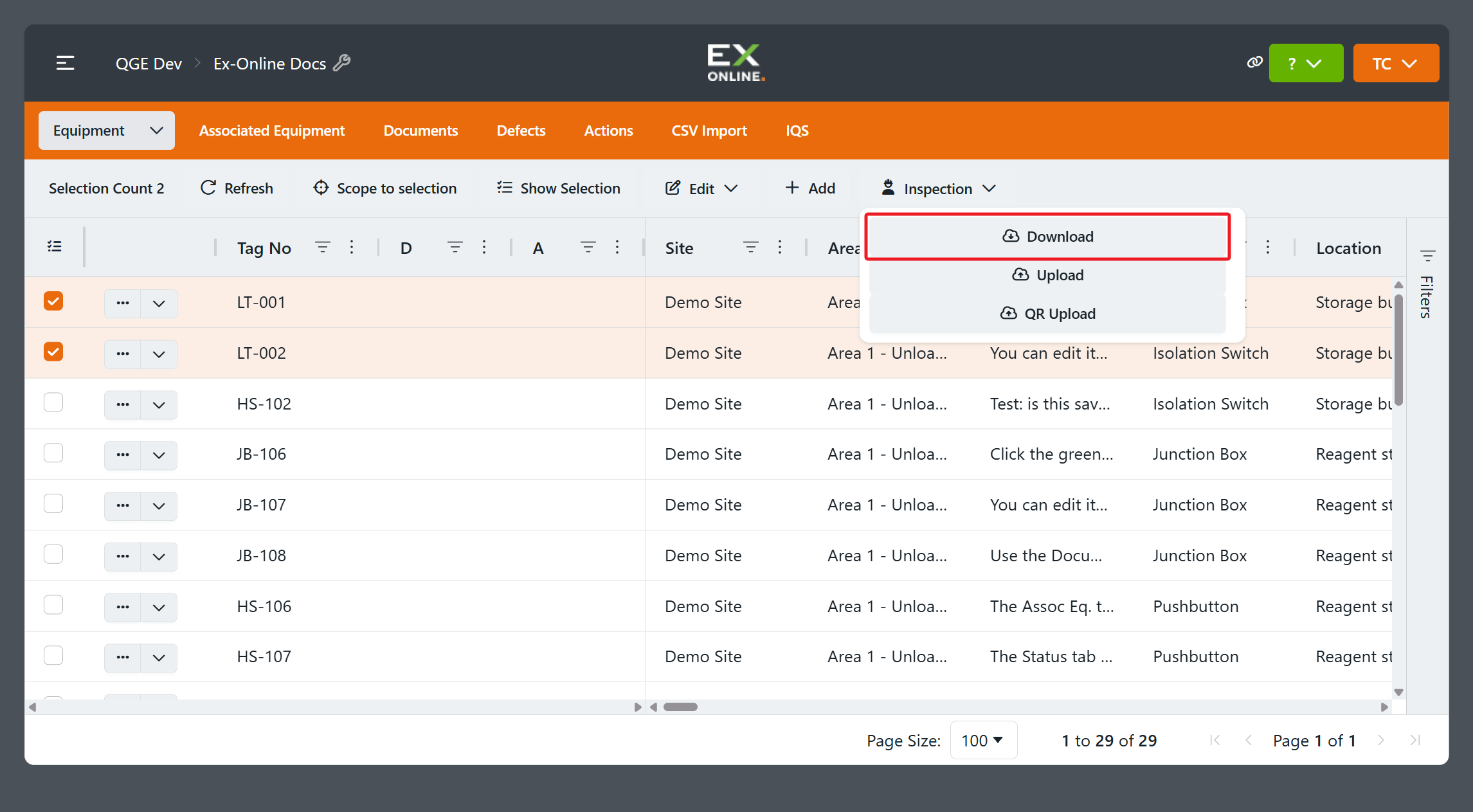
Section titled “Create an IWP”On the project page, select the equipment to include in the inspection work pack. Check Selection Count to confirm your selection, then open Inspection in the toolbar and choose Download.
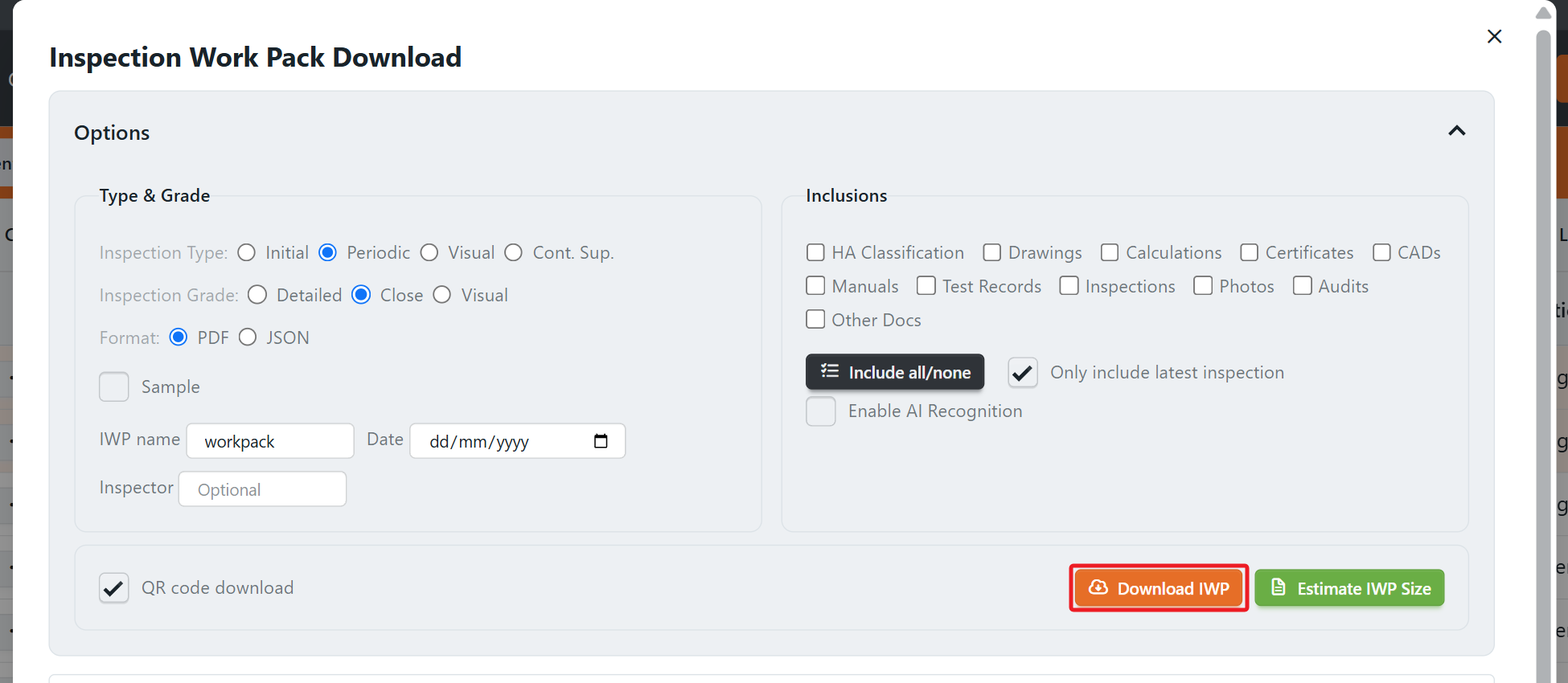
In Inspection Work Pack Download, choose the options, enter an IWP name, and select Download IWP.
When it is ready, transfer the pack to the Inspection App by QR code or file. See Download an IWP for the full procedure.
Quick comparison
Section titled “Quick comparison”Available controls depend on the view and your permissions.
| Looking for… | Classic | Current |
|---|---|---|
| Accounts and projects | Orange account bar; Accounts page | Home sidebar: accounts, projects, recent projects |
| Row controls | Green three-dot button → floating window | Three-dot button → details panel; arrow → row menu |
| Selecting rows | Toolbar Select and Show Selection | Checkbox-column menu; Selection Count and Show Selection in the toolbar |
| Grid commands | Separate toolbar buttons | Edit, Inspection, and Link menus |
| Filters | Column settings menu | Column filter icon or Filters panel |
| Grid layout | Column header settings | Layout saves automatically on the current device; use Grid Layout to save it to your account for another device |
| Project management | Project-name three-dot button → Project Window | Project-name wrench → Project Management |
More task guides
Section titled “More task guides”For a specific task, use these guides:
- Select and filter items — check which rows an action will affect.
- Manage equipment — update records and find Archive or Trash.
- Import data — choose between CSV updates and a legacy ZIP package.
- Export a project — download a project package from the account’s Projects grid.
- Back up projects — backup and restore steps.
For a step-by-step walkthrough, follow Your First Inspection.