
Equipment
Equipment records represent the individual devices in your project. Each record has a unique Tag No and holds its location, manufacturer, ratings, inspection information, and linked documents, associated equipment, defects, and actions.
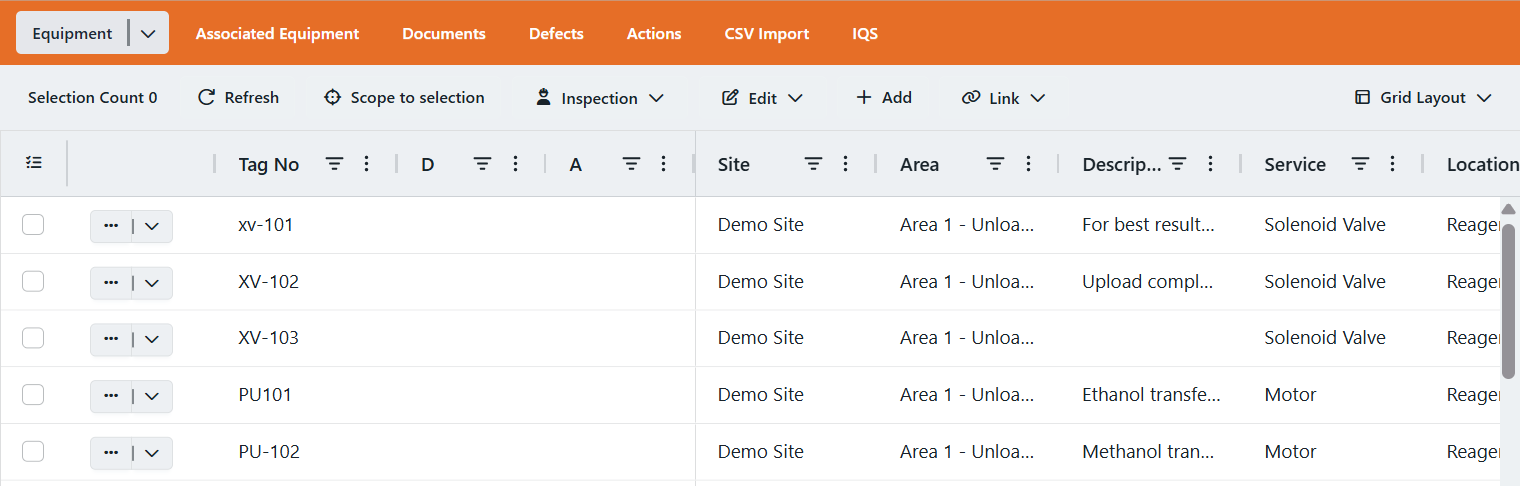
Use Equipment to work with the project’s records in a grid, or Equipment Window to review one item’s fields and linked records.
For step-by-step instructions, see Manage equipment. For spreadsheet requirements, see Equipment import format.
Select a control to see its explanation below.
Choose which section opens first.
Remember last openedDetailsDocumentsAssoc. Eq.DefectsActionsHistoryScreenshot grid · interactive Window with example fields.
Explore Equipment
Work with equipment records across the project.
Equipment menu
Section titled “Equipment menu”More options beside the Equipment heading shows Viewing: Live, Archive, or Trash. Switching views changes which record state is displayed.
| Command | Function |
|---|---|
| Go to Live | Displays active equipment. |
| Go to Archive | Displays equipment retained outside Live. |
| Go to Trash | Displays deleted equipment that remains recoverable. |
The menu offers the destinations other than the current view.
After switching views, these controls are available in Archive or Trash.
| Control | Function |
|---|---|
| Un-archive (Archive) | Returns selected equipment to Live after confirmation. |
| Restore (Trash) | Recovers selected deleted equipment after confirmation. |
| Empty Trash (Trash) | Permanently deletes every equipment item in Trash, including unchecked rows. Those records can no longer be recovered through Restore. |
Toolbar
Section titled “Toolbar”These controls appear in the live Equipment toolbar or its grid menu.
Select a linked control name to see its menu options and form controls.
| Control | Function |
|---|---|
| Selection Count | Shows the number of checked equipment records, including rows outside the visible page or filters. |
| Scope to selection | Limits the tab’s working set to selected equipment until the scope is removed. |
| Refresh | Reloads grid data without clearing the selection. |
| Inspection | Prepares equipment for offline inspection and brings completed results back into the project. |
| Edit | Opens commands for changing selected equipment. |
| Add | Opens Add Eq Item to create a new equipment record. |
| Link | Opens commands for linking existing project records to selected equipment. |
| Grid Layout | Saves layouts to the account, loads them from the account, or clears them on this browser, for one grid, this project, or all grids. |
Checkboxes determine the records affected by selected-item commands. Opening an Equipment Window is separate from selecting equipment. Selection and scope rules are described in Selecting Items.
Inspection menu
Section titled “Inspection menu”Inspection connects the equipment list to the inspection workflow: prepare an Inspection Work Pack (IWP), complete the checks offline in the Inspection App, then return the results to the project. Uploaded results can update equipment information and create related defects, depending on the upload options.
See the Inspections reference for package settings, download controls, upload options, and QR transfer details.
| Command | Function |
|---|---|
| Download | Builds an IWP from selected equipment. Choose the inspection type, grade, and supporting documents before generating the package. Select the equipment checkboxes first. |
| Upload | Opens results upload for the current project. Import completed inspection files and review the options that determine how results affect equipment and defects. |
| QR Upload | Opens a pairing page for transferring completed results from the Inspection App to the current project using a QR code. |
For step-by-step instructions, see Download an IWP and Upload inspection results.
Edit menu
Section titled “Edit menu”Edit commands operate on selected equipment, including checked rows outside the current page or filters.
| Command | Function |
|---|---|
| Update | Applies the same proposed values to chosen fields across selected equipment. Omitted fields retain their values. |
| Search/Replace | Replaces text or adds a prefix/suffix in a chosen field. |
| Add Defect | Creates defect records related to selected equipment. |
| Add Action | Creates action records related to selected equipment. |
| Archive | Moves selected equipment from Live to Archive after confirmation. Records remain available for recovery through Un-archive. |
| Delete | Moves selected equipment to Trash after confirmation. Records remain recoverable until Trash is emptied. |
| Copy/Move | Copies equipment to a destination project, with an optional mode that deletes the source after copying. |
Existing defect and action records are managed in the Defects and Actions views.
Update
Section titled “Update”Update applies the same values to chosen fields across selected equipment. Fields you leave out retain their existing values.
| Control | Function |
|---|---|
| + Add field | Includes a field in the proposed update. |
| Toggle all fields | Shows or hides the complete field list. |
| Review | Shows the previous and proposed values before applying the update. |
| Confirm | Applies the reviewed changes to selected equipment. |
Search/Replace
Section titled “Search/Replace”The Replace dialog can replace text or add a prefix/suffix in a chosen equipment field.
| Control | Function |
|---|---|
| Field | Chooses the equipment field to change. |
| Replace (text field) | Specifies the existing text to find. |
| With | Specifies the replacement text. |
| Replace (button) | Submits the text replacement for selected equipment. |
| Prefix / Suffix | Specifies text to add before or after the field’s existing value. |
| Add | Submits the prefix/suffix operation for selected equipment. |
Add Defect and Add Action
Section titled “Add Defect and Add Action”These commands create defect or action records related to selected equipment.
| Control | Function |
|---|---|
| Description | Describes the defect or follow-up action to record. |
| Priority | Sets High, Medium, Low, or Unassigned. |
| Add to Selected | Submits the defect or action for selected equipment. |
Copy/Move
Section titled “Copy/Move”Copy / Move Equipment transfers equipment to another project. Copy retains the source; move mode deletes the source after copying.
| Control | Function |
|---|---|
| Load Projects | Loads the available destination projects. |
| Destination | Chooses the project that will receive the equipment. |
| Move mode (delete source after copy) | Deletes the source equipment after copying it to the destination. |
| Copy | Submits the copy operation. Disabled until a destination is chosen. |
Add opens Add Eq Item to create one equipment record. The current form contains Tag No only.
| Control | Function |
|---|---|
| Tag No | Required identifier for the new equipment. Must be unique within the project. |
| Review | Shows the proposed equipment record for review before creation. |
| Confirm | Creates the reviewed equipment record. |
After creation, enter further information through Update or Equipment Window — Details. For the procedure, see Manage equipment.
Link menu
Section titled “Link menu”Link connects existing project records to selected equipment. The linking dialog identifies the selected equipment above its grid and hides already-linked rows.
| Command | Function |
|---|---|
| Link Documents | Links existing project documents to selected equipment. |
| Link Assoc Eq. Items | Links existing secondary-device records to selected equipment. |
Existing relationships appear in the Equipment Window’s Documents and Assoc. Eq. sections. Removing a relationship leaves the linked record in the project.
Row controls
Section titled “Row controls”Each equipment row has a checkbox, a three-dot button, and an adjacent arrow. Hover over or focus a control name below to locate it in the screenshot.
| Control | Function |
|---|---|
| Row checkbox | Selects or deselects this equipment for selected-item commands such as Edit and Link. Checked records remain selected across pages and filters. See Selecting Items. |
| Opens this item’s Equipment Window beside the grid. The green button marks the item currently displayed. Click another item’s three-dot button to switch its details into the Window. | |
| Opens this equipment’s row menu. Its View Eq command opens the equipment overview in a new browser tab. |
Checkboxes identify the equipment targeted by toolbar commands. The green three-dot button identifies the equipment whose details are open.
Grid fields and editing
Section titled “Grid fields and editing”Visible columns depend on the grid layout. Equipment columns cover identification, location, inspection information, classification, device ratings, and project-specific details.
| Column | Description |
|---|---|
| Tag No | Unique identifier for the equipment item. |
| D (Defects) | Indicator for defects linked to this equipment. |
| A (Actions) | Indicator for actions linked to this equipment. |
| Site / Area / Location | Equipment location fields. |
| Description | Equipment description. |
| Service | The device’s use or service type. |
| Manufacturer / Model / Serial_no | Manufacturer, model, and the individual device’s serial number. |
| Install / Purchase Date | Date the equipment was installed or purchased. |
| Date / Grade / Date (IWP Upload) / Interval (MTH) | Last inspection date, grade, IWP upload date, and inspection interval in months. |
| Zone / EPL / Group / TClass / Temp Amb Min / Temp Amb Max / IP Rating | Area classification at the device’s installed location. |
| Certificate / EPL / Group / Protection / TClass / Temp Amb Min / Temp Amb Max / IP Rating | Device Ex rating and certification. |
| KW / Voltage / Amps / Hz / RPM / Ia/In / tE | Device electrical and motor ratings. |
| IS Input / IS Output parameters | Intrinsic-safety parameters for the device (Ui, Ii, Pi, Ci, Li) and barrier (Um, Uo, Io, Po, Co, Lo). |
| Other Associated Equipment Details | Additional associated-equipment information. |
| User Defined Fields | Custom project fields, such as equipment numbers, stock numbers, or drawing references. |
| Comment_1 / Comment_2 | User comments. |
| Updated By / Updated Time | Who last modified the equipment item and when. |
A blank D or A indicator does not establish that no related records exist. Row buttons and checkboxes are explained under Row controls. For the individual item’s field groups, see Equipment Window — Details.
Shared header controls are described in Project Dashboard Interface — Filters and columns. Selection rules are described in Selecting Items.
Batch editing
Section titled “Batch editing”Pending cell changes are reviewed separately from Edit → Update.
| Control | Function |
|---|---|
| Save | Opens Batch Edit Summary with previous and proposed values. |
| Confirm Save | Applies the reviewed cell changes. |
| Discard | Cancels unsaved cell changes. |
| Exit Batch Edit | Leaves the editing session. |
Grid editing is unavailable while the Equipment Window is open. Its Details section has its own Save Changes and Discard Changes controls for the displayed item. The procedure is described in Update items.
Open an item’s Equipment Window beside the grid using its three-dot button. The green button marks the item currently displayed; select another item’s three-dot button to switch its details into the Window.
Explore the Window
Work with one item’s fields and linked records. Select a model control to read its explanation.
Details
Section titled “Details”Details holds the equipment’s editable fields. Last update and Updated by provide update metadata above the form.
Device information
Section titled “Device information”The Device group identifies the equipment and where it is installed.
| Field | Meaning |
|---|---|
| Tag No | The required equipment identifier. |
| Description | A description of the equipment item. |
| Manufacturer / Model | The device’s manufacturer and model. |
| S/N | The individual device’s serial number. |
| Service | The device’s use or function. |
| Site / Area / Location | The installation site, area within it, and more specific location. |
| Installed | The recorded installation date. |
| Inspected | The recorded inspection date. |
Ratings and classification
Section titled “Ratings and classification”These groups distinguish information about the device from classification information about its installed location.
| Group | Information recorded |
|---|---|
| Device Electrical Rating | Electrical and motor ratings, including KW, Voltage, Amps, Hz, RPM, Ia/In, and tE. |
| Device Ex Rating | The device’s explosion-protection rating: Protection, EPL, Group, T Class, Amb Min/Max, and IP. |
| Area Classification | Classification at the installed location: Zone, EPL, Group, T Class, Amb Min/Max, and IP. |
| IS Input (Device) | Intrinsic-safety information on the device side: IS Simple, Ui, Ci, Ii, Li, and Pi. |
| IS Output (Barrier) | Intrinsic-safety information on the barrier side: Uo, Co, Io, Lo, Po, and Um. |
The same label, such as Group or T Class, can appear in both Device Ex Rating and Area Classification. Its group identifies whether the value describes the device or its installed location.
Project fields and comments
Section titled “Project fields and comments”User Defined Fields contains other_1 to other_6, Comment 1, and Comment 2. These hold additional project information and supporting notes.
Saving changes
Section titled “Saving changes”These controls concern edits to the displayed equipment item.
| Control | Function |
|---|---|
| Save Changes | Applies pending field changes. |
| Discard Changes | Cancels pending field changes. |
Grid editing is unavailable while the Window is open. Updates across checked equipment use Equipment — Update; opening this Window does not replace the grid selection.
Documents
Section titled “Documents”Documents lists files linked to this equipment, such as certificates, inspection records, and photos. The project’s complete library is described in Documents.
The section’s grid menu provides these controls. Category values can appear as codes such as cert, insp_exo, or photo.
| Group | Control | Function |
|---|---|---|
| Data | Refresh | Reloads the linked-document list. |
| Viewing | View | Opens a selected linked document in the viewer. |
| Viewing | View in Tab | Opens a selected linked document in a browser tab. |
| Creation | Add | Opens Add New to create a document and link it to the equipment named in the dialog. |
| Relationships | Remove | Removes a document relationship. |
| Relationships | Bulk Remove | Provides bulk document-link removal. |
Adding and removing links
Section titled “Adding and removing links”Existing documents are linked through Equipment — Link menu. Removing a relationship leaves the document in the project; project-level deletion is a separate operation in the Documents view.
Associated equipment
Section titled “Associated equipment”Assoc. Eq. lists secondary devices linked to the equipment, such as glands, seals, stopping plugs, and IS barriers. The list describes the relationships; each secondary device has its own Associated Equipment Window.
The section’s grid menu provides these relationship controls.
| Control | Function |
|---|---|
| Unlink | Removes an associated-equipment relationship. |
| Bulk Unlink | Provides bulk relationship removal. |
Links are created through Equipment → Link → Link Assoc Eq. Items. Unlinking leaves the secondary-device record in the project.
Defects
Section titled “Defects”Defects lists issues linked to the equipment. Status identifies whether a defect is open or closed; its record contains the finding and rectification information. Field meanings and individual-record controls are described in Defect Window.
The section’s grid menu provides these record commands.
| Control | Function |
|---|---|
| View History | Opens history for a related defect record. |
| Open Inspection Document | Opens its inspection document where available. |
| Update | Opens the related-defect update operation. |
Project-wide updates and status changes are described in Defects.
Actions
Section titled “Actions”Actions lists follow-up work linked to the equipment. An action’s type identifies its workflow, and priority records the assigned level of attention. Type-specific information and controls are described in Action Window.
The section’s grid menu provides these record commands.
| Control | Function |
|---|---|
| View History | Opens history for a related action record. |
| Open Inspection Document | Opens its inspection document where available. |
| Update | Opens the related-action update operation. |
Project-wide updates and status changes are described in Actions.
History
Section titled “History”History shows recorded changes to this equipment. An empty history displays No Rows To Show; some column labels use internal-style names.
| Control | Function |
|---|---|
| Refresh | Reloads the history grid. |
Window controls and preferences
Section titled “Window controls and preferences”These controls are in the Window header.
| Control | Function |
|---|---|
| Close sidebar (×) | Dismisses the Equipment Window. |
| Default tab settings | Opens the preference for which section appears first. |
Default tab settings
Section titled “Default tab settings”The Default tab dialog offers these choices:
| Choice | Behaviour |
|---|---|
| Remember last opened | Reuses the last opened section; the default choice. |
| Details / Documents / Assoc. Eq. / Defects / Actions / History | Opens the chosen section first. |
Save applies the preference. Cancel closes the dialog without applying a new preference.
Related references and guides
Section titled “Related references and guides”Use these guides for procedures and spreadsheet requirements:
-
Import Package Format — Equipment spreadsheet fields, required tag numbers, and formatting rules.
-
Manage equipment — Add, update, link, archive, and restore equipment.
-
Update items — Edit grid cells or apply selected-item updates.
-
Download an IWP — Prepare equipment for inspection.
-
Manage documents — Maintain files and document links.
-
Manage associated equipment — Maintain secondary devices and their links.