
Selecting Items
Selection marks which rows a bulk action applies to — updating fields, archiving, deleting, or downloading an IWP. The same controls appear on every Project Dashboard tab: EQUIPMENT, ASSOCIATED EQUIPMENT, DOCUMENTS, DEFECTS, and ACTIONS.
For step-by-step walkthroughs, see Selecting items. To narrow the grid before you select, see Filtering and Sorting.
Toolbar controls
Section titled “Toolbar controls”| Control | Description |
|---|---|
| Selection Count | Display only — shows how many rows are selected on the current tab. Updates as you tick or untick rows; does not open a menu. |
| Refresh | Reloads grid data. Does not clear the selection. |
| Scope to selection | Limits the tab to the current selection until you remove the scope. See Scope to selection. |
| Show Selection | Temporarily hides unselected rows. See Show Selection. |
| Select menu | Bulk selection options in the first column header. See Select menu options. |
Row checkboxes at the left of each grid row select individual items. Ticking the header checkbox selects or clears every row on the current page — the same as Select All On This Page in the select menu.
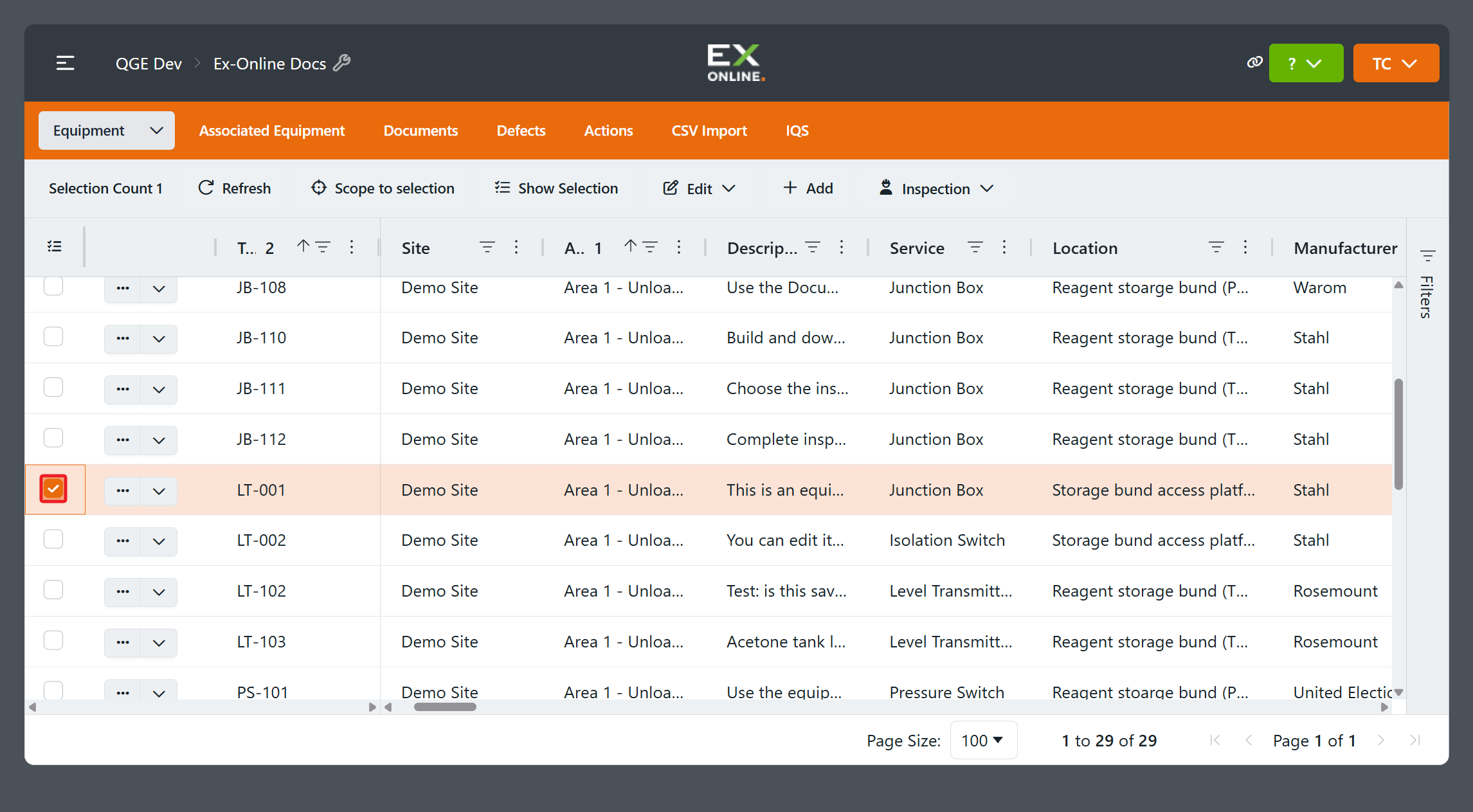
Select menu options
Section titled “Select menu options”Click the select menu in the first column header — the checkbox column at the left of the grid.
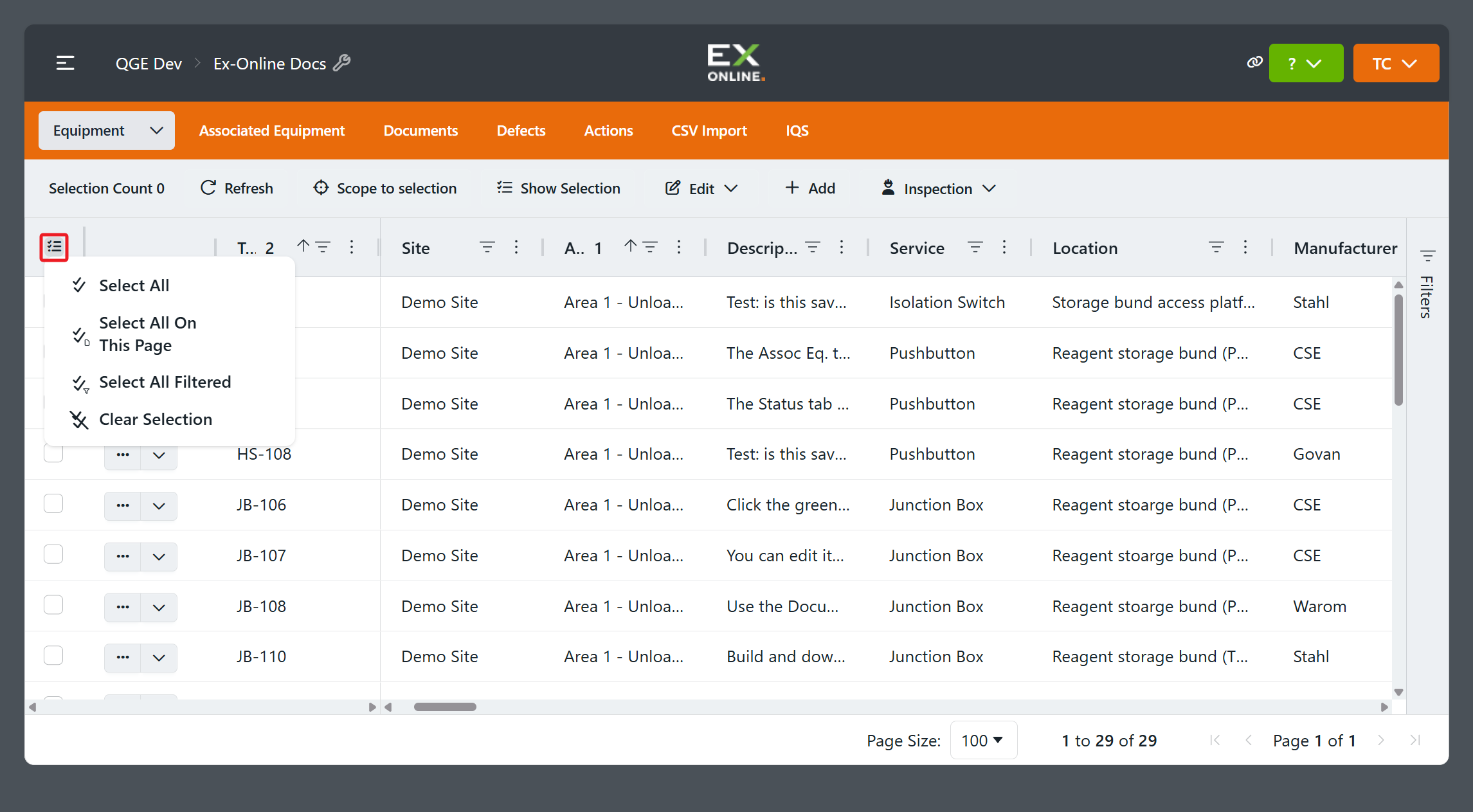
| Option | What it selects |
|---|---|
| Select All | Every item on the current tab, across every page. |
| Select All On This Page | Only the rows visible on the page you are looking at. |
| Select All Filtered | Every item that matches the filters you have applied, across every page. |
| Clear Selection | Clears every selected item on the tab. |
You can tick or untick individual row checkboxes after a bulk select to add or remove items.
Select All
Section titled “Select All”Selects every item on the current tab, across every page — not limited to the page you are viewing or to active filters.
Select All On This Page
Section titled “Select All On This Page”Selects only the rows on the page you are looking at. Ticking the header checkbox selects or clears the same rows.
Select All Filtered
Section titled “Select All Filtered”Selects every item that matches the filters you have applied, across every page. If no filters are active, Select All Filtered selects the same rows as Select All.
Clear Selection
Section titled “Clear Selection”Clears every selected item on the tab — not only the current page.
Show Selection
Section titled “Show Selection”Show Selection is a temporary view filter. The grid shows only rows that are currently checked; unselected rows are hidden. Selection Count and the row checkboxes stay as they were. Other filters stay active — the grid shows items that are selected and still match those filters.
Click Show Selection again to return to the full grid.
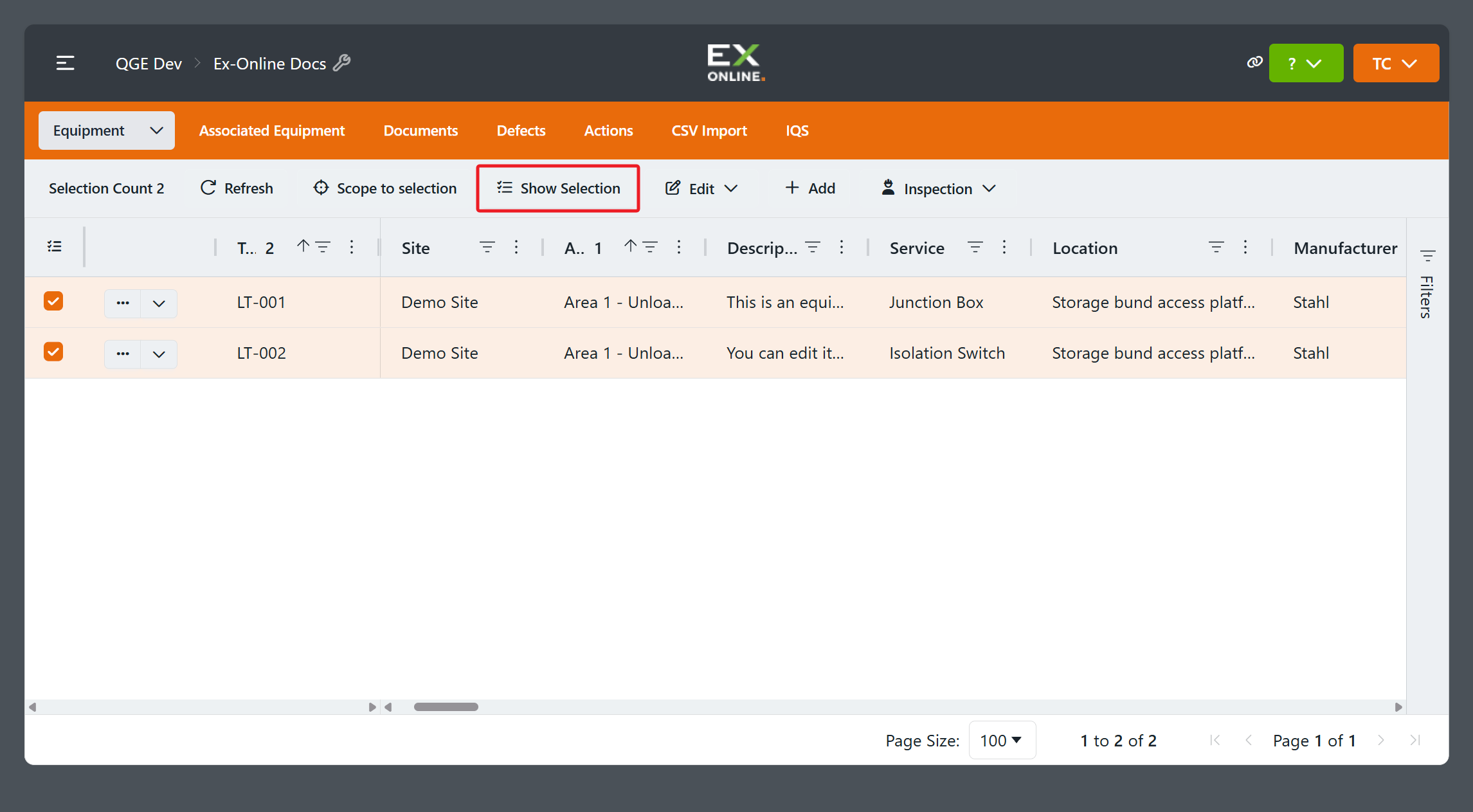
Scope to selection
Section titled “Scope to selection”Scope to selection limits the tab to your selected items until you remove the scope. Unlike Show Selection, scoping changes which items belong to the working set on that tab.
After you click Scope to selection:
- The grid shows only the scoped items.
- Selection Count returns to 0 and row checkboxes clear — the scope replaces the active selection.
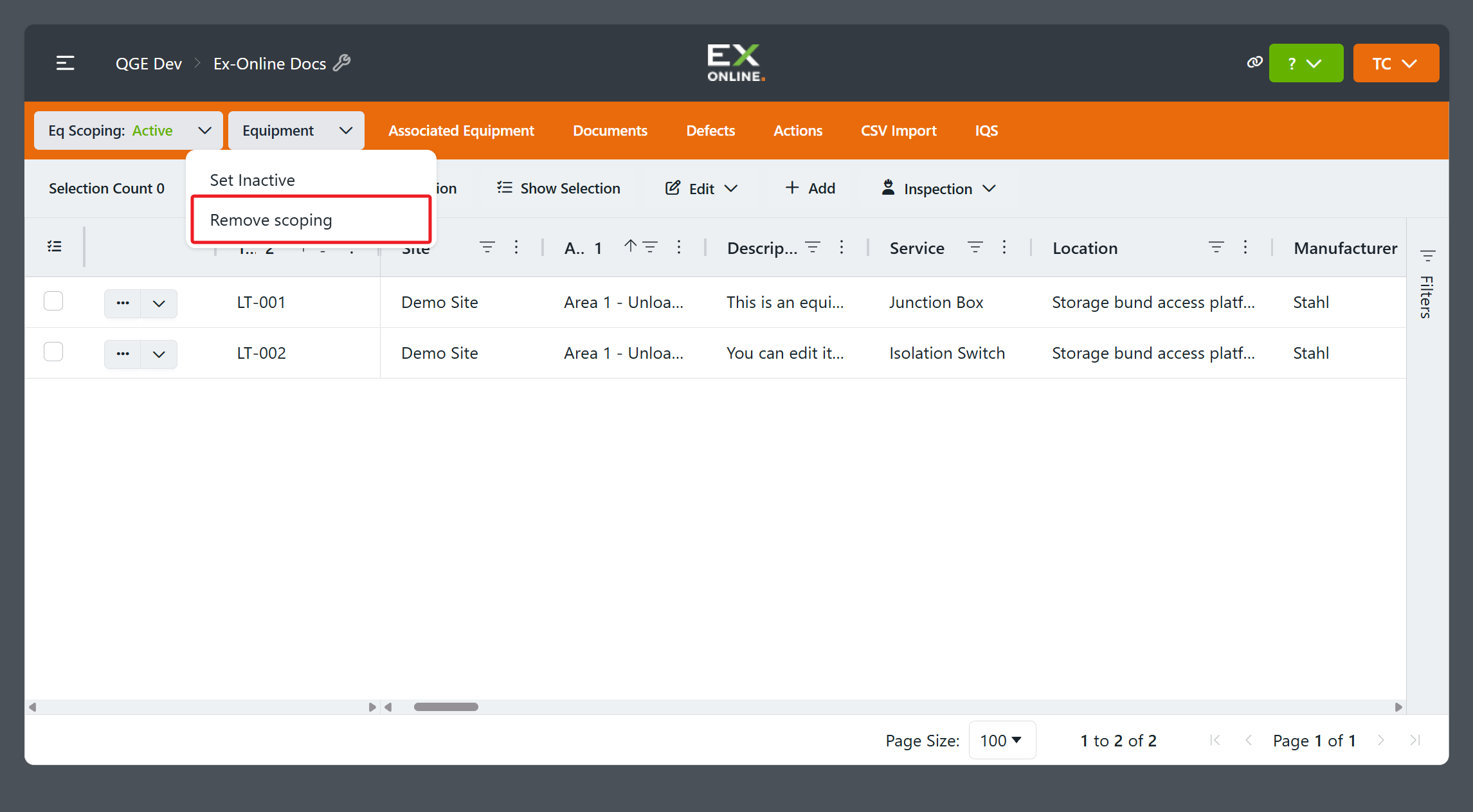
- An Eq Scoping: Active badge appears next to the tab name on EQUIPMENT (other tabs show their own scoping badge when applicable).
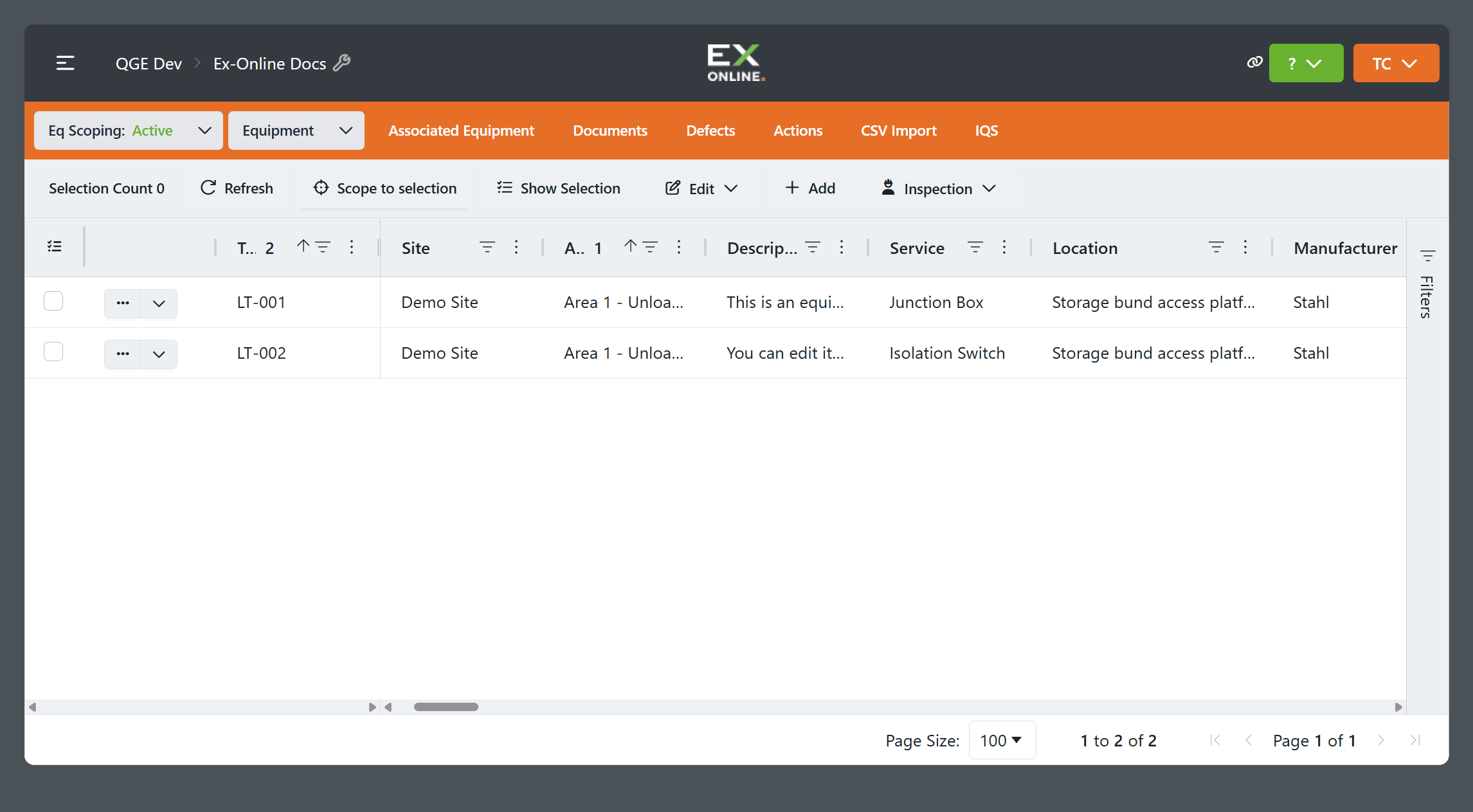
To end the scope, click More options on the scoping badge and choose Remove scoping to restore the full project on that tab. Set Inactive is also available from the same menu.
While a scope is active, filters and pagination apply only within the scoped set.