
Downloading an IWP
This guide will walk you through creating an Inspection Work Pack (IWP) in Tag Browser and loading it into the Inspection App by QR code or file. An IWP contains the equipment and check sheets you need for an inspection, along with any documents you choose to include.
Download an IWP
Section titled “Download an IWP”-
Go to the EQUIPMENT tab in the orange header bar.
-
Filter the equipment list if needed, then select the items you want to inspect. Check Selection Count before downloading: selected items can remain selected even when another page or filter hides them. See Selecting items for the select menu and ways to review your selection.
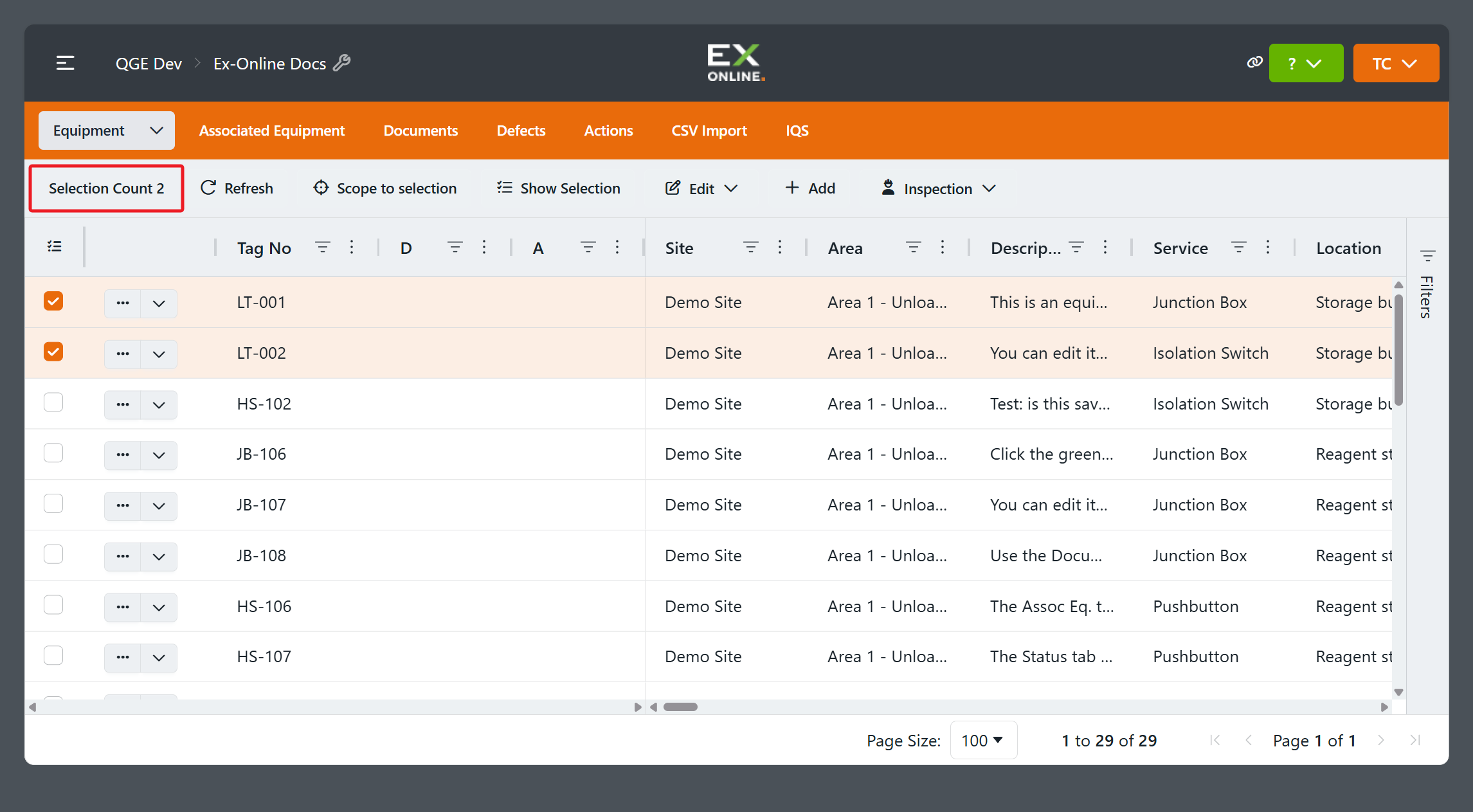
-
Click the Inspection dropdown in the toolbar and select Download.
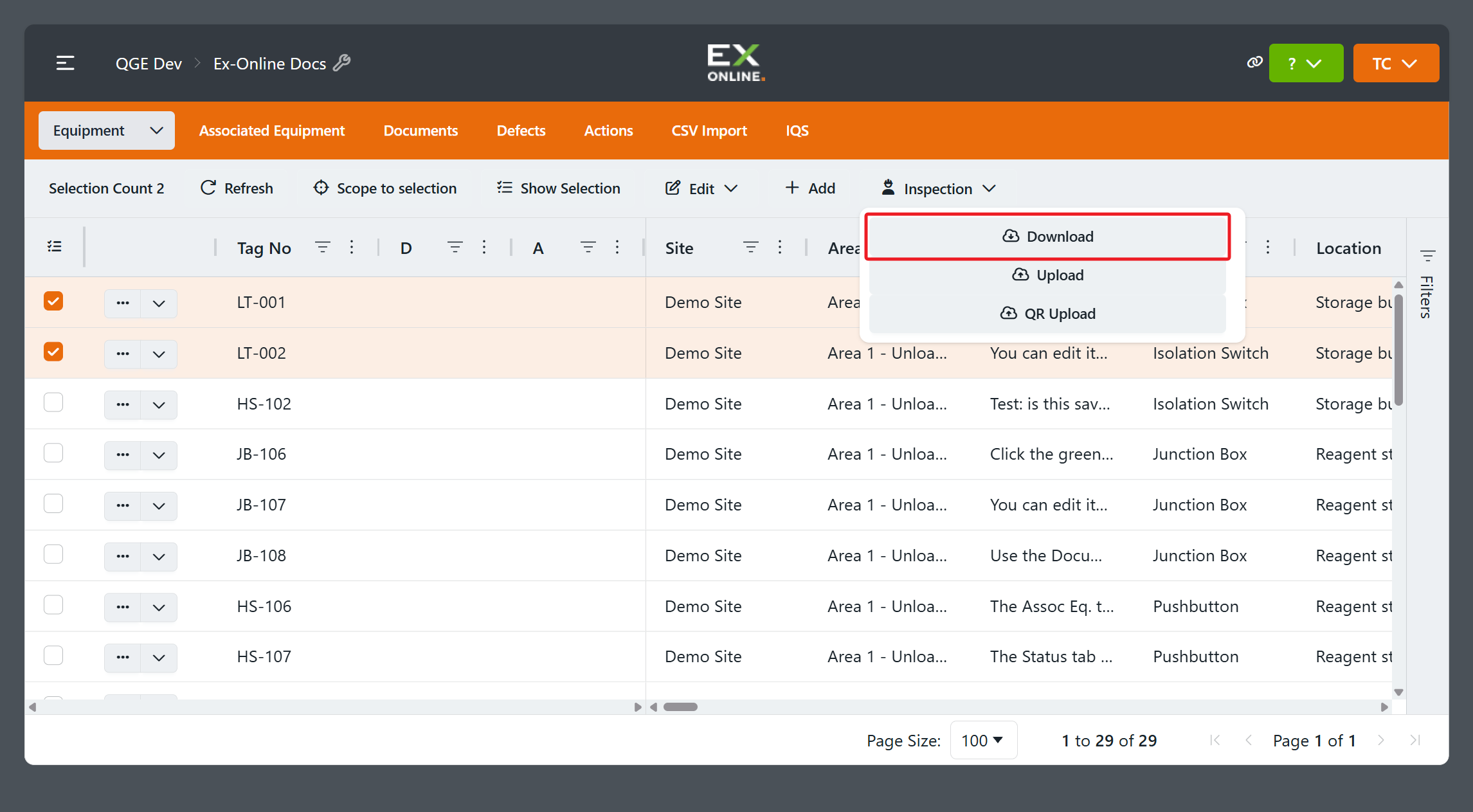
-
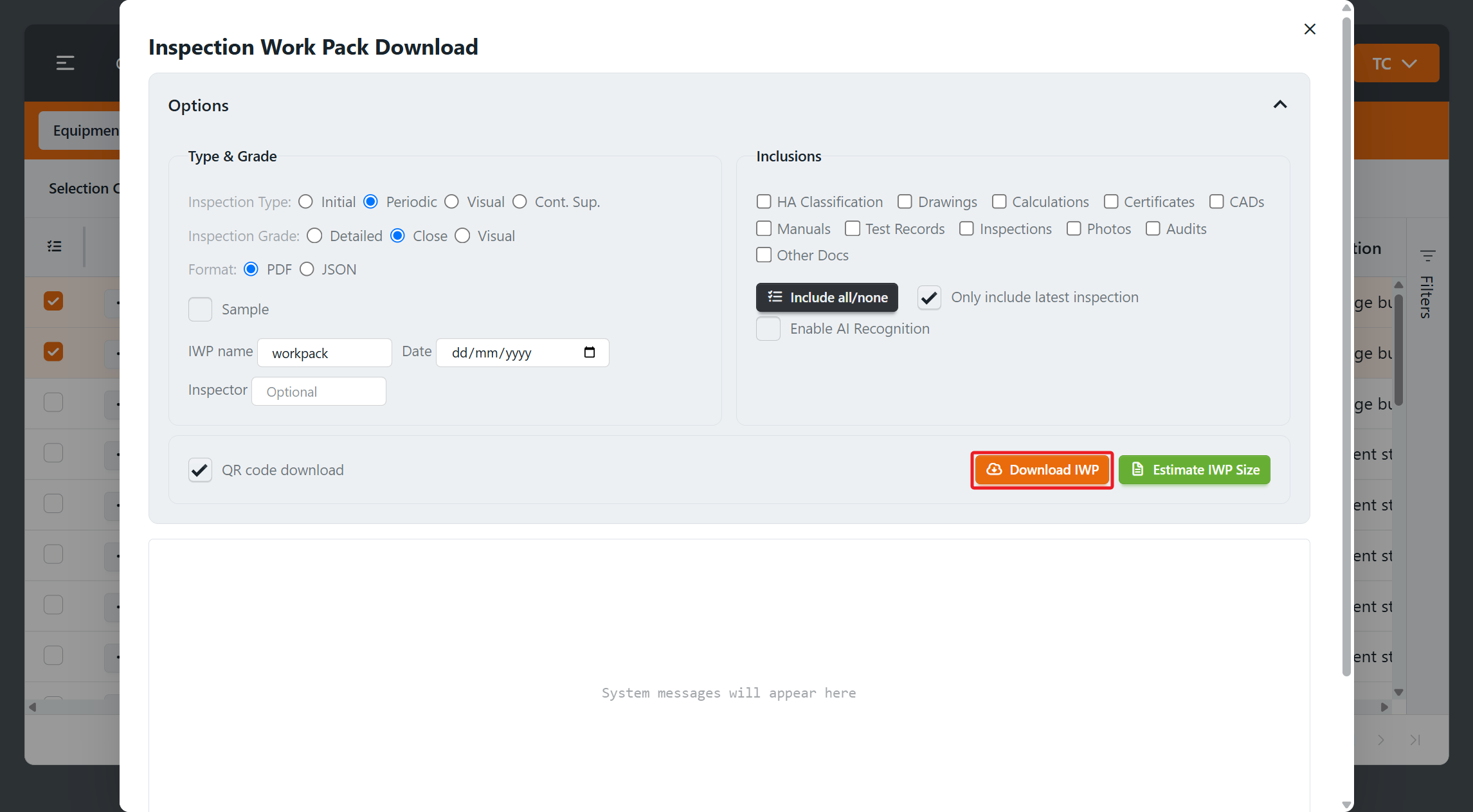
In the Inspection Work Pack Download dialog, choose the inspection type, grade, and inclusions. Enter an IWP name you will recognise on your device. See Checksheet Options for details on the available settings.
-
If you want to preview the download size, click Estimate IWP Size.
-
Click Download IWP to generate the package.
-
When it is ready, the IWP QR Download dialog shows a QR code and a file download link.
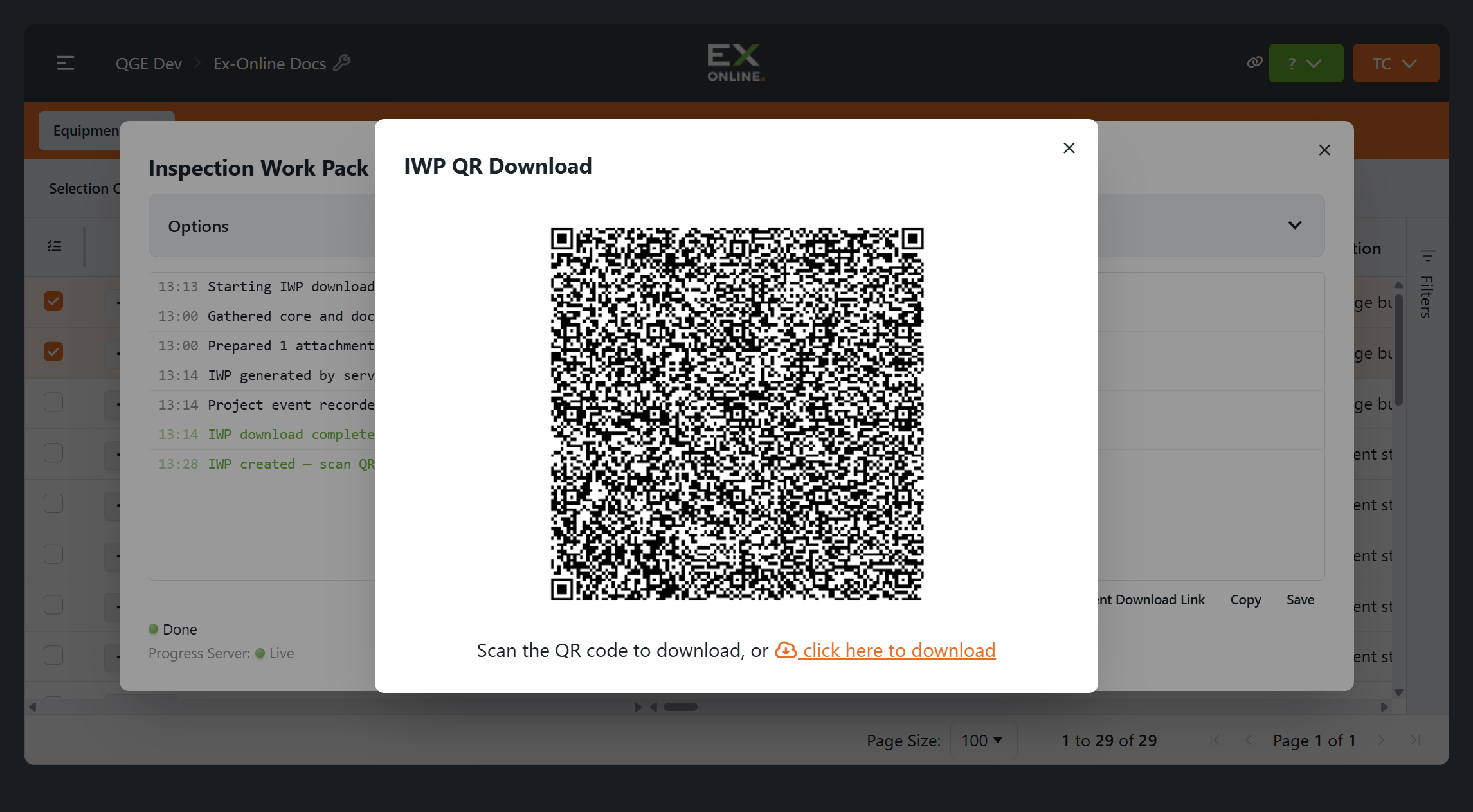
Transfer the IWP to the Inspection App
Section titled “Transfer the IWP to the Inspection App”Use either method below to load the IWP into the Inspection App on your device.
Scan the QR code
Section titled “Scan the QR code”Use this when both your inspection device and the computer displaying the QR code have internet access:
-
Open the Ex-Online Inspection App on your device.
-
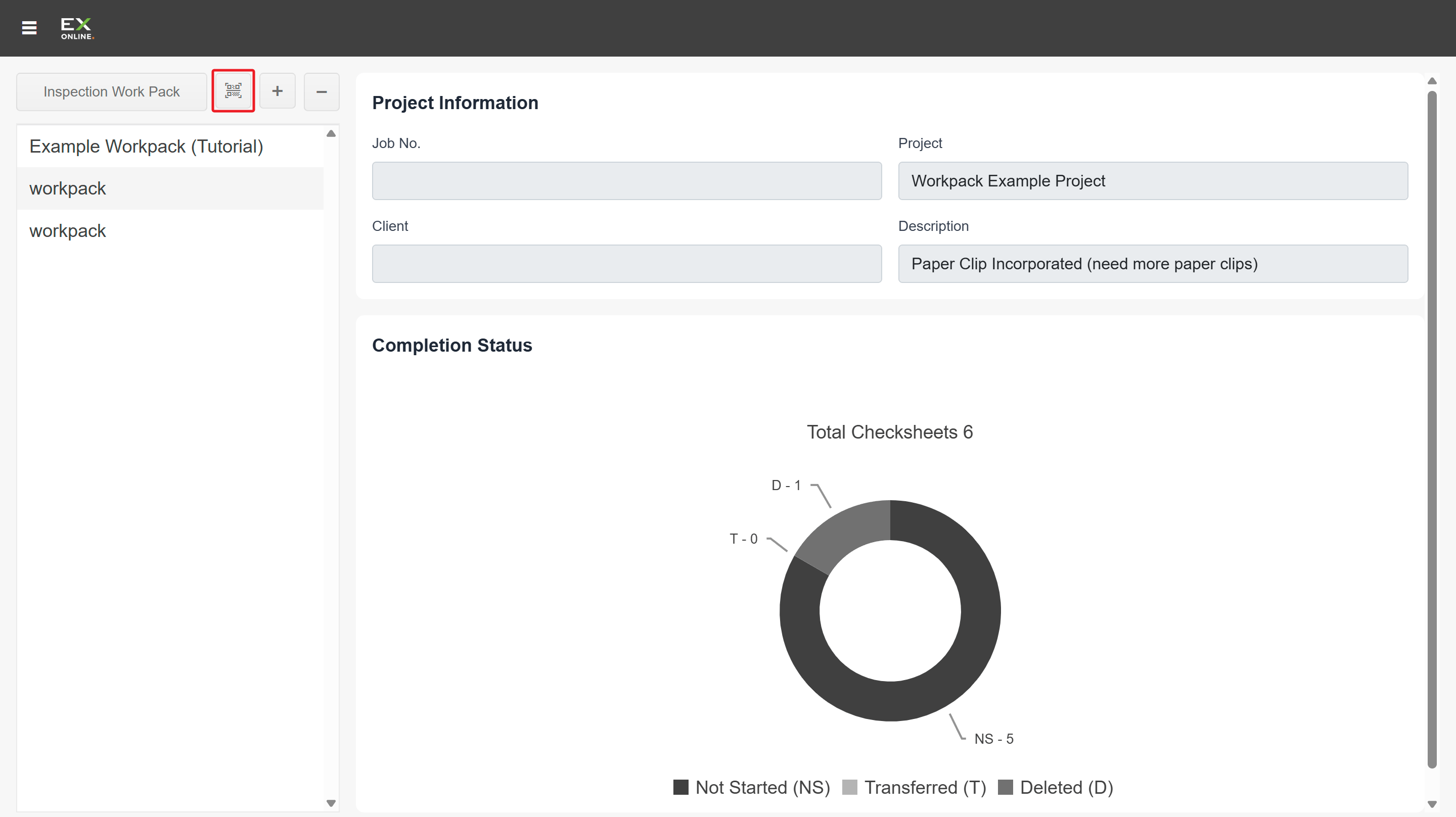
On the main screen, tap QR Scan.
-
Scan the QR code shown in the IWP QR Download dialog — the IWP downloads directly into the app.
Transfer the file
Section titled “Transfer the file”Use this when the inspection device is offline or you want to transfer the file manually:
-
Use the click here to download link in the IWP QR Download dialog to save the
.iwpfile to your computer. -
Transfer the file to your inspection device (via USB, network share, or cloud storage).
-
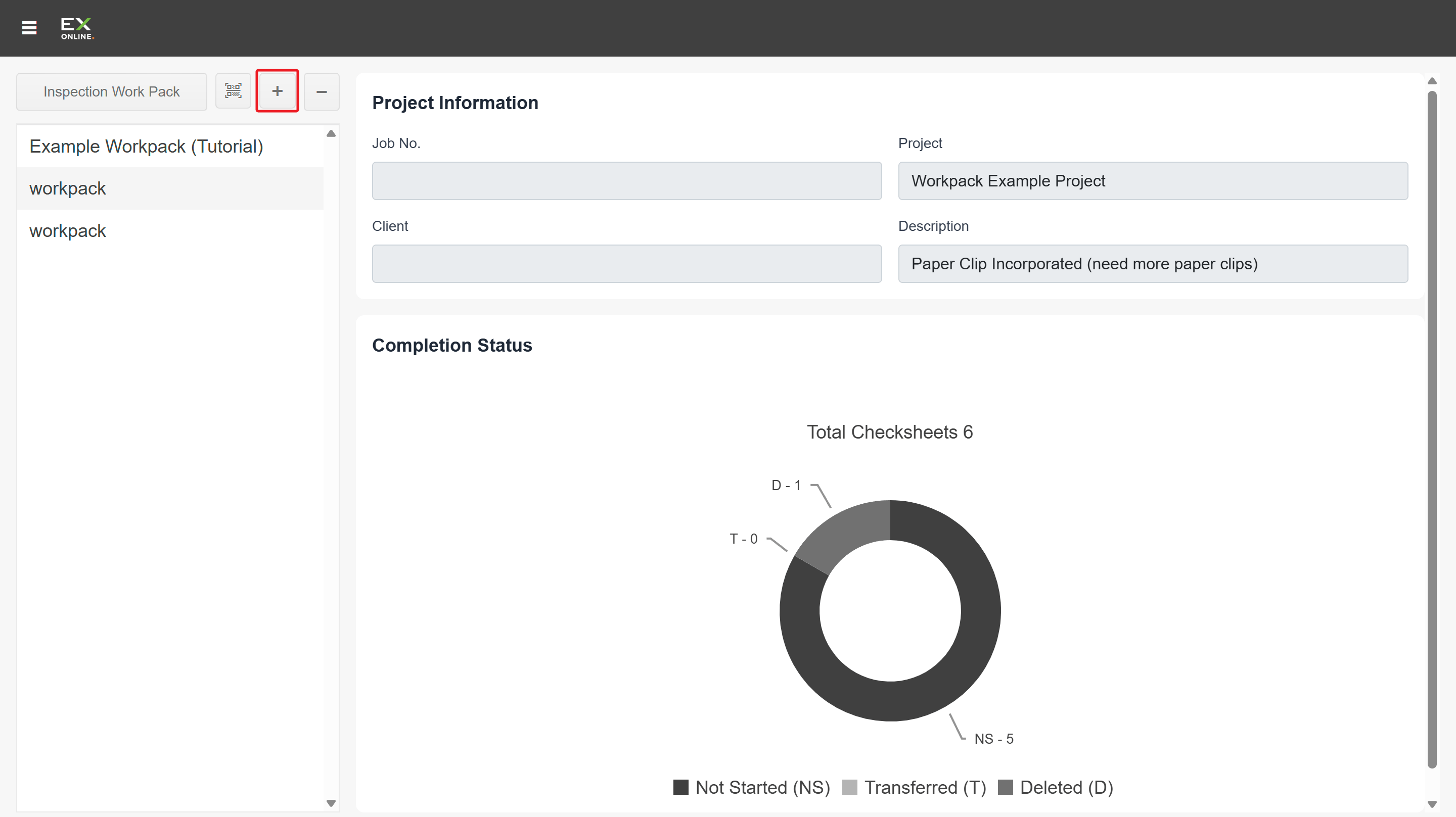
In the Inspection App, select + on the main screen and open the file.
Once the IWP is loaded, fill in the check sheet in the app. You can complete the inspection offline. When it is finished, upload the results to Tag Browser from an internet-connected device.
Troubleshooting
Section titled “Troubleshooting”| Issue | Solution |
|---|---|
| IWP download is slow or fails | Large packages with many documents take longer. Try reducing Package Inclusions or selecting fewer items |
| QR code won’t scan | Ensure the camera has a clear view and the QR code is fully visible. Check that both devices have internet access |
| Can’t open .iwp file on device | Check that the file still has the .iwp extension and isn’t 0 KB. If it won’t open, download it again from the IWP QR Download dialog |
Related topics
Section titled “Related topics”- Inspections Reference — Full description of the IWP system, download options, and inspection history
- Inspection App Reference — Dedicated app for completing inspections offline