
Backing up projects
Backups create restore points that protect your data before imports, IWP uploads, bulk operations, or any major change. Create, restore, or delete a project backup using the steps below. For the full field reference, see the Backup tab in the Project Window reference.
Creating a backup
Section titled “Creating a backup”-
Open your project and click the Project Options button (circle with three dots) next to the project name in the orange header bar.
-
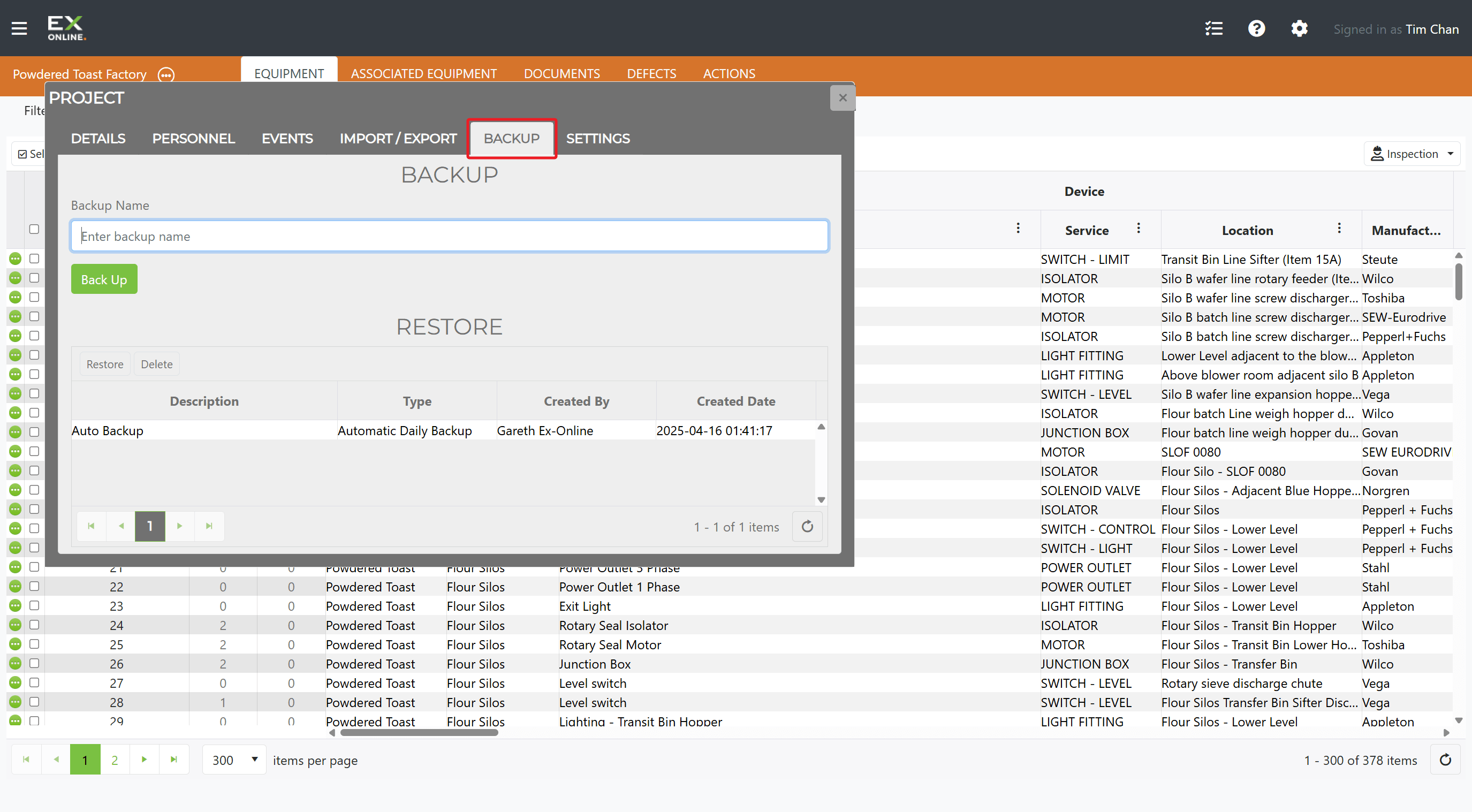
Click the BACKUP tab.
-
Enter a descriptive name in the Backup Name field (e.g.,
Pre-Import-2026-03-17) and click Back Up.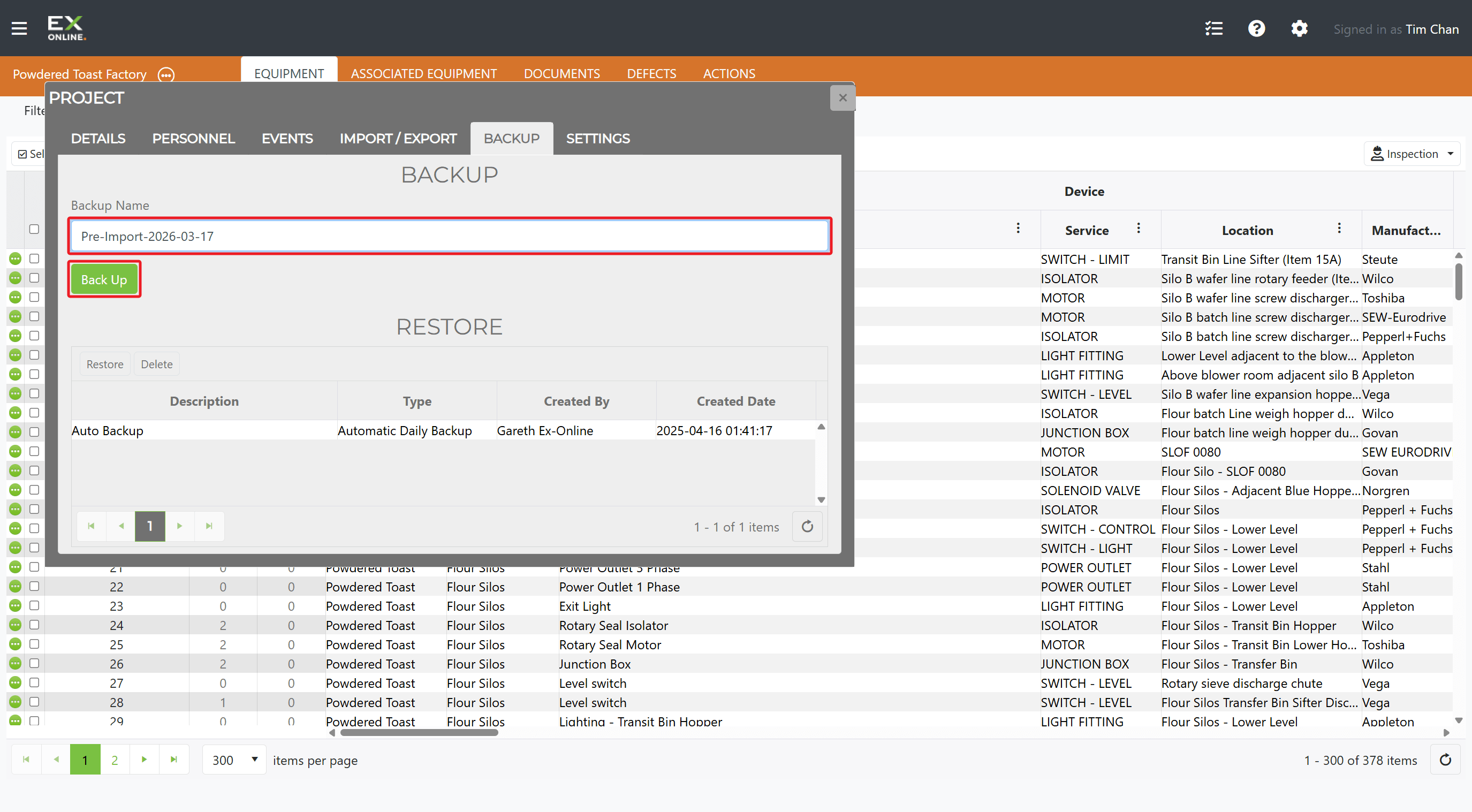
-
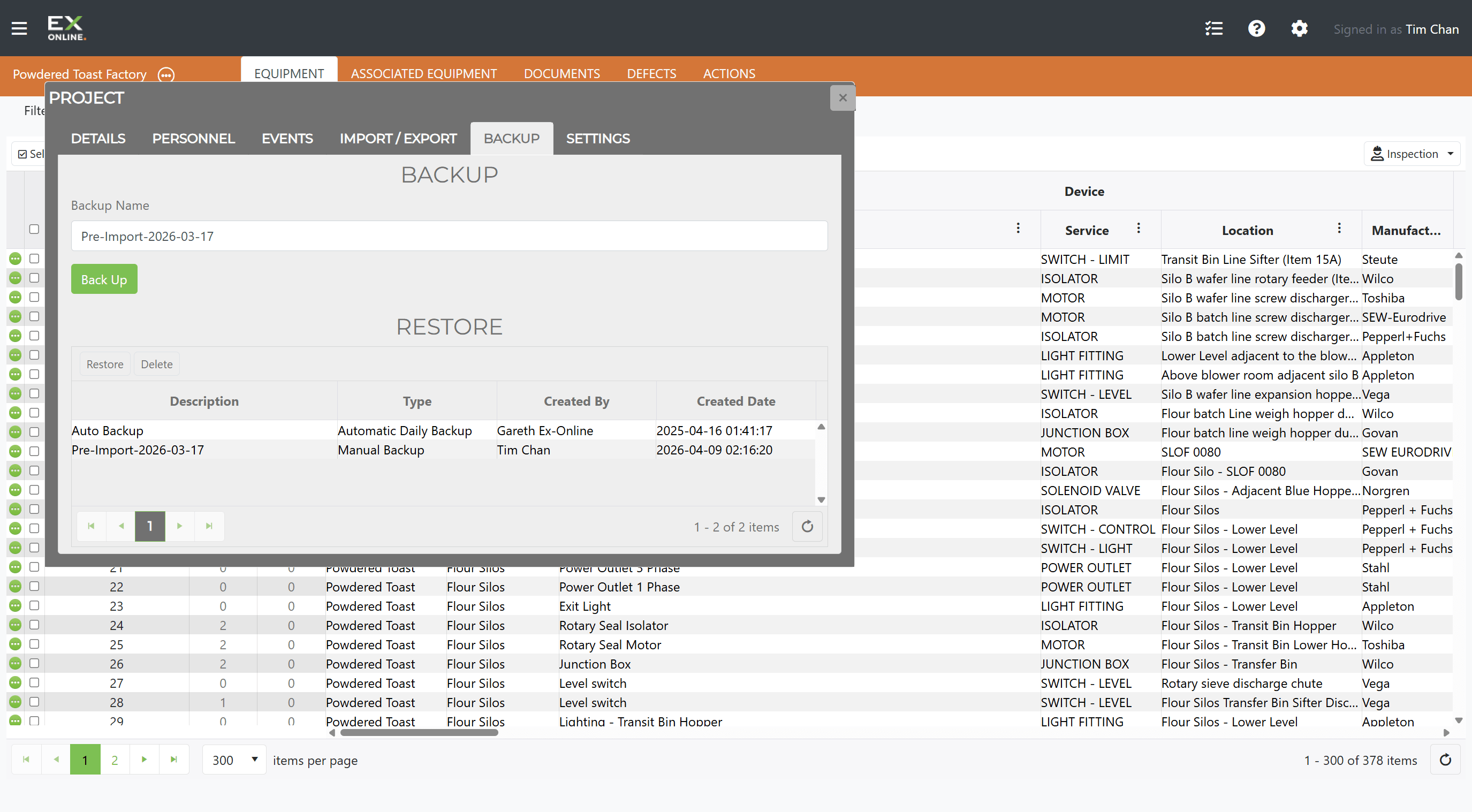
Wait for the backup to complete — a ribbon notification tracks progress.
Restoring a backup
Section titled “Restoring a backup”-
Open the Project Window and go to the BACKUP tab.
-
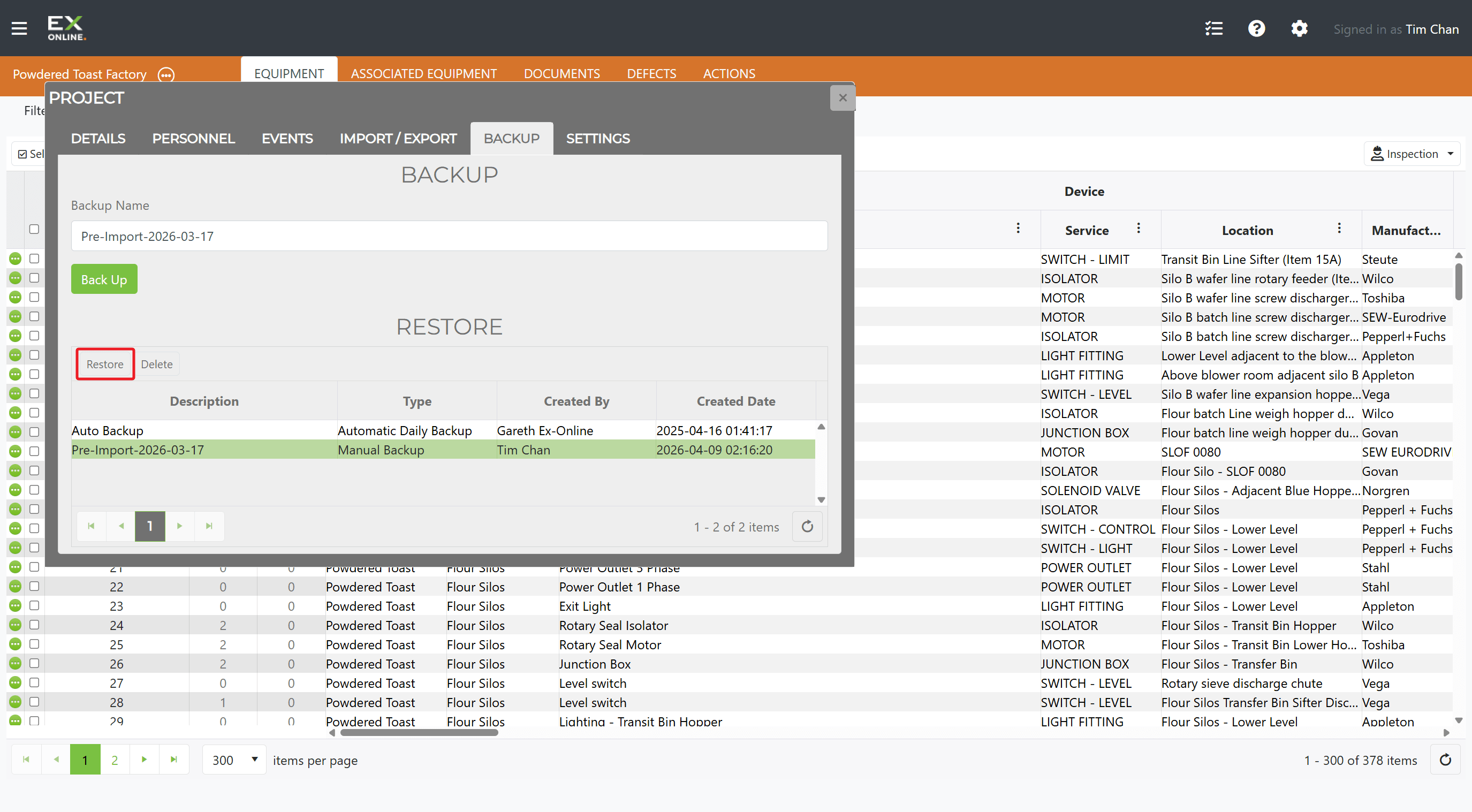
In the RESTORE section, click the backup you want to restore.
-
Click Restore.
-
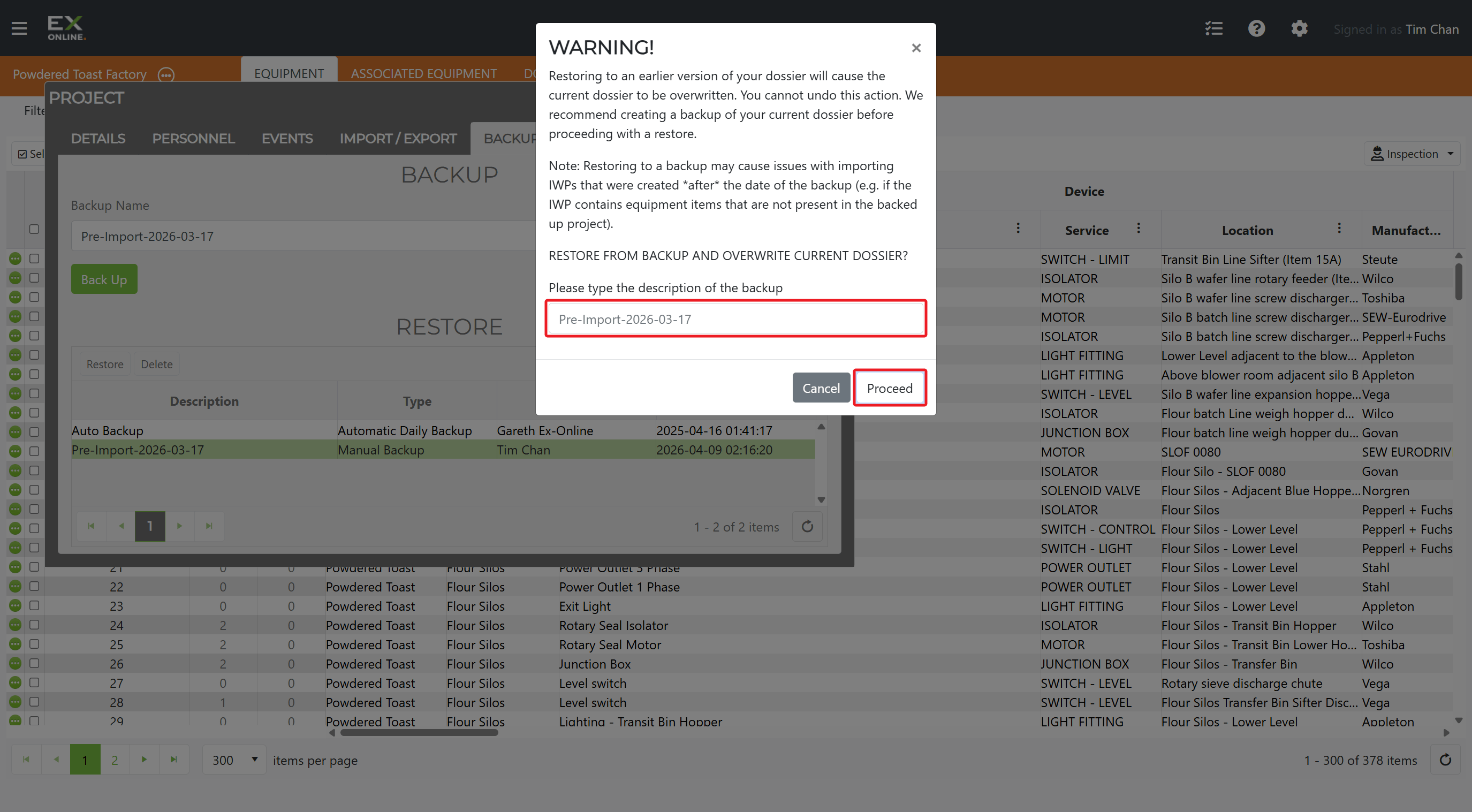
Type the backup name to confirm, then click Proceed.
-
Wait for the restoration to complete, then verify the project data is correct.
Deleting backups
Section titled “Deleting backups”-
Open the Project Window and go to the BACKUP tab.
-
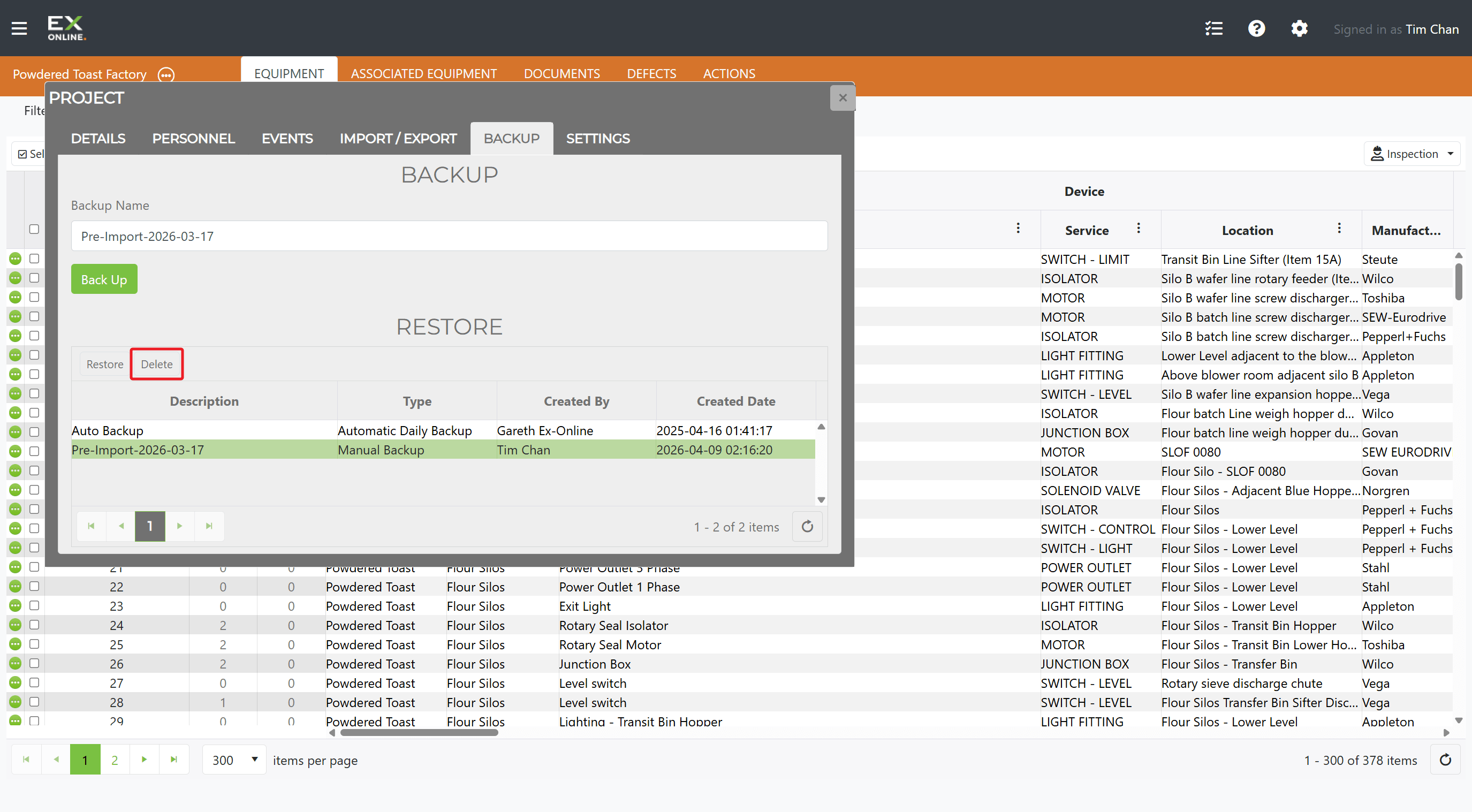
Click the backup you want to remove.
-
Click Delete.
-
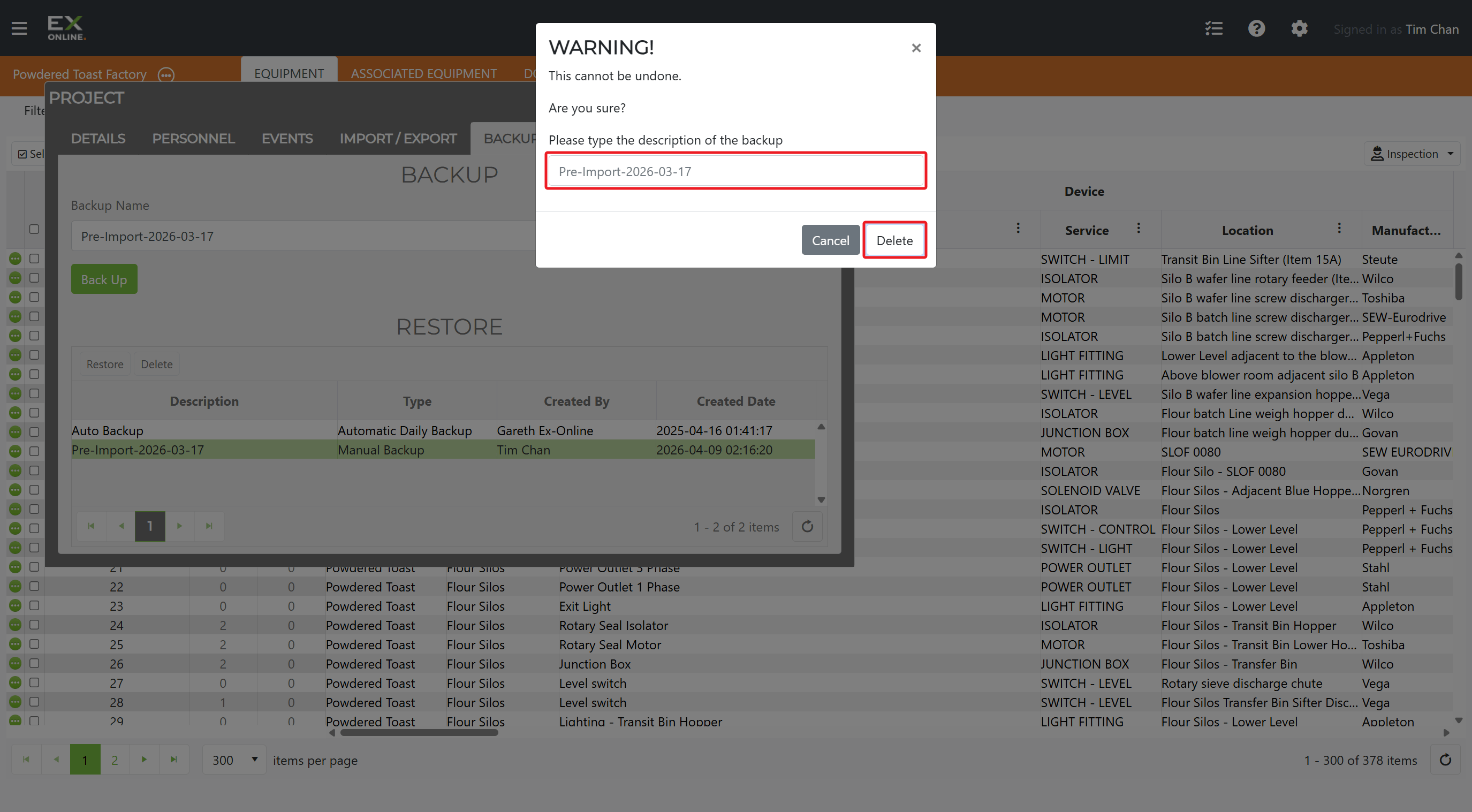
Type the backup name to confirm, then click Delete.
When to create backups
Section titled “When to create backups”The following situations should always be preceded by a backup:
| Before | Why |
|---|---|
| Data import | Imports can overwrite existing data or create duplicates |
| IWP upload | Auto-update settings can change multiple equipment fields |
| Bulk delete | Deletions are difficult to reverse without a backup |
| Major edits | Any change affecting many items at once |
All backup operations are logged in the project’s Events tab.
Troubleshooting
Section titled “Troubleshooting”| Issue | Solution |
|---|---|
| Backup takes too long | Large projects with many documents take longer — don’t navigate away |
| Backup fails | Check your internet connection, wait a few minutes, and try again |
| Can’t find a backup | Verify you’re in the correct project; check the Events tab for deletion records |
| Data missing after restore | Verify you restored the correct backup — missing data may have been added after the backup was created |
Related topics
Section titled “Related topics”- Project Window — Project management including the Backup tab
- Events — Event log where backup operations are recorded
- Importing Data — Safe import practices with pre-import backups