
Configure and save grid layouts
This guide will walk you through arranging the Project Dashboard grid and using the same layout on another device. Column order, filters, and sorting save automatically as you change them on the current device. To use that layout elsewhere, save a copy to your account and load it on the other device.
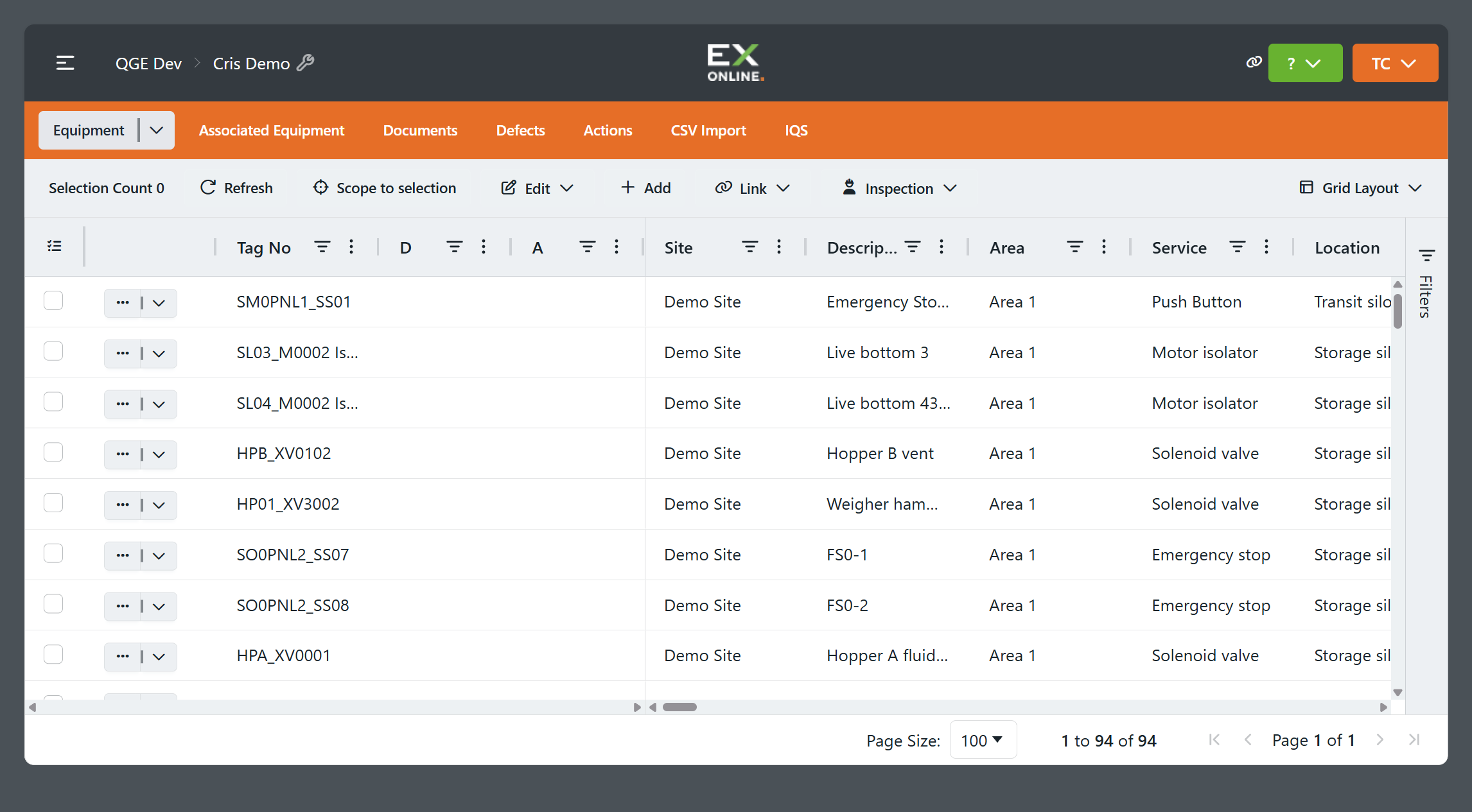
The examples use the EQUIPMENT tab; the same layout controls are available on the other Project Dashboard tabs.
Arrange the grid
Section titled “Arrange the grid”You can adjust the grid in three ways:
- Drag column headers to change their order.
- Apply filters to limit the visible rows.
- Sort rows by a column.
See Filtering and sorting for detailed instructions.
Load the layout on another device
Section titled “Load the layout on another device”To use the layout on another device, save a copy to your account, then load it there.
-
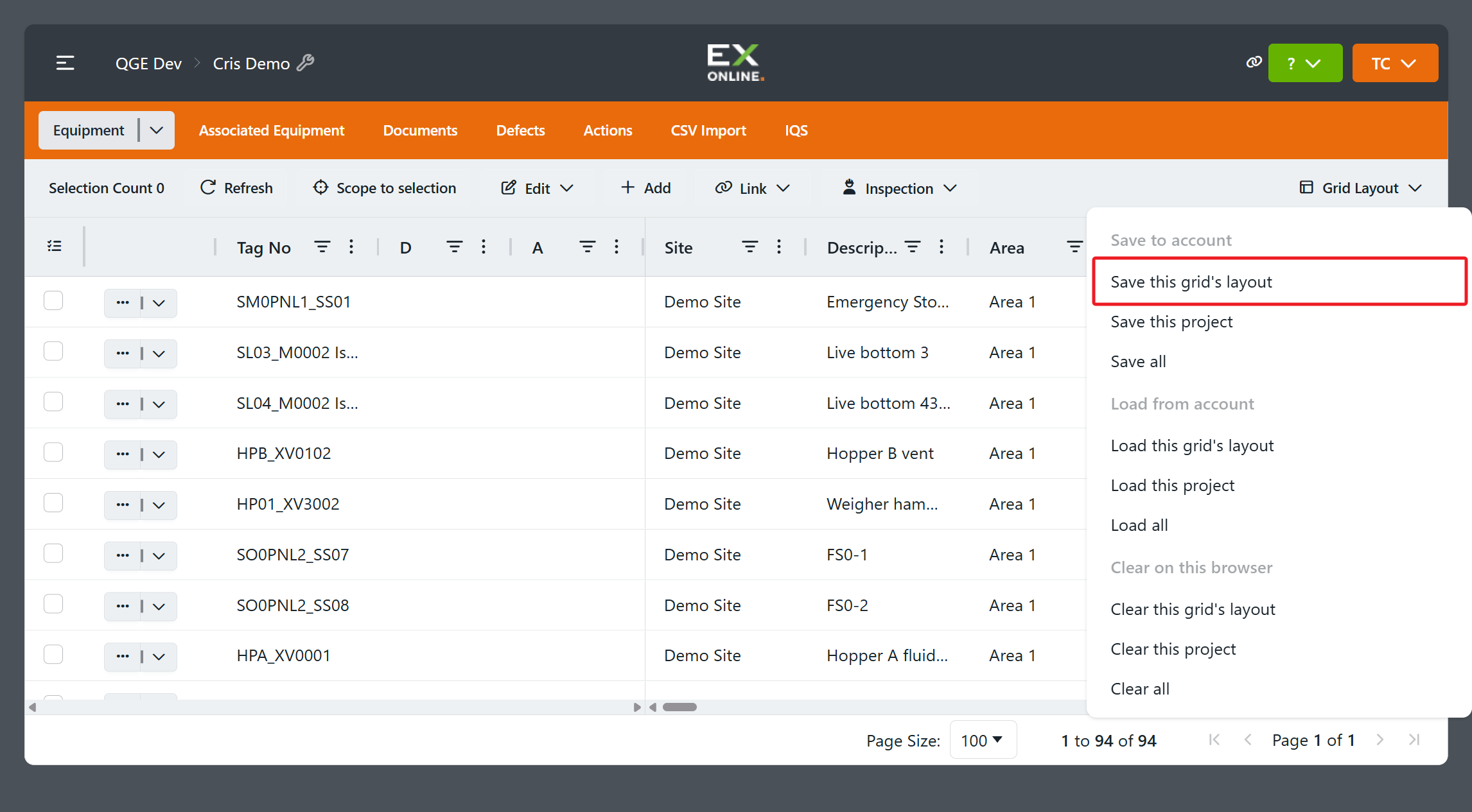
Open Grid Layout at the right end of the toolbar and choose Save this grid’s layout.
-
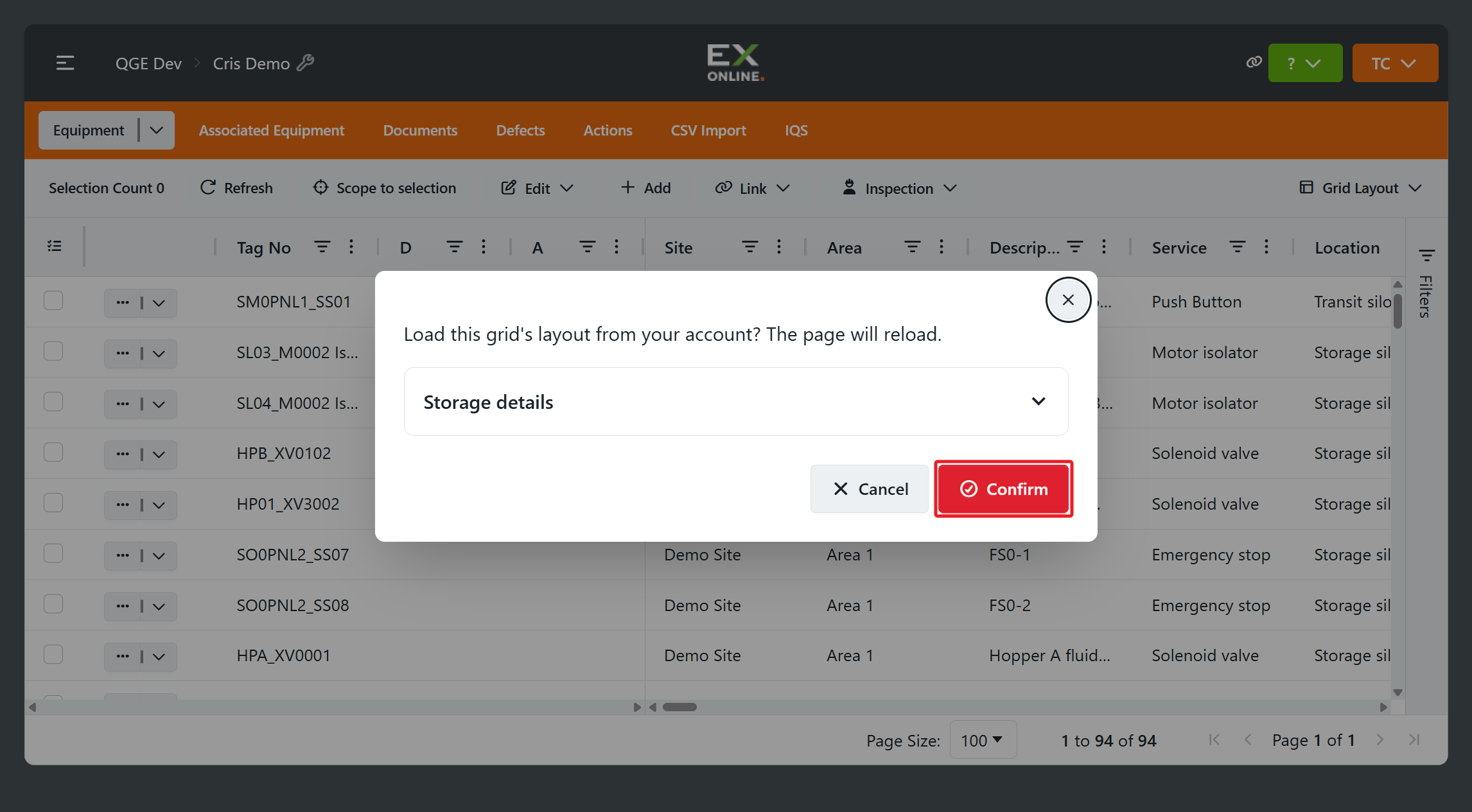
On the other device, open Grid Layout and choose Load this grid’s layout. Click Confirm.
Related topics
Section titled “Related topics”- Filtering and sorting — Filters and sorts that save with the grid
- Selecting items — Choose rows for the next action
- Inline updates — Change field values on selected rows