
Part 1: Prepare an Inspection Work Pack
In this part you select equipment in the Tag Browser and download an Inspection Work Pack (IWP) — a portable file that carries your selections into the Inspection App.
Open a project
Section titled “Open a project”Open the project that contains the equipment you want to inspect.
From Home, open the sidebar with the menu button at the top left.
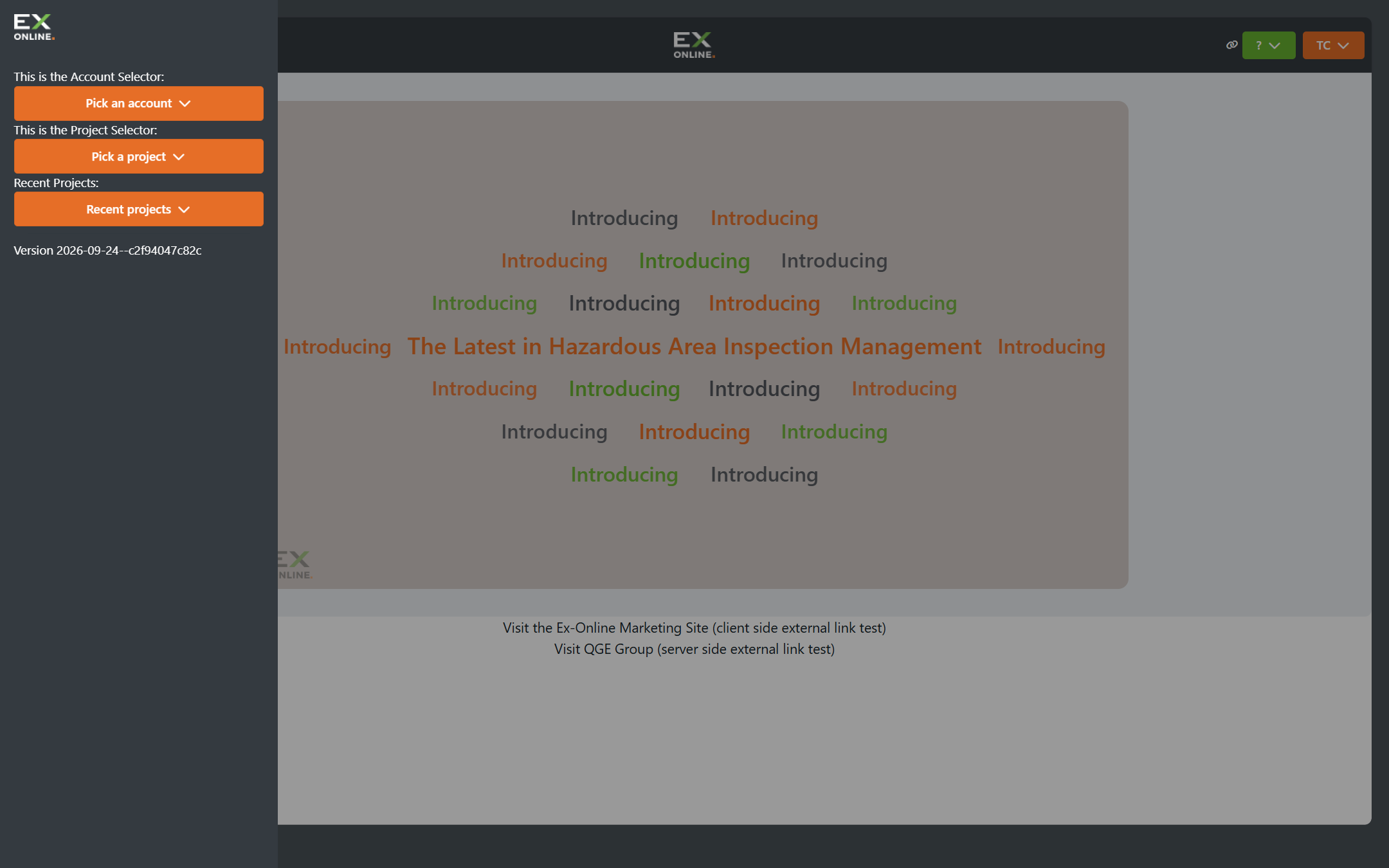
Choose how to open your project:
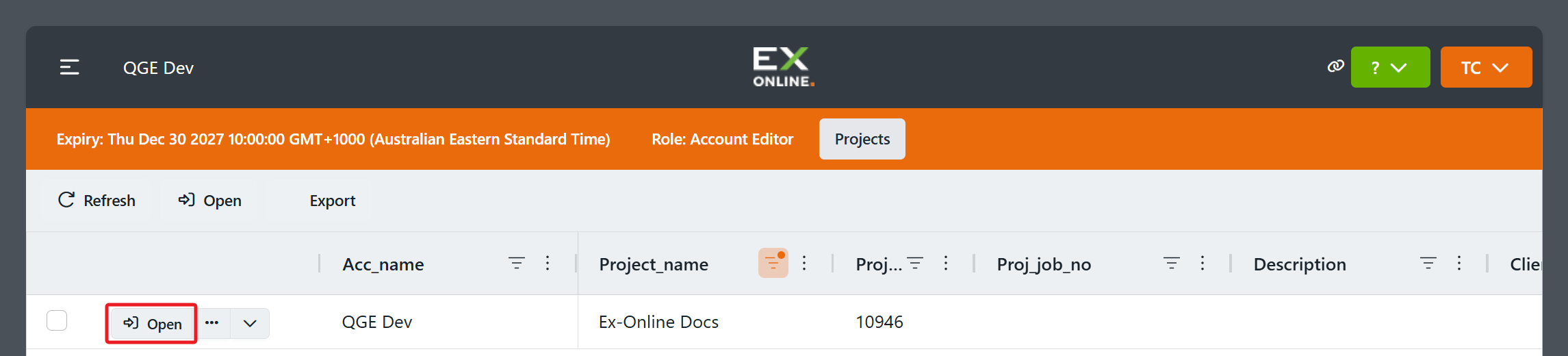
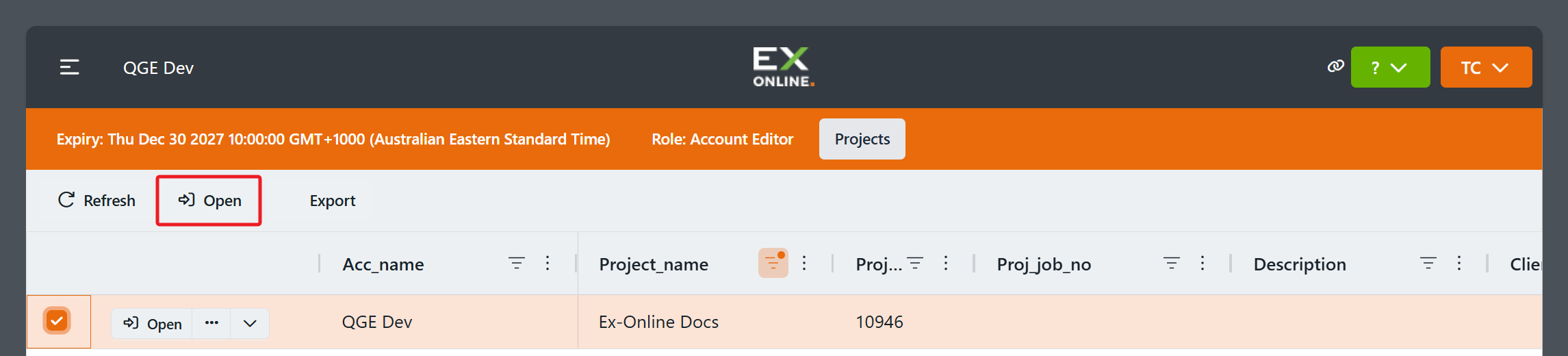
Select an account in the Home sidebar to view its Projects page. Open your project using either option:
Click Open on the project row.
Select the project row, then click Open on the toolbar above the grid.
Select a project in the Home sidebar to open it directly.
If you can’t find your account or project, ask the person who invited you to check your access.
Your project opens on the EQUIPMENT tab — the master list of all equipment registered in the project.
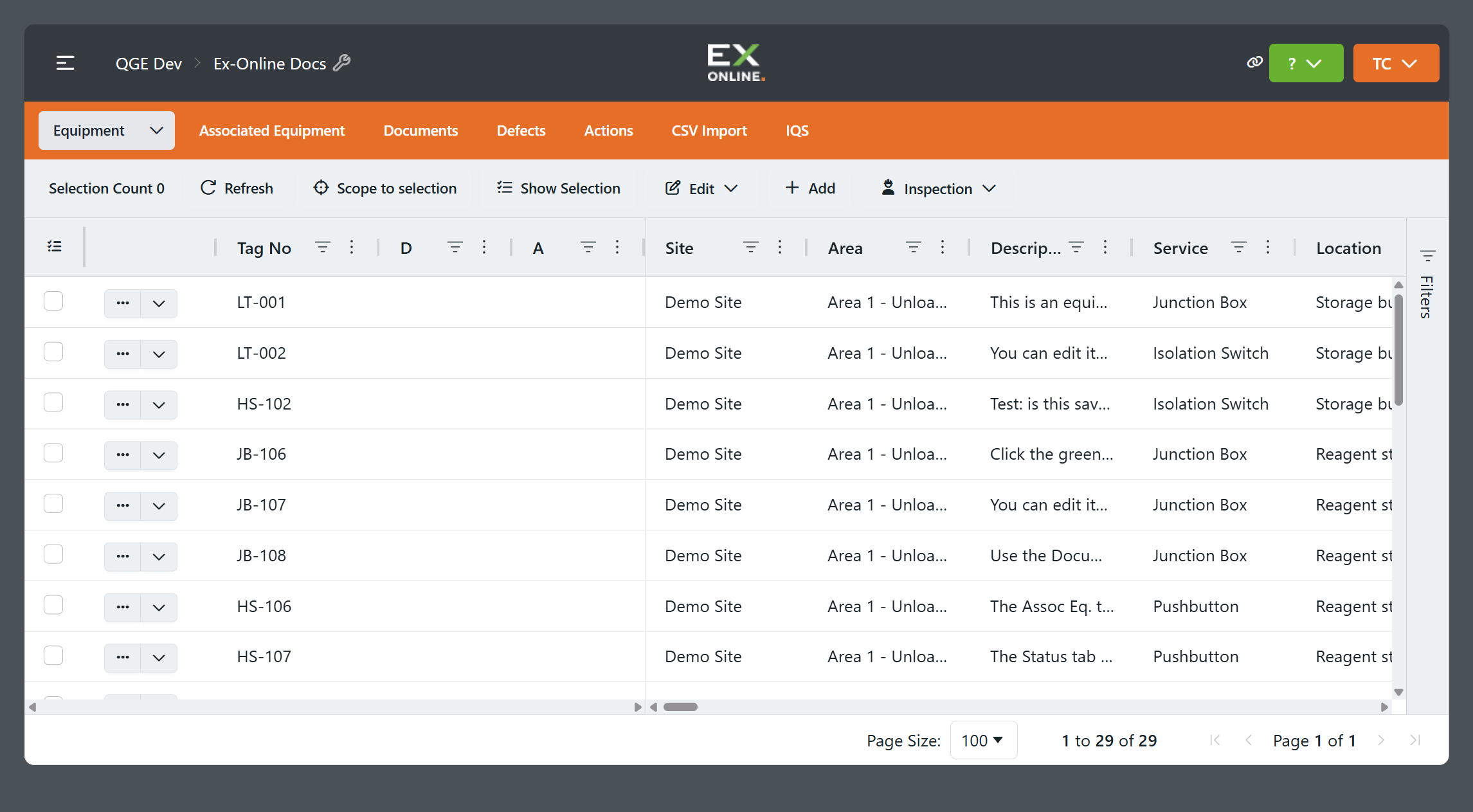
Select equipment
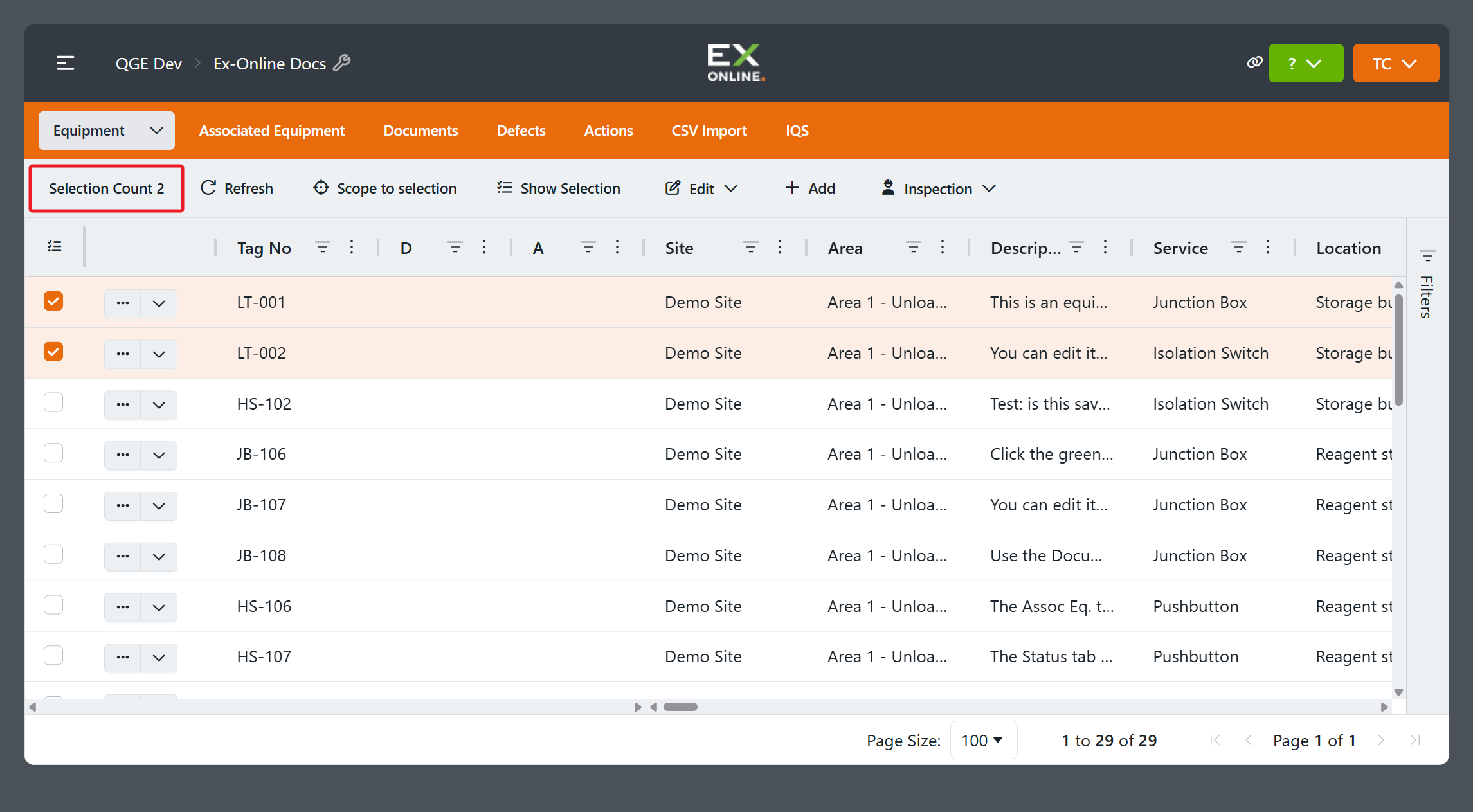
Section titled “Select equipment”Tick the checkboxes next to the items you want to inspect. The toolbar updates to show Selection Count — for example 2 if you picked two items.
Download the Inspection Work Pack
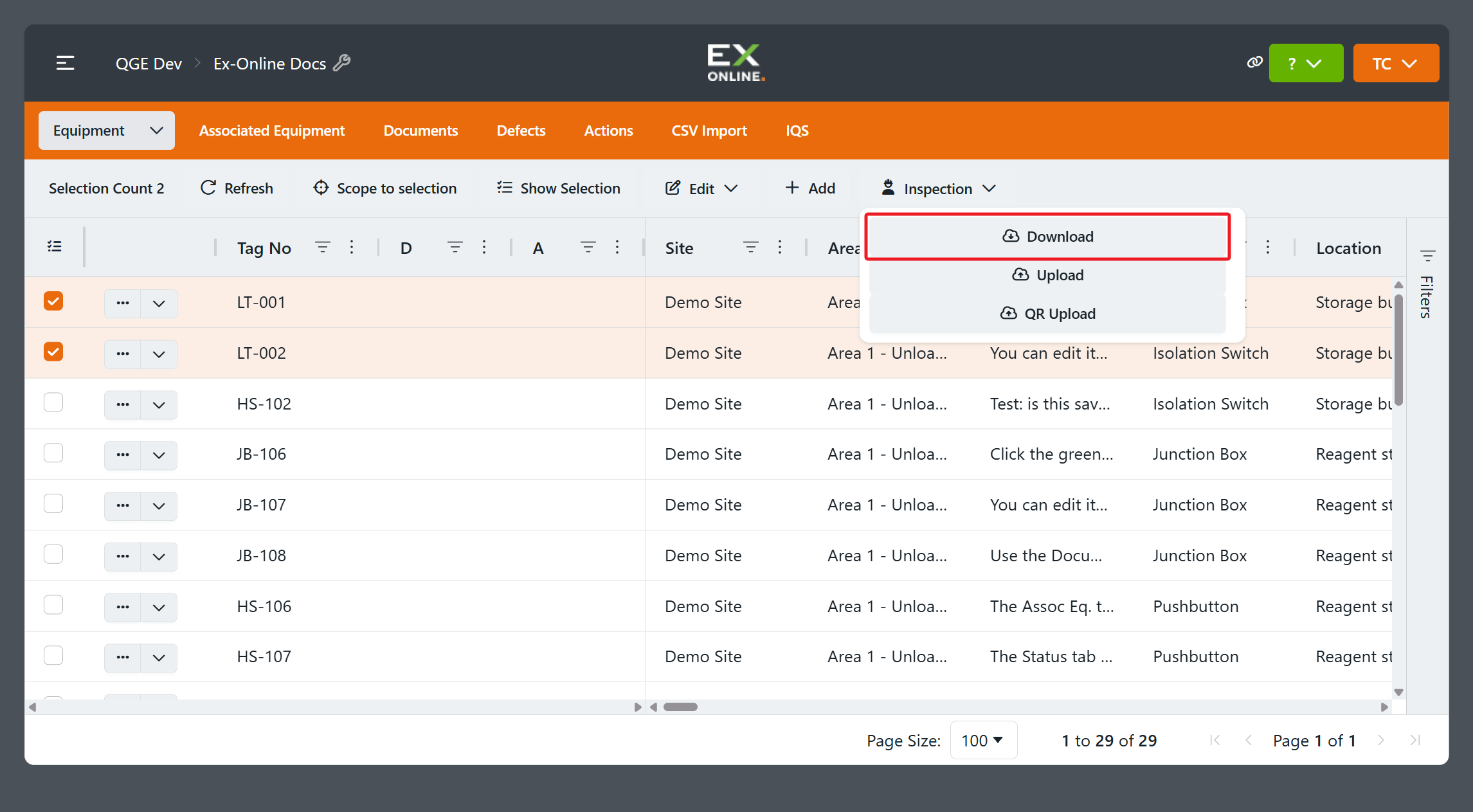
Section titled “Download the Inspection Work Pack”Click the Inspection dropdown on the right side of the toolbar and choose Download.
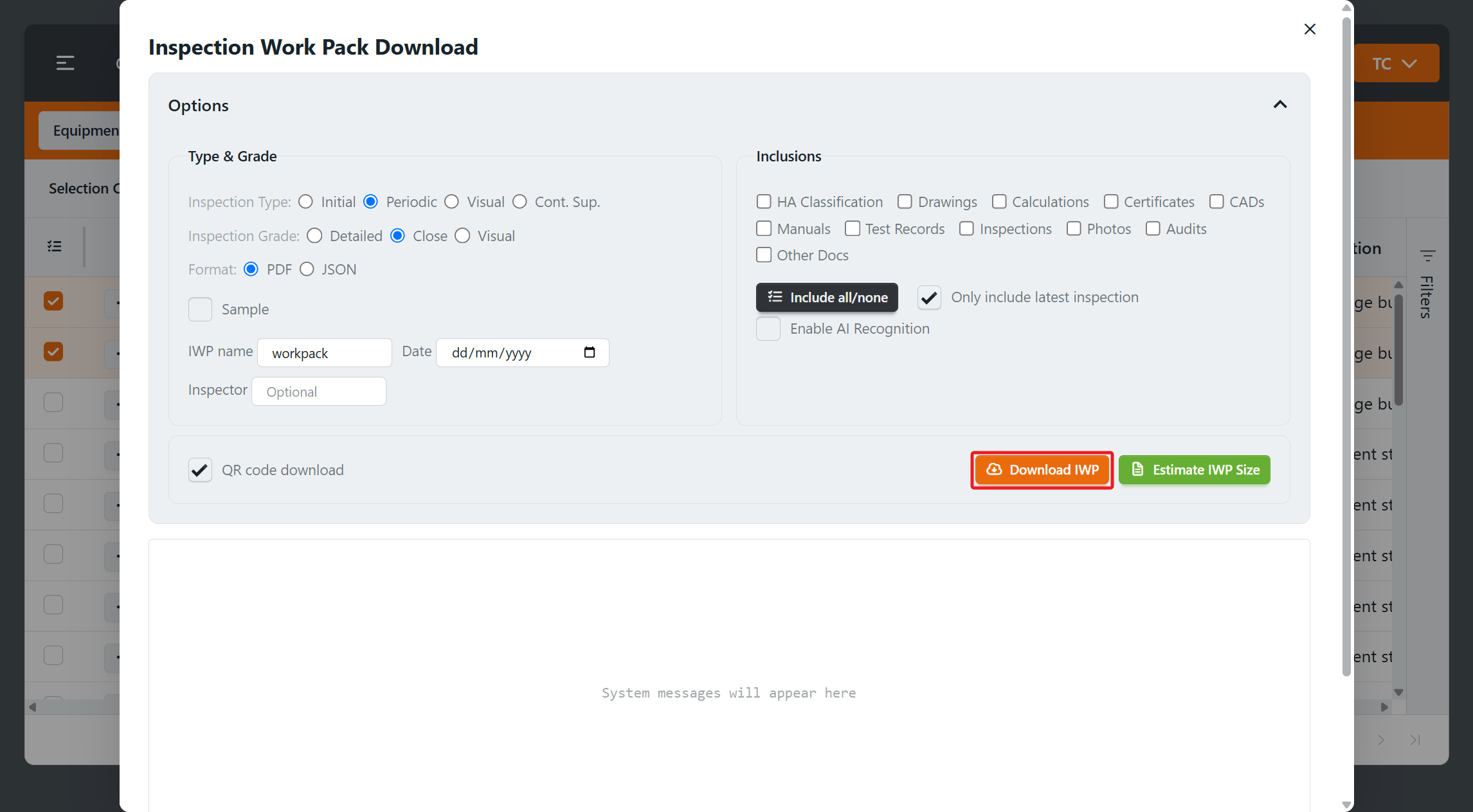
Enter a work-pack name you will recognise on your device, then click Download IWP. You can keep the other options at their defaults for this walkthrough. See Checksheet Options for details on each setting.
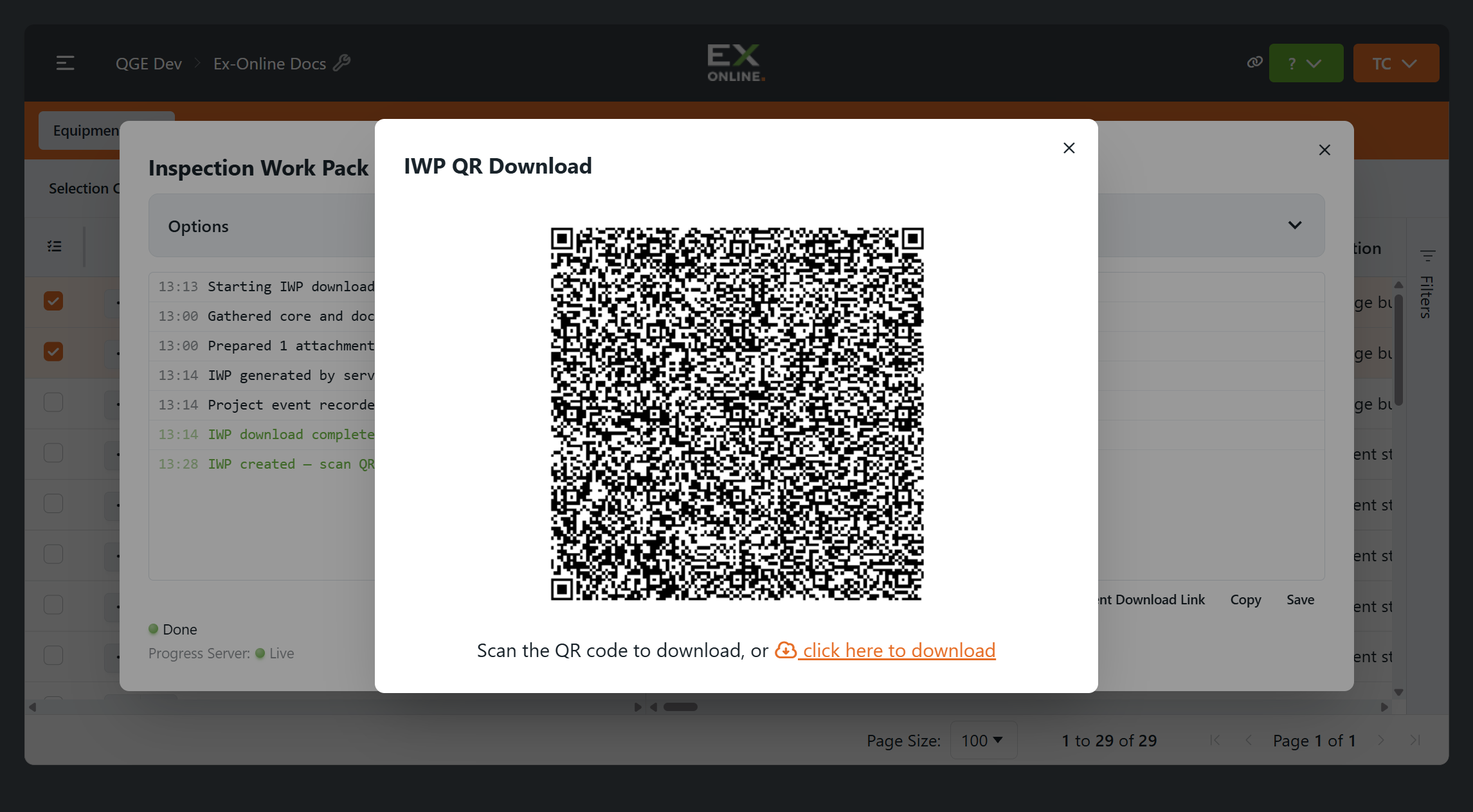
When the download finishes, the IWP QR Download dialog shows a QR code and a download link. Scan the QR code with the Inspection App on a phone or tablet, or click here to download to save the .iwp file for the desktop app.
Continue to Part 2: Complete the Inspection.