
Project Dashboard Interface
Explore the interface
Choose a section to browse its controls. Hover to identify a control; click it in the screenshot to jump to its description.
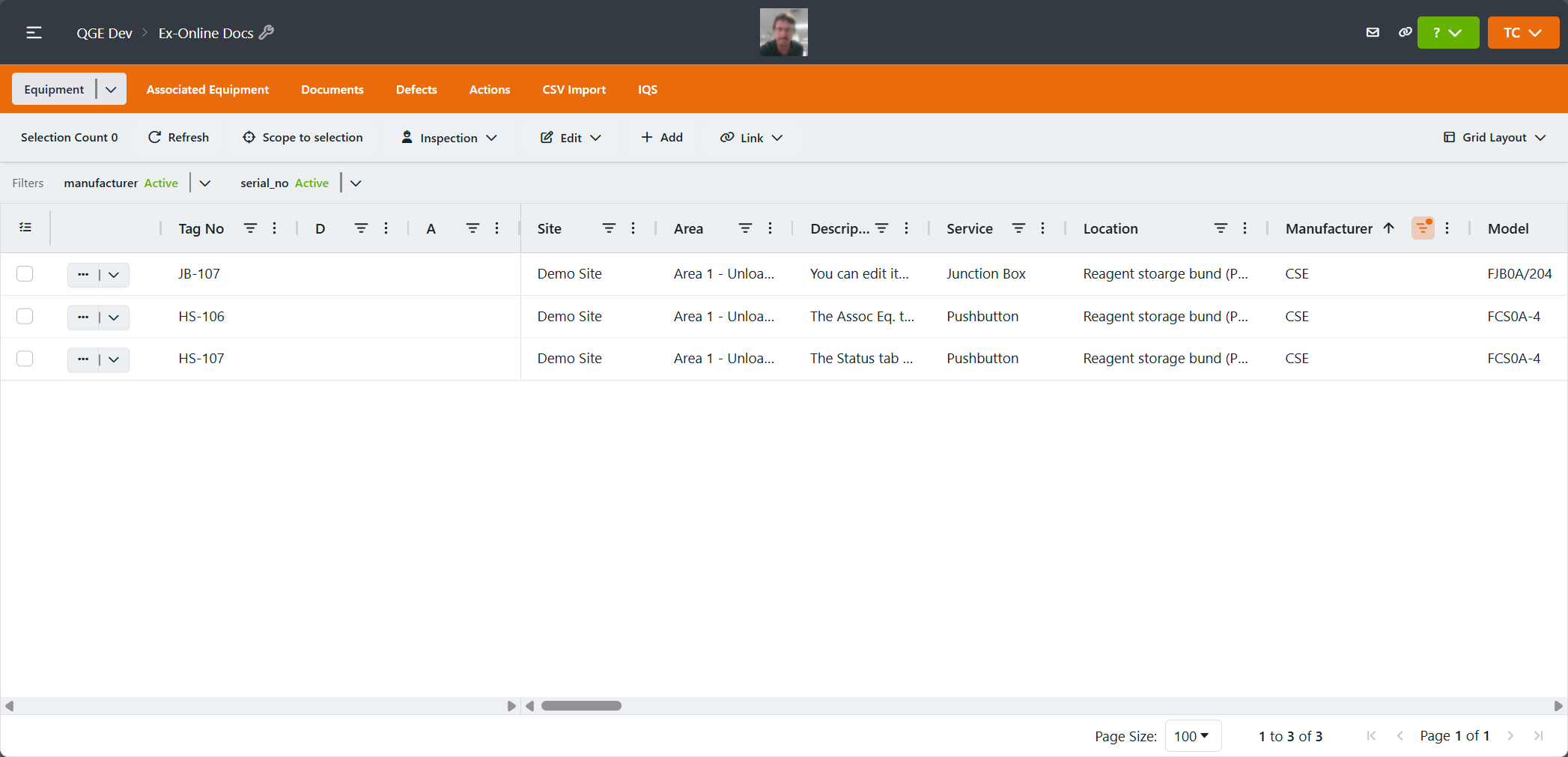
Top bar
Finding projects, identifying the current workspace, and opening project or account tools.
| Control | Function |
|---|---|
| Navigation menu | Opens account and project navigation, including recent projects. |
| Account / project breadcrumb | Shows the current account and project, with links for navigating between them. |
| Project wrench | Opens the Project Window for project details and management tools. |
| Copy link | Copies a link to the current workspace. |
| Help menu (?) | Opens help and support links. |
| User menu | Opens profile, preferences, and sign-out options. |
Project management controls and available destinations depend on your permissions.
Project views
Switching between the project’s record lists and other available features.
| Control | Function |
|---|---|
| Equipment | Shows primary equipment and inspection information. Opens by default when entering a project. |
| More options | Opens options beside the active view’s name. Record-state choices such as Live, Archive, and Trash vary by view. |
| Associated Equipment | Shows secondary devices and accessories linked to equipment. |
| Documents | Shows project documents and their details. |
| Defects | Shows recorded defects and the equipment they relate to. |
| Actions | Shows follow-up work recorded against project items. |
| CSV Import | Opens the CSV import interface.How to import data |
| IQS | Opens IQS features where available. |
The active view determines the toolbar, grid columns, and available row actions.
Toolbar
Commands for the active view, including selected-record actions and grid layouts.
| Control | Function |
|---|---|
| Selection Count | Shows how many records are selected, including records outside the visible page or filters. |
| Refresh | Reloads the grid data without clearing the selection. |
| Scope to selection | Restricts the grid to selected records until the scope is removed. |
| Inspection | Opens Equipment work-pack and results-transfer options. |
| Edit | Opens the active view’s commands for changing selected records. |
| Add | Opens the creation form for the active record type. |
| Link | Opens commands for linking existing records to selected equipment. |
| Grid Layout | Saves or loads account layouts, or clears saved layouts for the browser, grid, or project.How to configure layouts |
The screenshot shows live Equipment. Other views have their own commands. At narrower widths, toolbar commands move into a menu.
Related guidance: Select itemsManage equipment
Filters and columns
Using header selection, filtering and sorting records, and arranging columns.
| Control | Function |
|---|---|
| Filters strip / active filter | Shows the applied filters and opens their options. |
| Header selection menu | Offers Select All, Select All On This Page, Select All Filtered, and Clear Selection. |
| Column filter icon | Opens a Column Filter with an operator, value, and Apply or Reset controls. |
| Column heading | Names the field and changes the sort order. An indicator shows the current sort direction.How to filter and sort |
| Column menu (three dots) | Opens the column’s available options.How to configure layouts |
Columns and saved arrangements vary by view. The example has Manufacturer and serial_no filters applied; these are not default filters.
Row controls and Windows
The three-dot button opens item details beside the grid; the adjacent dropdown shows more options for the item.
| Control | Function |
|---|---|
| Row checkbox | Selects or deselects one record for selected-item commands. |
| Three-dot row button | Opens the item’s details in a Window beside the grid. Equipment rows open the Equipment Window. |
| Adjacent row arrow | Opens a dropdown with more options for the item. On Equipment, View Eq opens the item’s overview in a new browser tab. |
Opening a Window identifies the record being viewed. Checking a row identifies a record targeted by selected-item commands. These are separate actions.
Record grid
Reading records and working with the active view’s fields.
| Control | Function |
|---|---|
| Record rows | Each row represents one record in the active view. |
| Field columns | Show the active view’s record fields. Equipment includes Tag No, defect and action counts, location, and device details. |
| Editable cells | Accept field changes in batch-edit mode. Changes remain pending until reviewed and saved.How to update items |
| Pager | Moves between pages using the controls below the grid. Selected records on other pages remain selected. |
| Page Size | Sets the number of records displayed on each grid page. |
The visible grid is affected by the active view, filters, scope, saved layout, and any open record Window. Opening a Window reduces the space available to the grid.