
Filtering and Sorting
Filters control which rows are visible; sorting controls their order. Both can be used together. This page describes the Project Dashboard grid; see Filter and sort for a walkthrough.
Filtering
Section titled “Filtering”Column filters
Section titled “Column filters”Click the Filter icon beside a column header to choose an operator and enter a value. The available operators depend on the column. Click Apply to filter the grid.
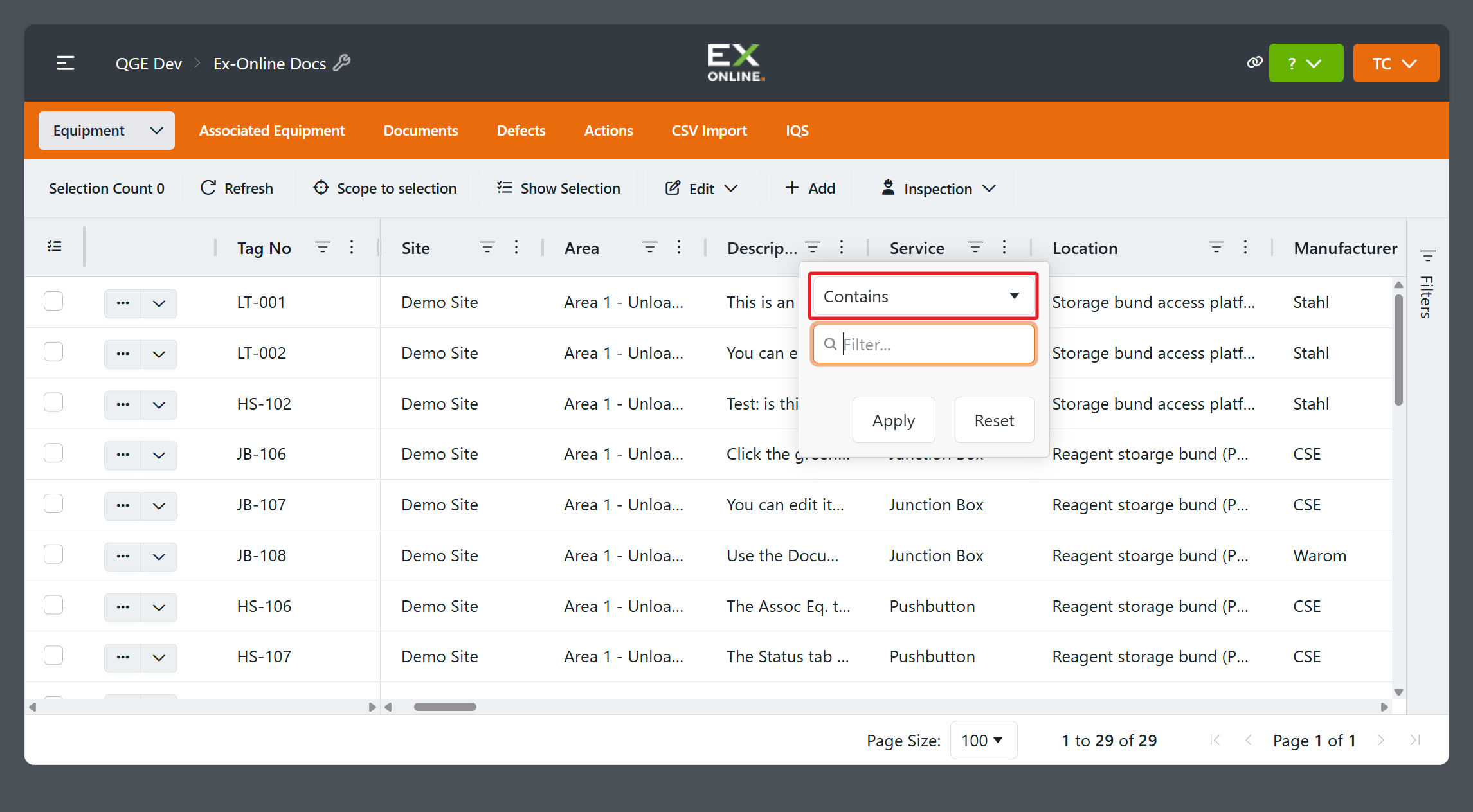
On the Accounts Page, each column has its own Filter icon; the Project Dashboard also has a Filters panel on the right edge of the grid.
Filters panel
Section titled “Filters panel”The Filters panel lists applied filters as cards. Use Add Filter to choose another column. Expand a card to change its operator or value, then click Apply. Click its × to remove it.
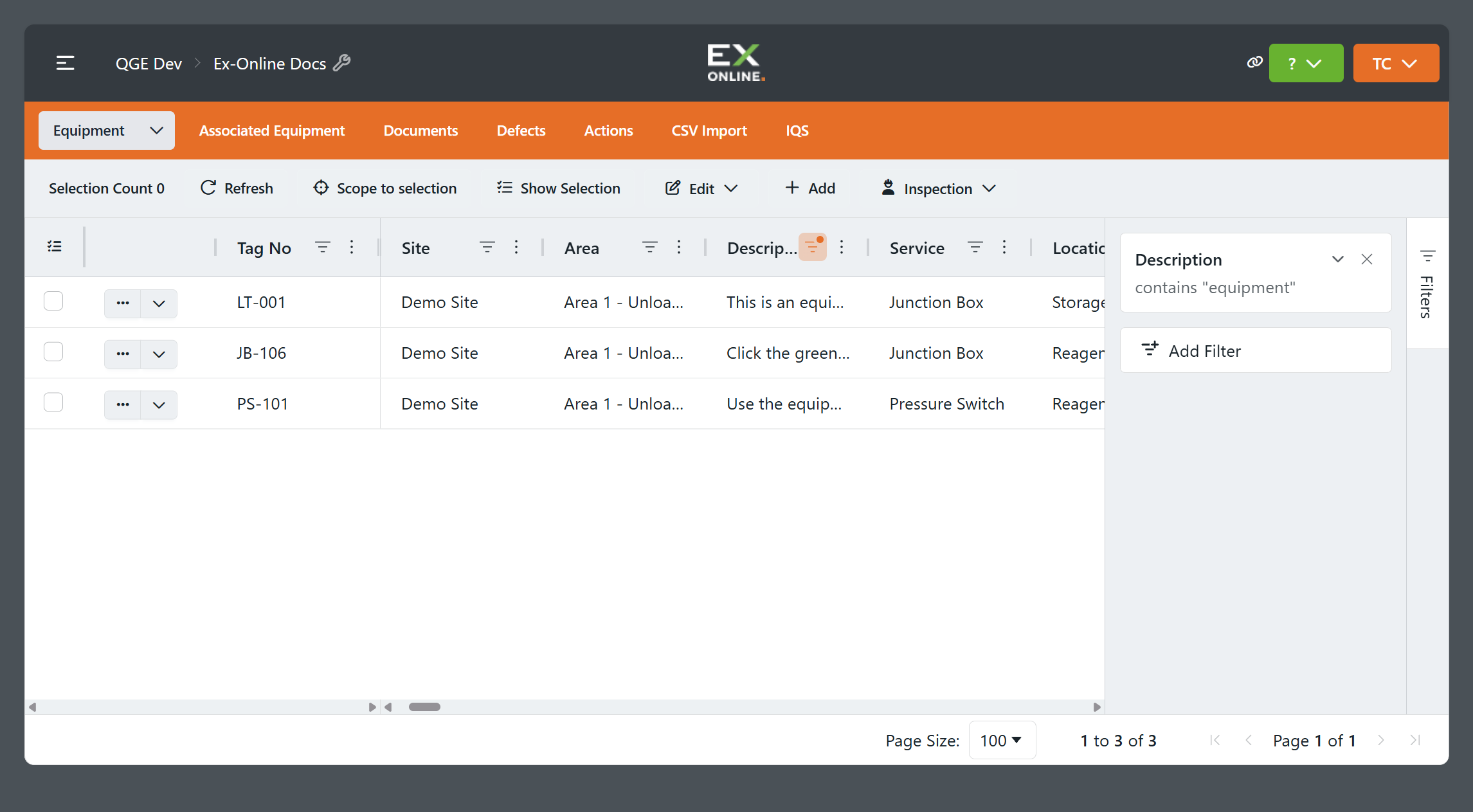
Conditions in different cards combine with AND: a row must match every applied card to appear. Within one card, AND or OR can combine two values for the same column.
The Show Selection toolbar button restricts the view to selected items. See Show Selection.
Sorting
Section titled “Sorting”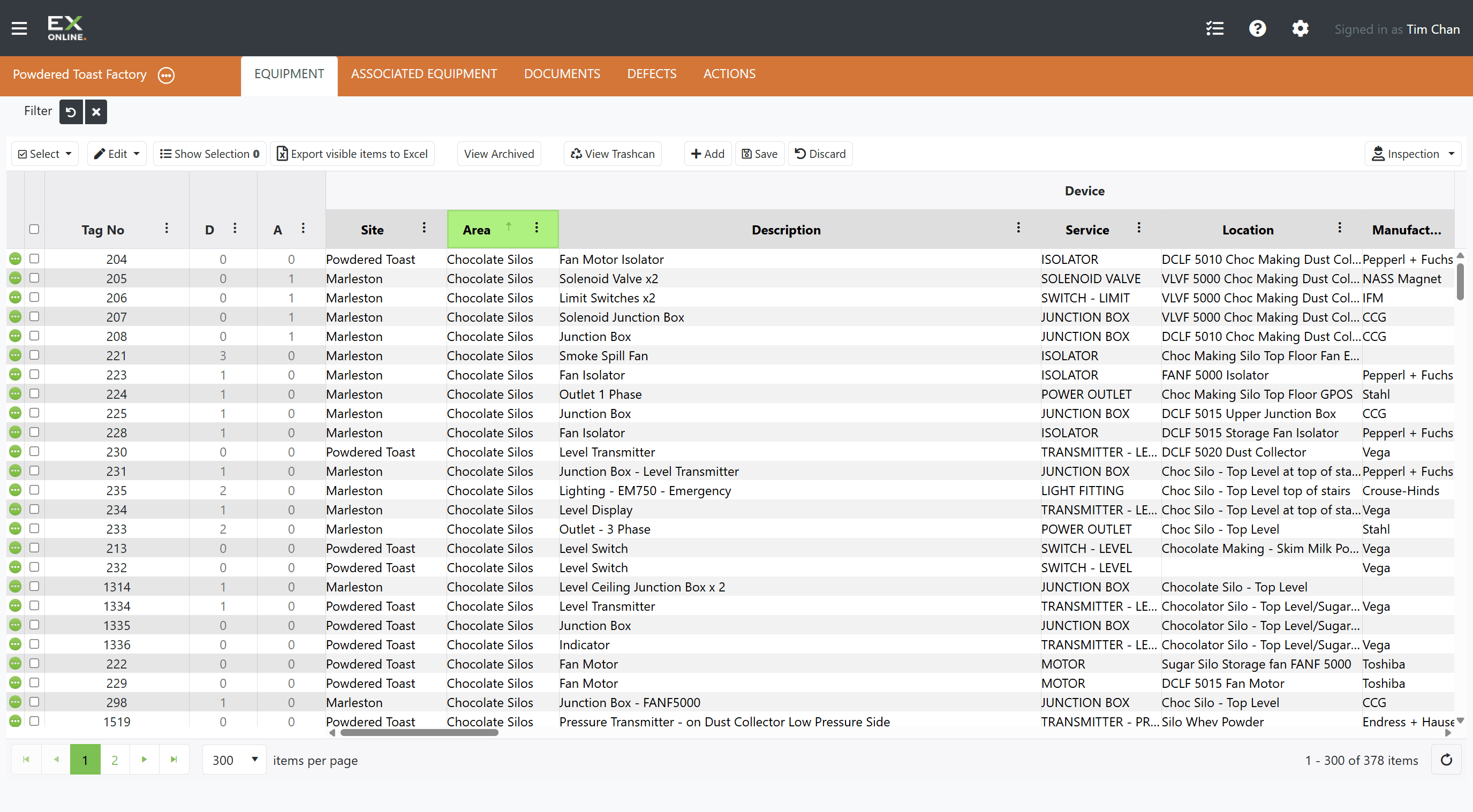
Click any column header to sort the grid by that column. The first click sorts ascending; the second sorts descending; the third clears the sort. An arrow in the header shows the current direction.
Clicking a different column header replaces the current sort — the grid re-sorts by the new column and the previous sort is removed.
Stacked Sorting
Section titled “Stacked Sorting”To sort by multiple columns at once, hold Shift and click additional column headers after the first sort is applied. Each stacked column shows a numbered indicator (1, 2, 3…) reflecting its position in the sort order.
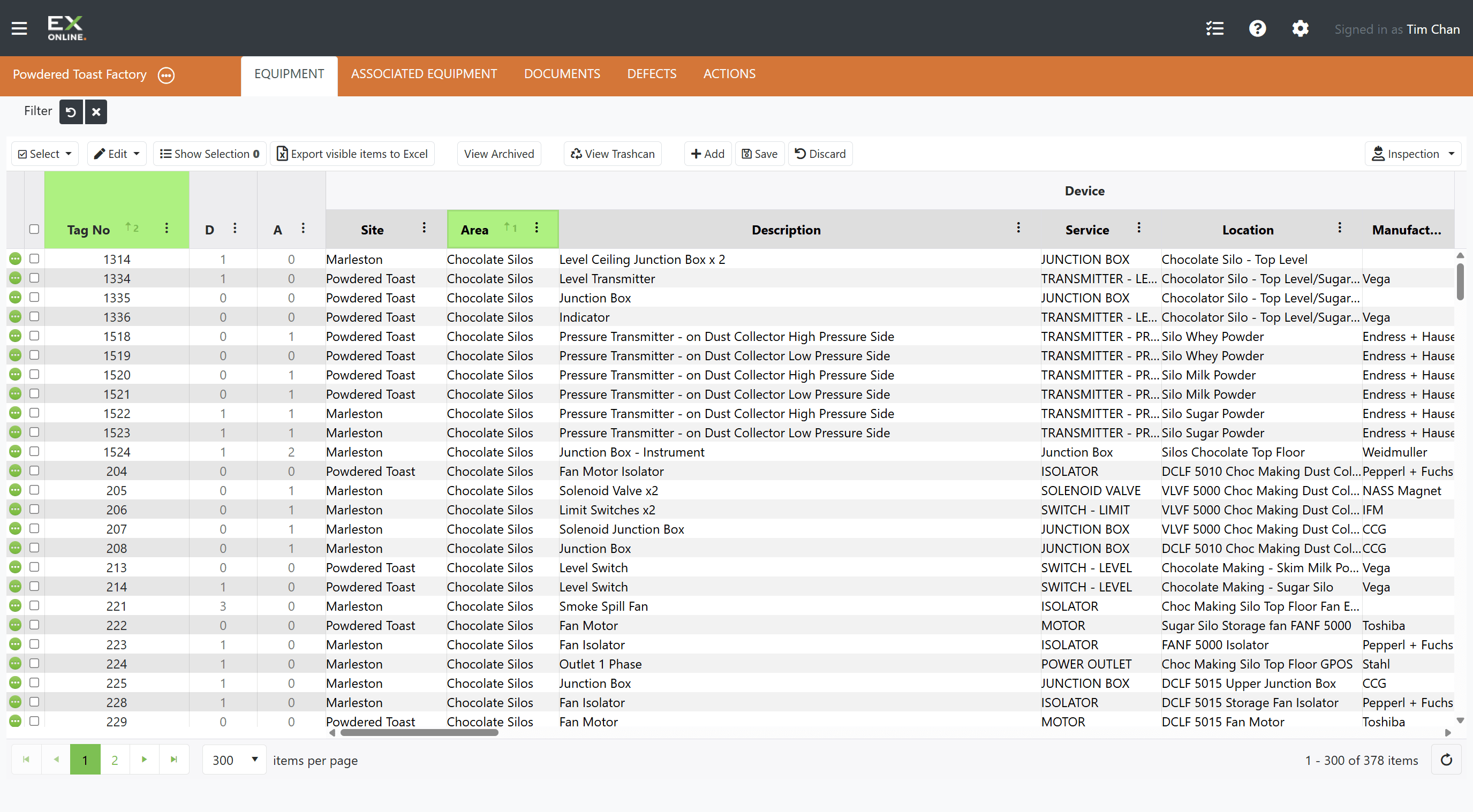
For example, sorting by Area first, then Shift-clicking Tag No., groups items by area and sorts alphabetically by tag number within each area.
Sort Precedence
Section titled “Sort Precedence”The sort order follows the sequence in which columns were clicked:
| Position | How it’s set | Effect |
|---|---|---|
| Primary (1) | Click a column header | The grid is sorted by this column first |
| Secondary (2) | Shift-click a second column header | Within groups of identical primary values, rows are sorted by this column |
| Tertiary (3+) | Shift-click additional column headers | Further sub-sorting within matching secondary values |
To change precedence, clear the current sort by clicking any column header without Shift (this resets to a single-column sort), then rebuild the stacked sort in the desired order.
Filtering and Sorting Across Views
Section titled “Filtering and Sorting Across Views”Filtering and sorting are available on every grid view in the Tag Browser: Accounts Page, Equipment, Associated Equipment, Documents, Defects, and Actions.