
Selecting items
This guide will walk you through selecting items on the Project Dashboard and checking which items an action will affect. Tick the checkbox beside an item to select it. Selection Count in the toolbar updates as you tick or untick rows. The examples use the EQUIPMENT tab; the same controls are available on the other Project Dashboard tabs.
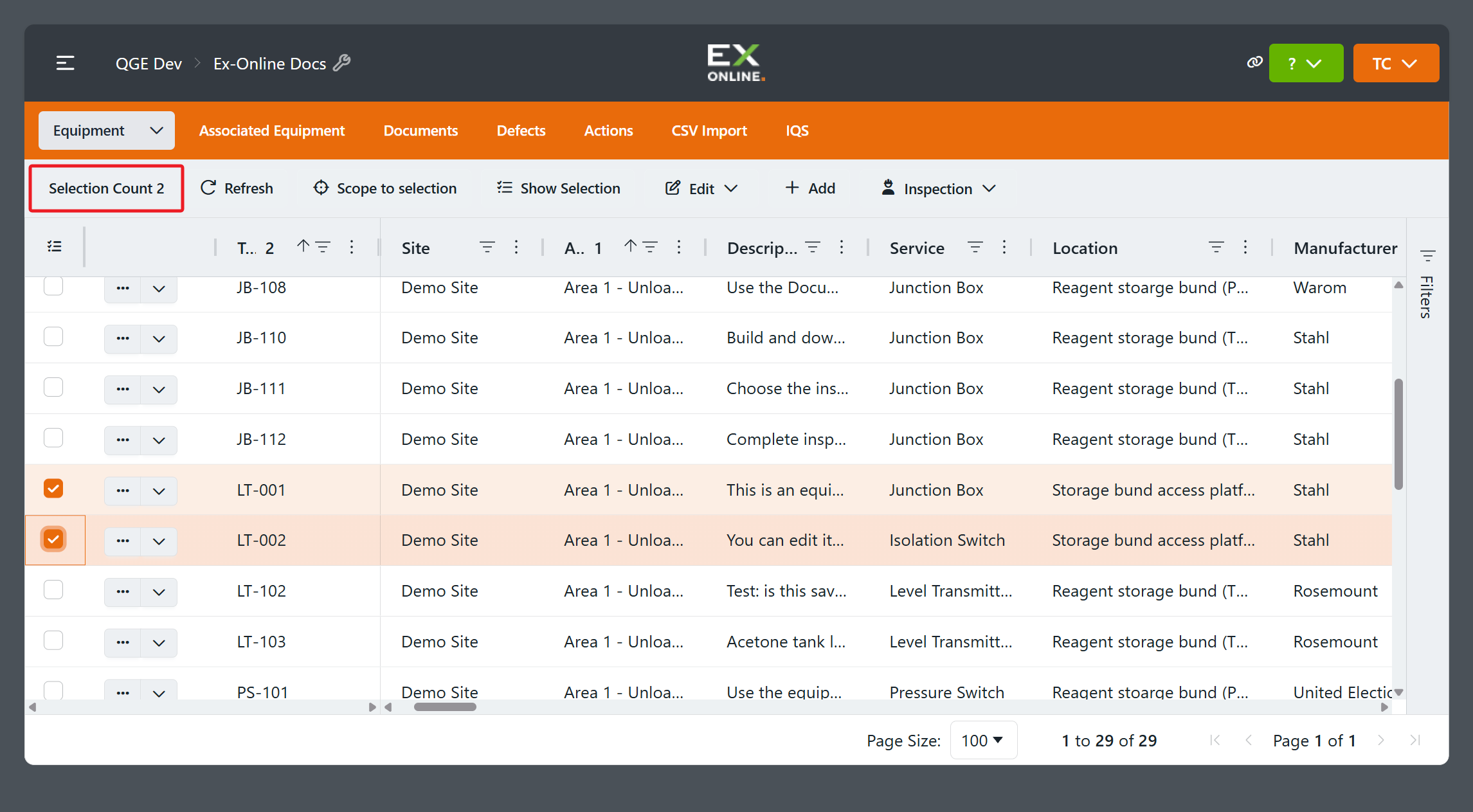
Select multiple items
Section titled “Select multiple items”To select a page, an entire tab, or a filtered group, use the checkbox or select menu in the first column header:
- Current page: Tick the header checkbox or choose Select All On This Page.
- Entire tab: Choose Select All. This includes rows on other pages and rows hidden by filters.
- Matching a filter: Apply a filter, then choose Select All Filtered. This includes matching rows on every page. Without an active filter, it selects the entire tab.
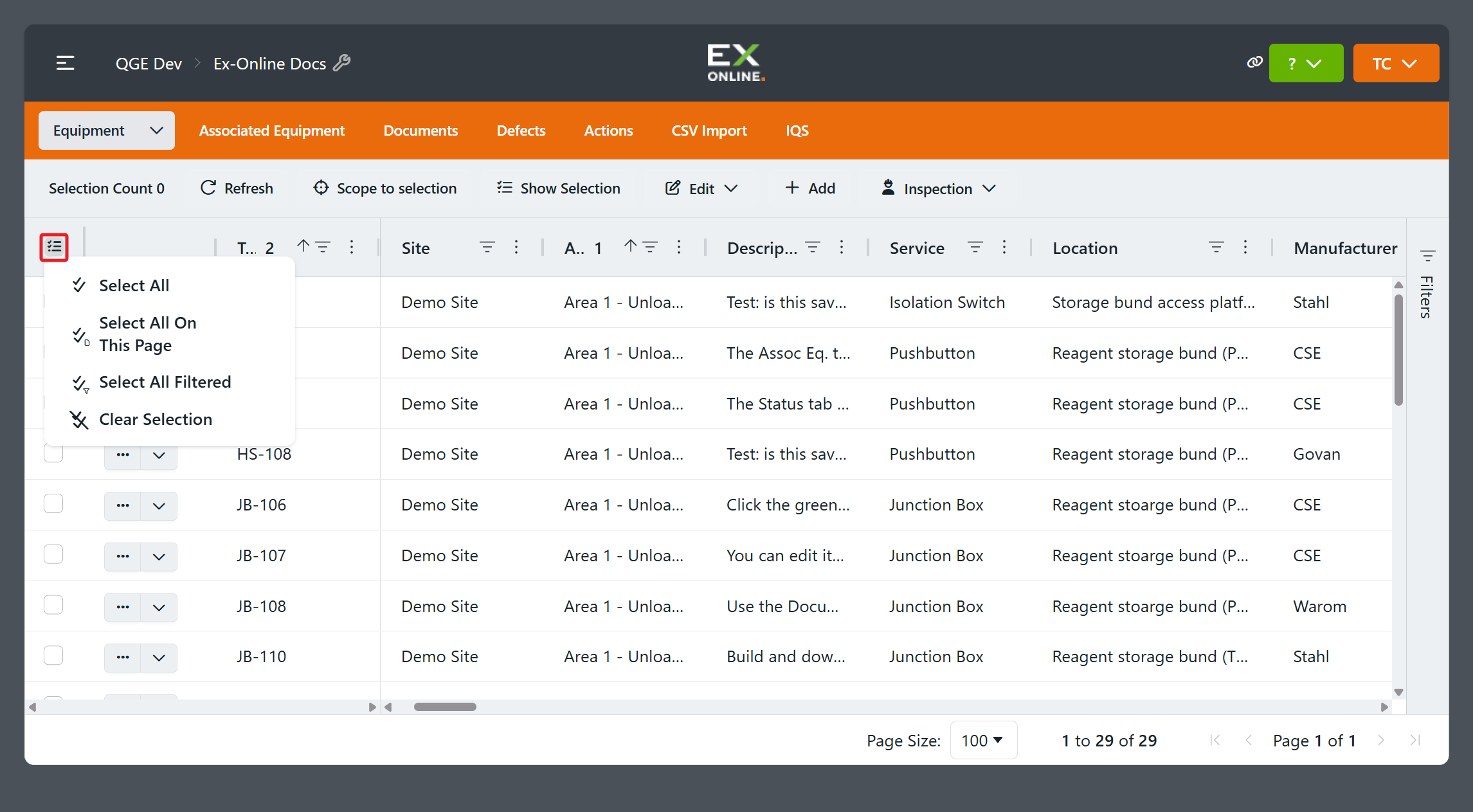
You can tick or untick individual rows to adjust any of these selections. See Filtering and sorting for help applying a filter.
Check the selection
Section titled “Check the selection”Before starting an action, check Selection Count. Selections persist when you change pages or filters, so some selected rows may be hidden from view. To see every selected row, clear active filters, then click Show Selection.
When finished, choose Clear Selection from the select menu. See Selecting Items for the full set of selection controls.
Related topics
Section titled “Related topics”- Selecting Items — Toolbar controls, Show Selection, and Scope to selection
- Filtering and sorting — Narrow the grid before Select All Filtered
- Inline updates — Change field values on the selection
- Downloading an IWP — Download a work pack for the selection