
Filtering and sorting
This guide will walk you through filtering and sorting rows on the Project Dashboard. The examples use the EQUIPMENT tab; the same controls are available on the other tabs.
Filter rows
Section titled “Filter rows”Start from a column header when you know which field to filter. Use the Filters panel to build or review several conditions. Both controls use the same operators; applied filters appear as cards in the panel.
The available operators depend on the column. Choose one from the dropdown when you create or edit a filter.
Filter from a column header
Section titled “Filter from a column header”A plain click on the header text sorts the column; use the Filter icon beside it to filter.
-
Click the Filter icon on the column header — for example Description on EQUIPMENT.
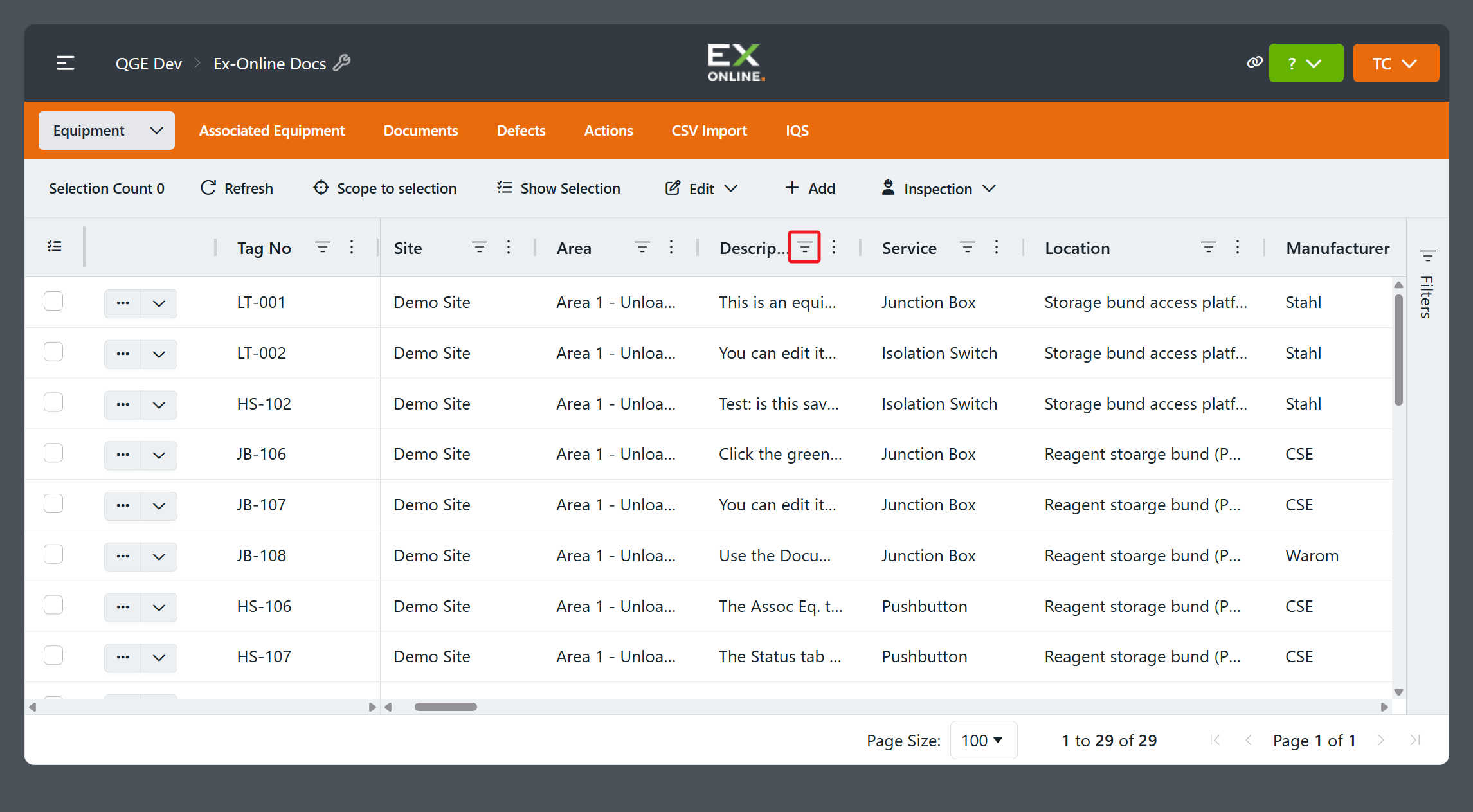
-
Choose Contains as the operator.
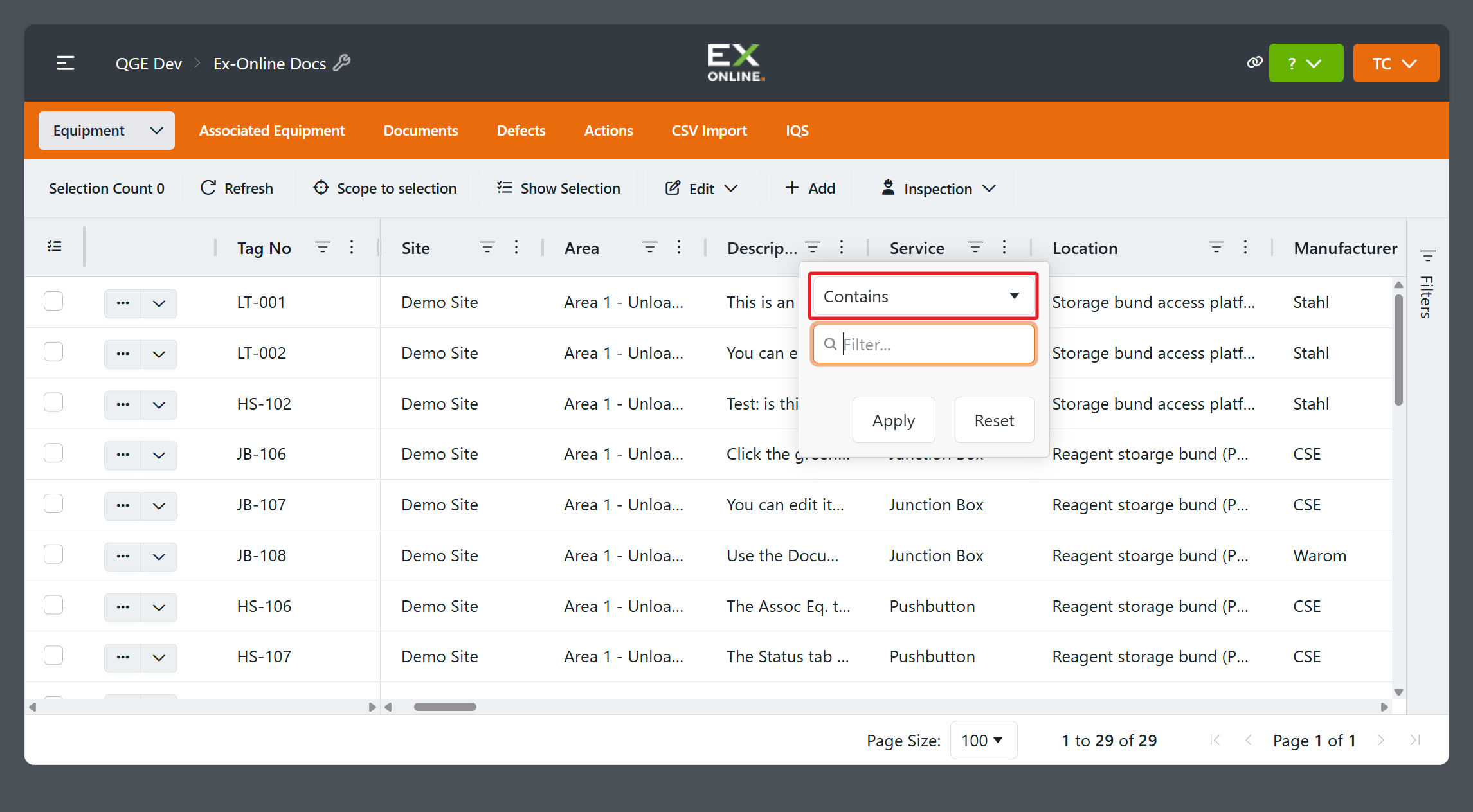
-
Enter
equipmentin the value field — to match rows whose Description includes that text.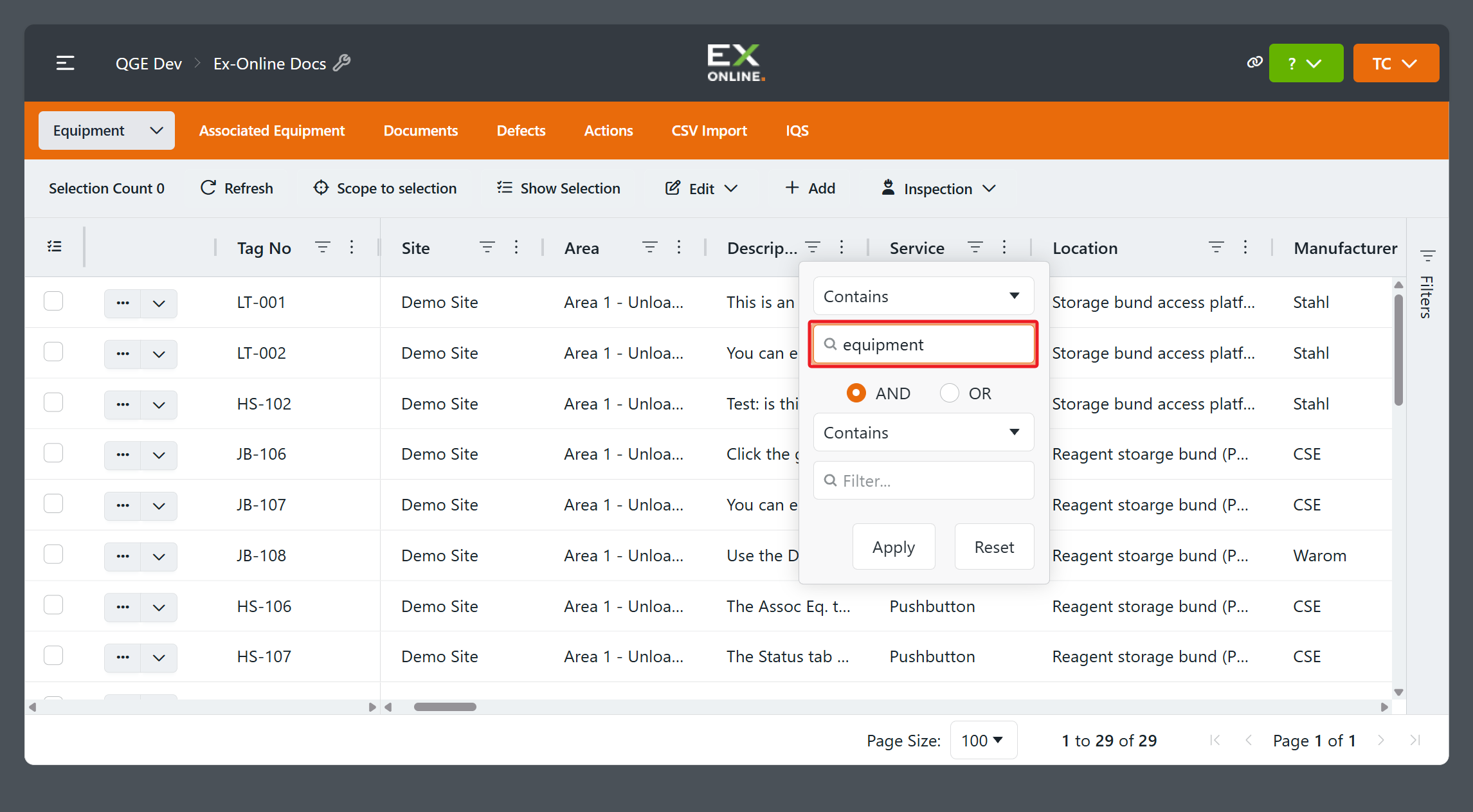
-
Click Apply. The grid shows only rows whose Description contains
equipment.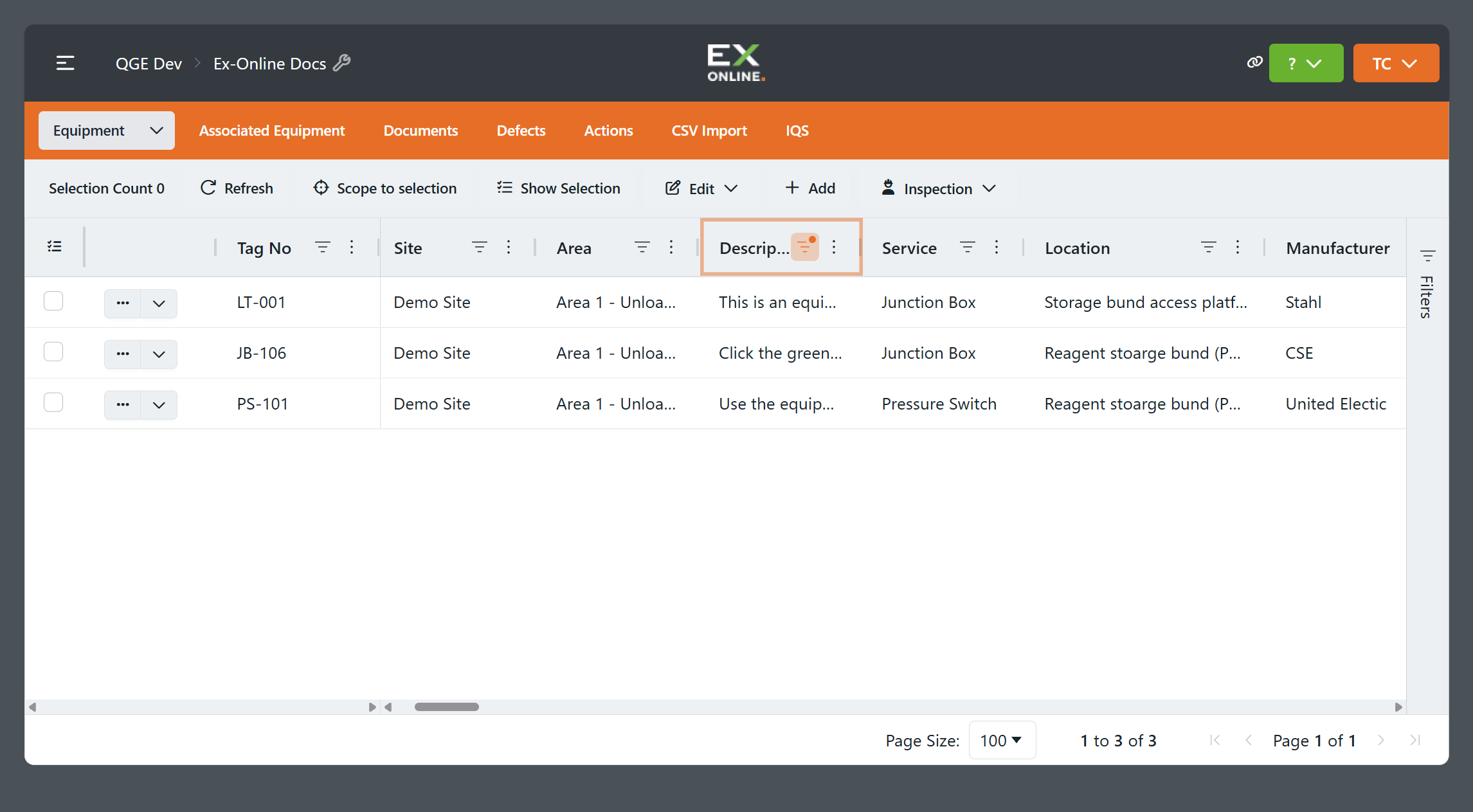
Build a filter in the Filters panel
Section titled “Build a filter in the Filters panel”The Filters panel shows all active filters and lets you build several conditions before applying them.
-
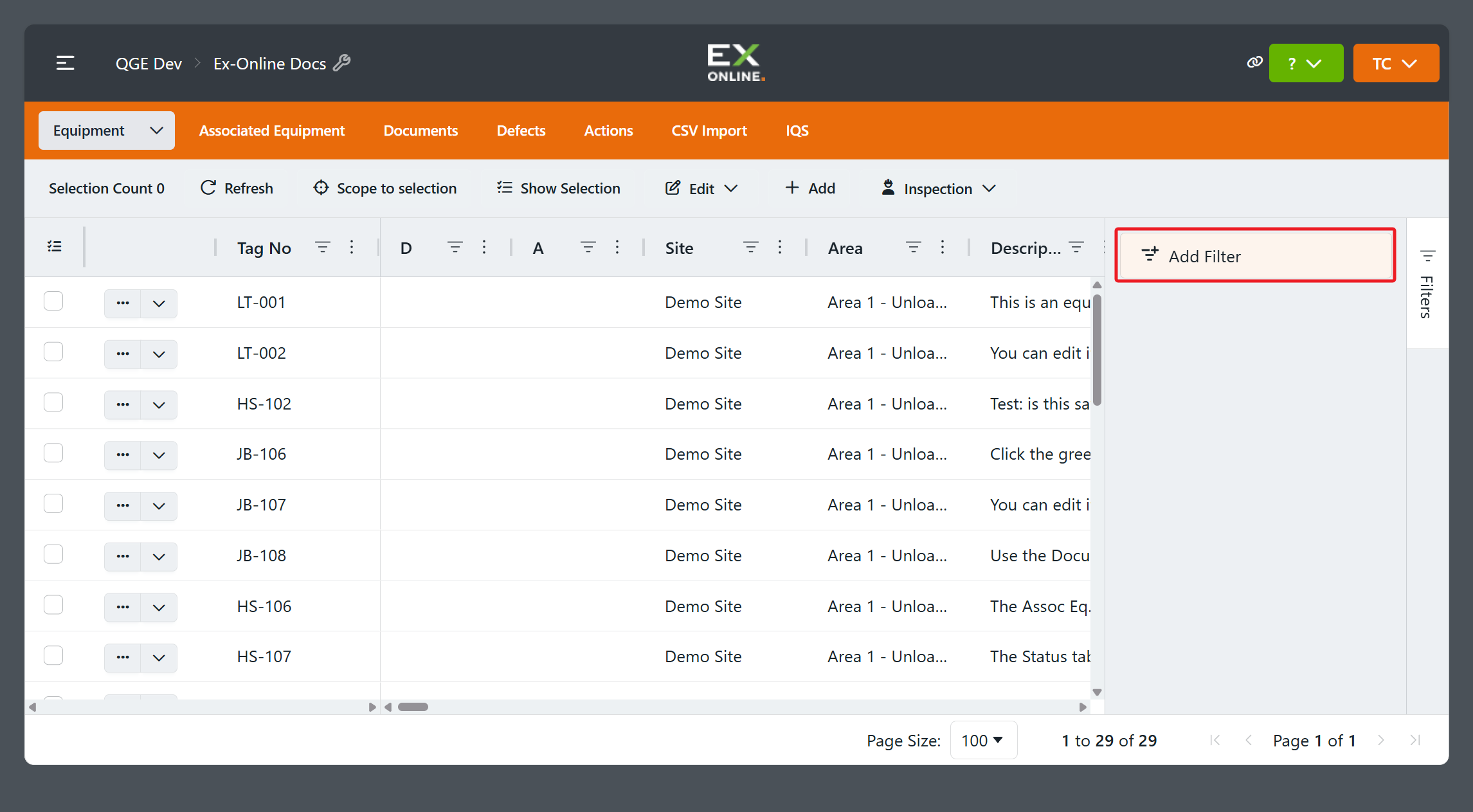
Click the Filters tab on the right edge of the grid, then click Add Filter.
-
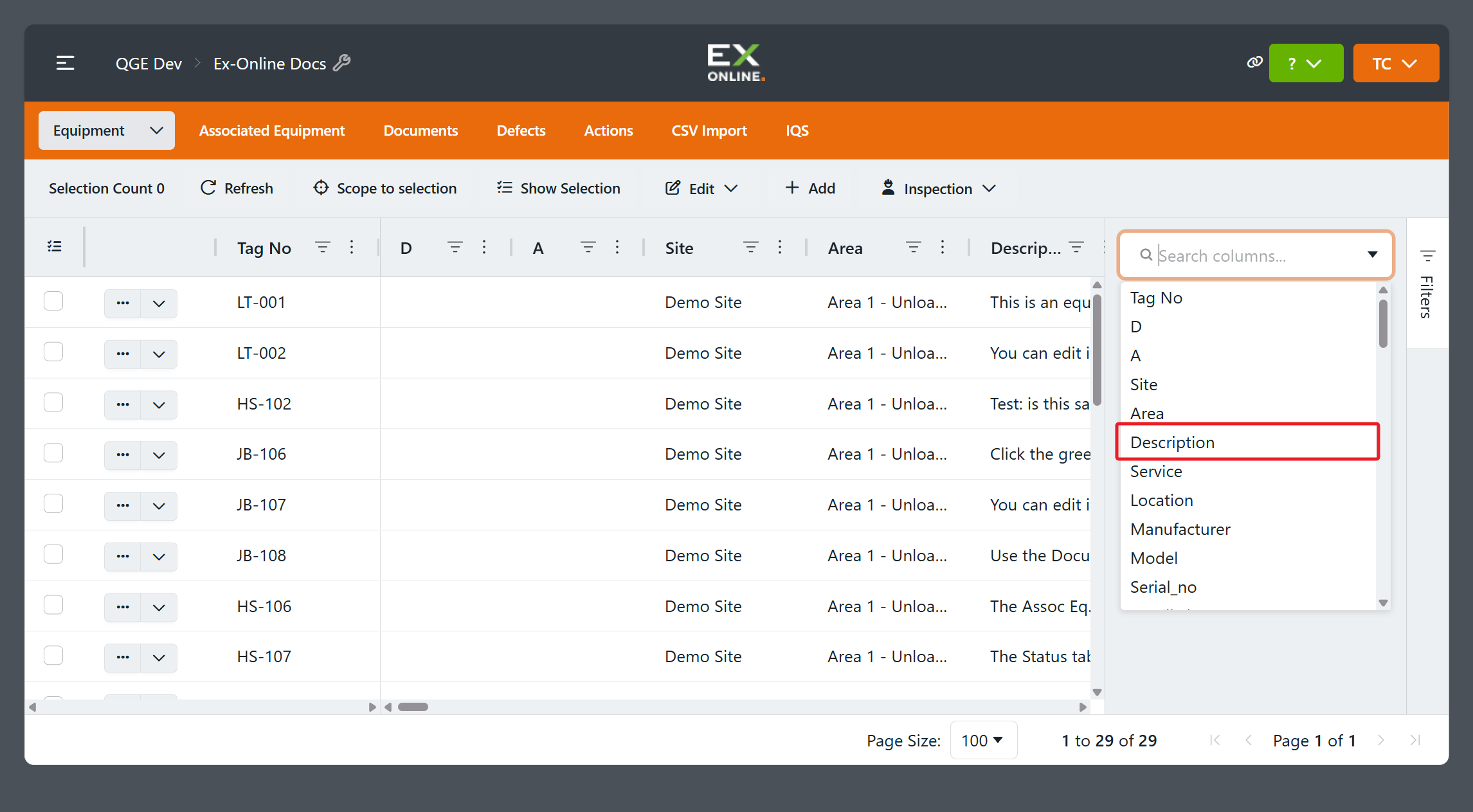
In the Search columns… picker, choose a column — for example Description. A filter card appears in the panel.
-
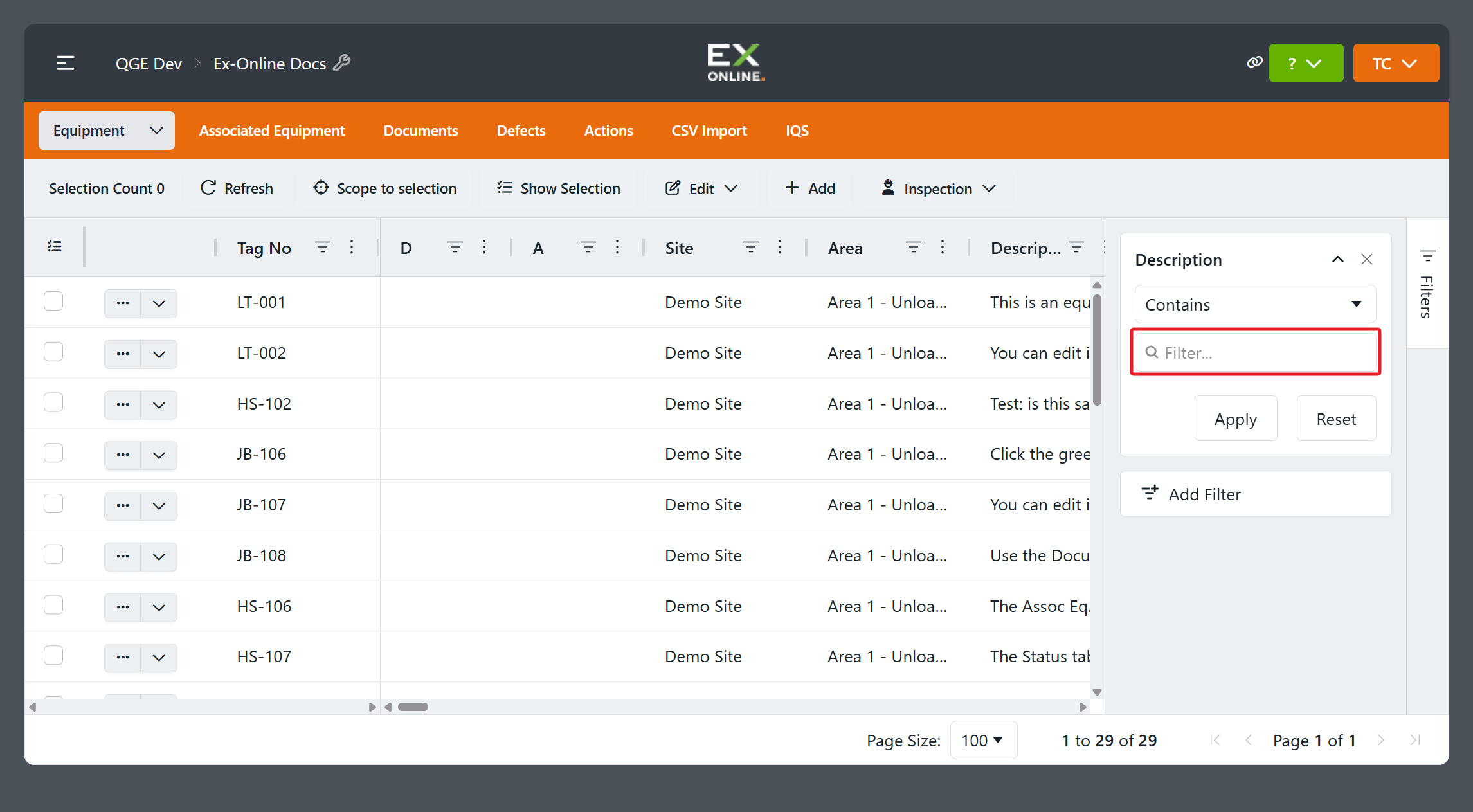
Choose Contains as the operator.
-
Enter
equipmentin the value field — to match rows whose Description includes that text.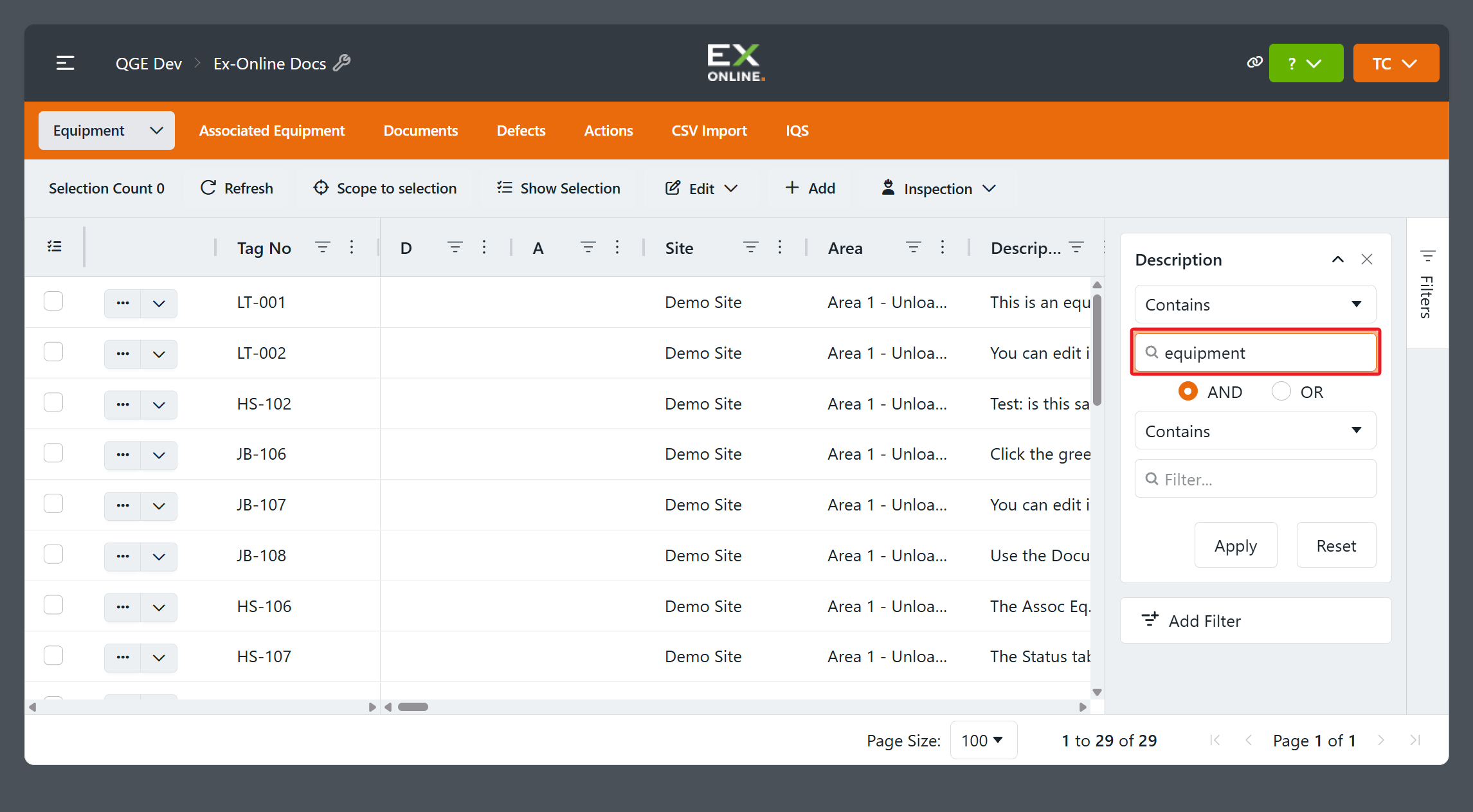
-
Click Apply. The grid shows only rows whose Description contains
equipment.
Either path works on any column on any Project Dashboard tab. When a filter card is collapsed, its title summarizes the condition (for example description contains equipment).
Change or remove a filter
Section titled “Change or remove a filter”Applied filters live in the Filters panel as cards — one card per column condition.
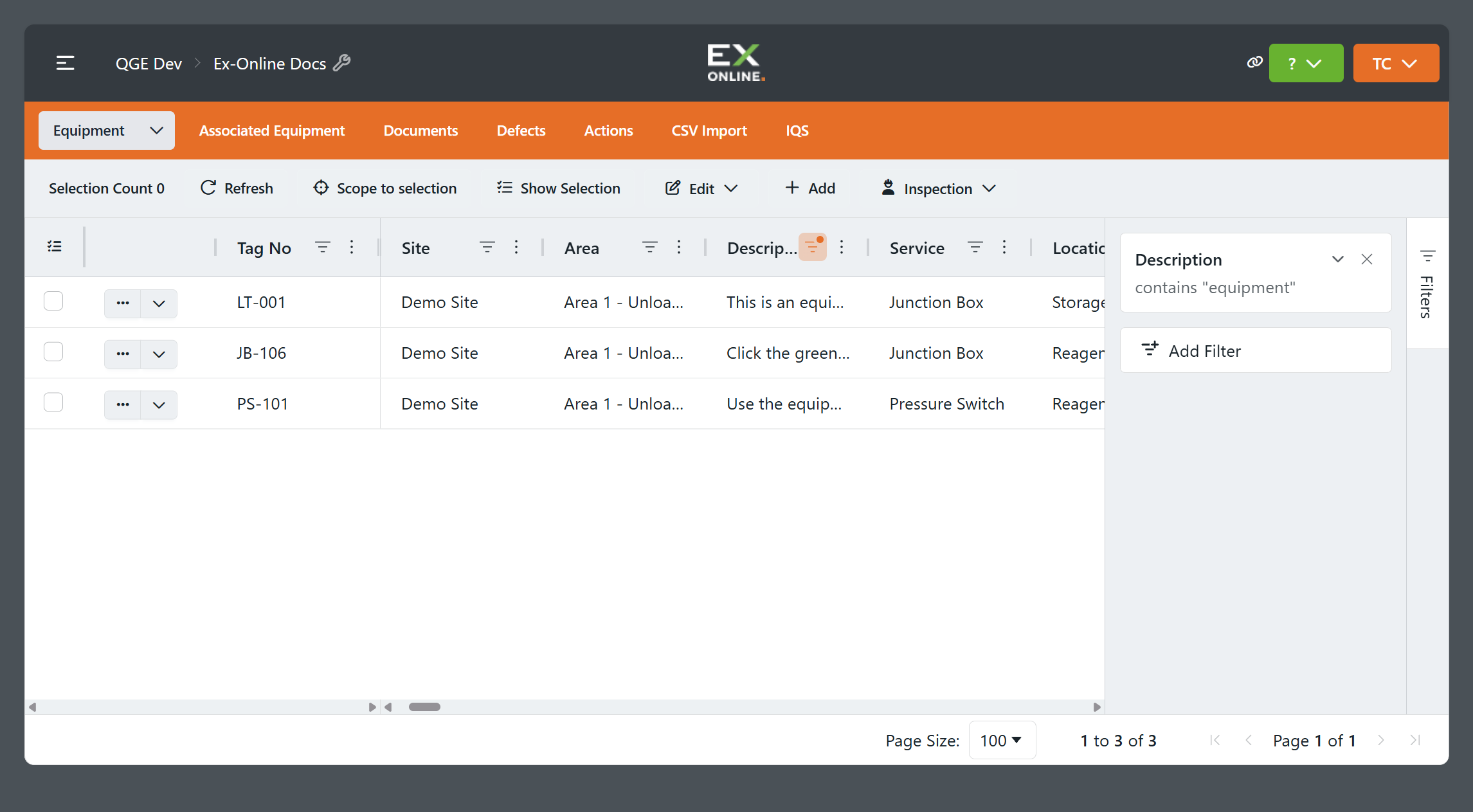
Click a card title to expand it, change the operator or value, and click Apply to refresh the grid. Click the card’s cross (×) to remove that filter. You can collapse a card without removing its condition; its title summarizes the active filter.
Two values in one column
Section titled “Two values in one column”One filter card can test a column against two values. After you enter the first value, AND and OR appear — choose AND when both must match, or OR when either is enough, add the second value, then click Apply.
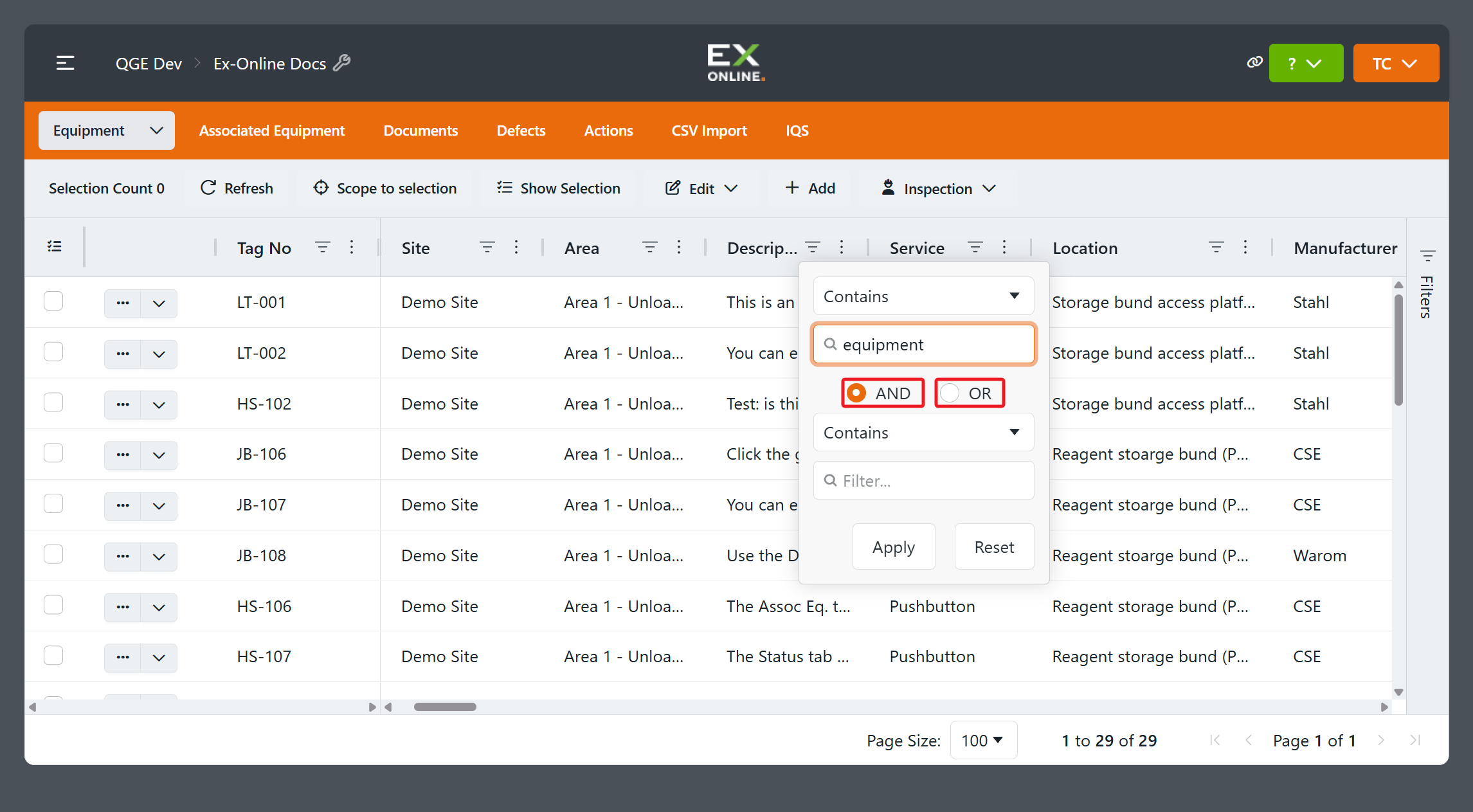
The same controls are available in the Filters panel.
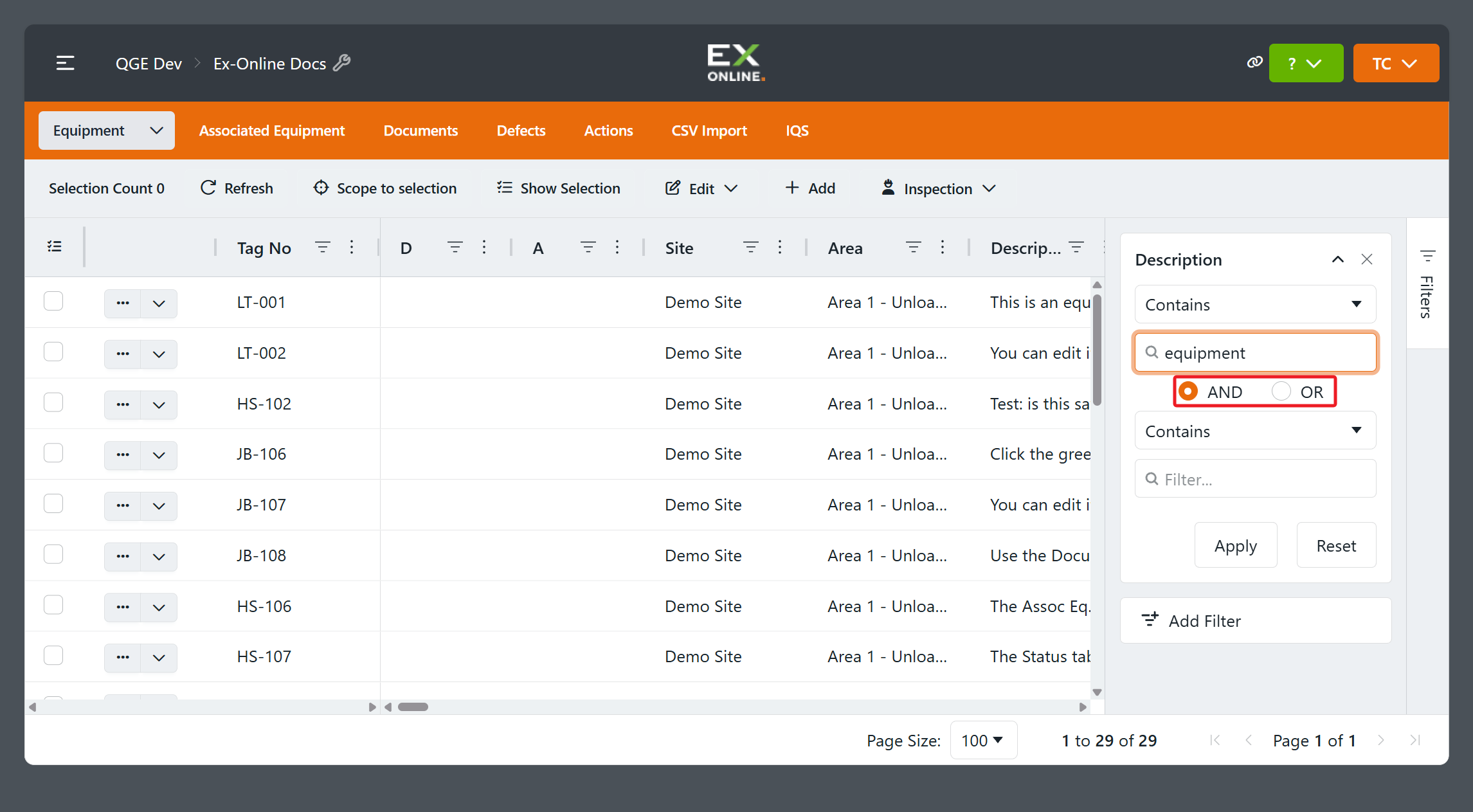
- AND — Description contains
equipmentand containssaved(both strings must appear in the column). - OR — Description contains
equipmentor containsjunction(either string is enough).
Values in different columns
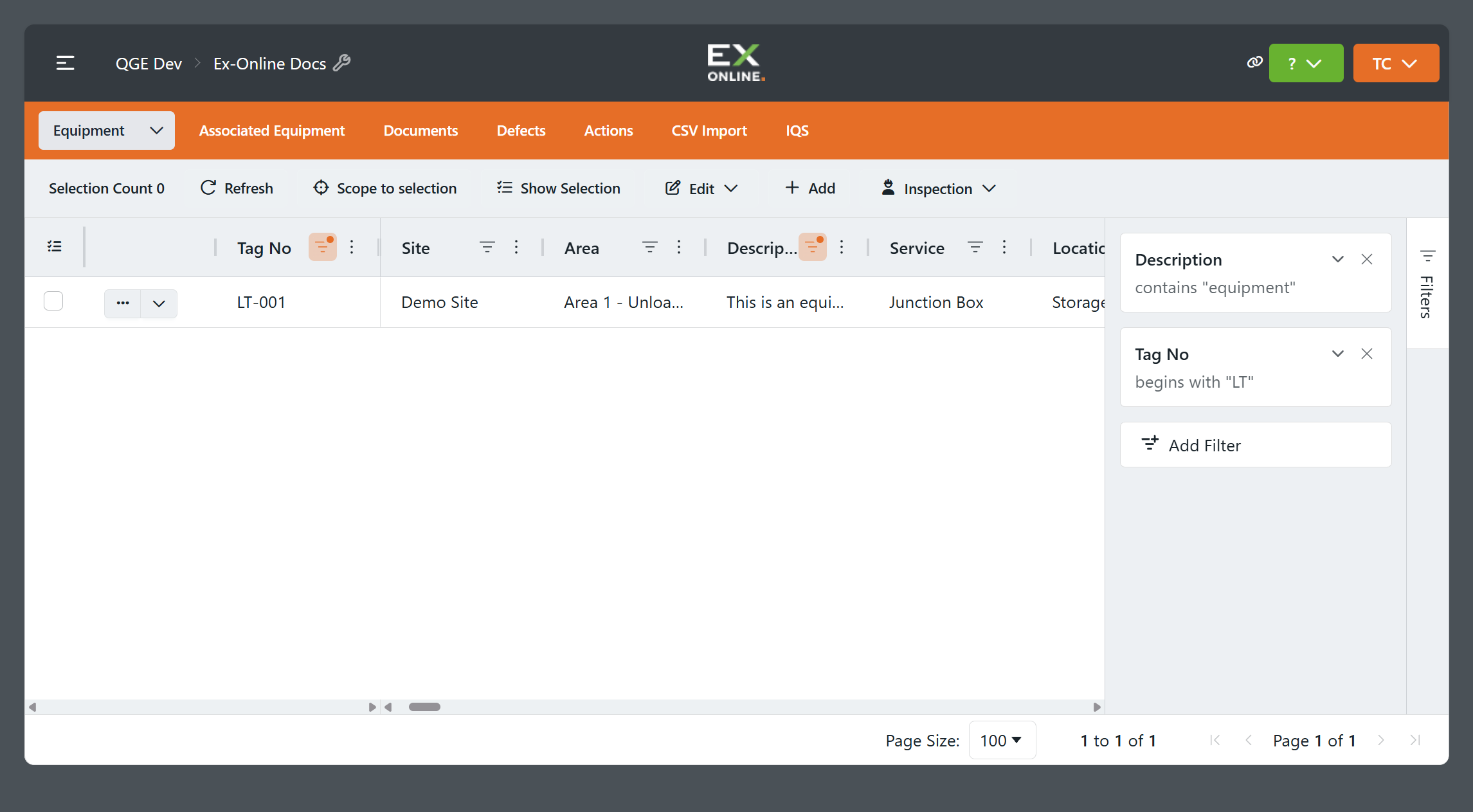
Section titled “Values in different columns”To add a condition on another column, use that column’s Filter icon and Apply, or click Add Filter in the Filters panel. Each card is one column — every active card must match, so multiple cards combine with logical AND.
For example, keep Description contains equipment and add Tag No Begins with LT. The grid shows only rows that match both conditions — one row with tag number LT-001.
Sort the results
Section titled “Sort the results”Sorting changes row order without changing which rows match the active filters.
Sort by one column
Section titled “Sort by one column”Click a column header to sort by that column. Each click on the same header cycles through three states:
-
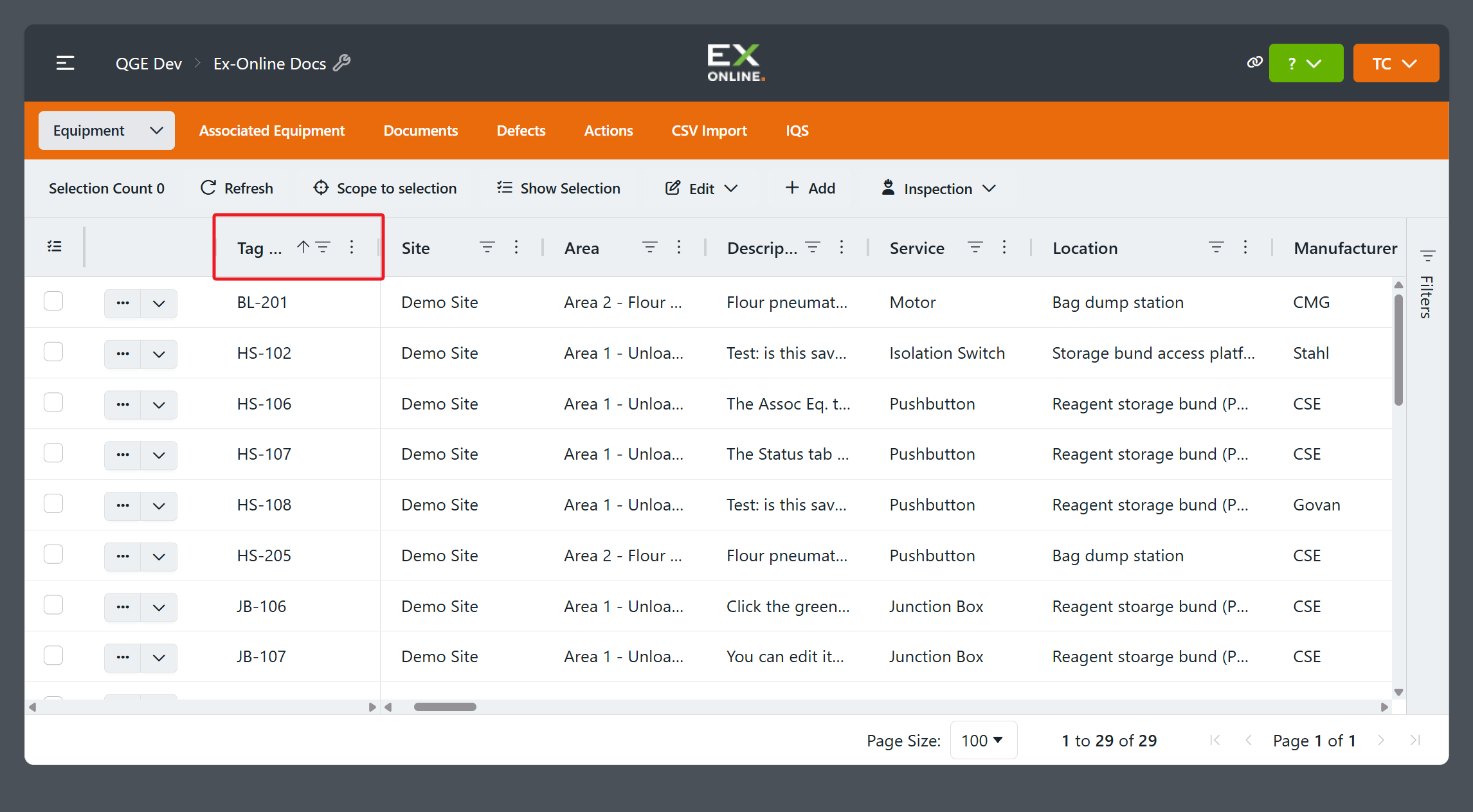
First click — ascending order (A–Z, 0–9). A sort arrow appears in the header.
-
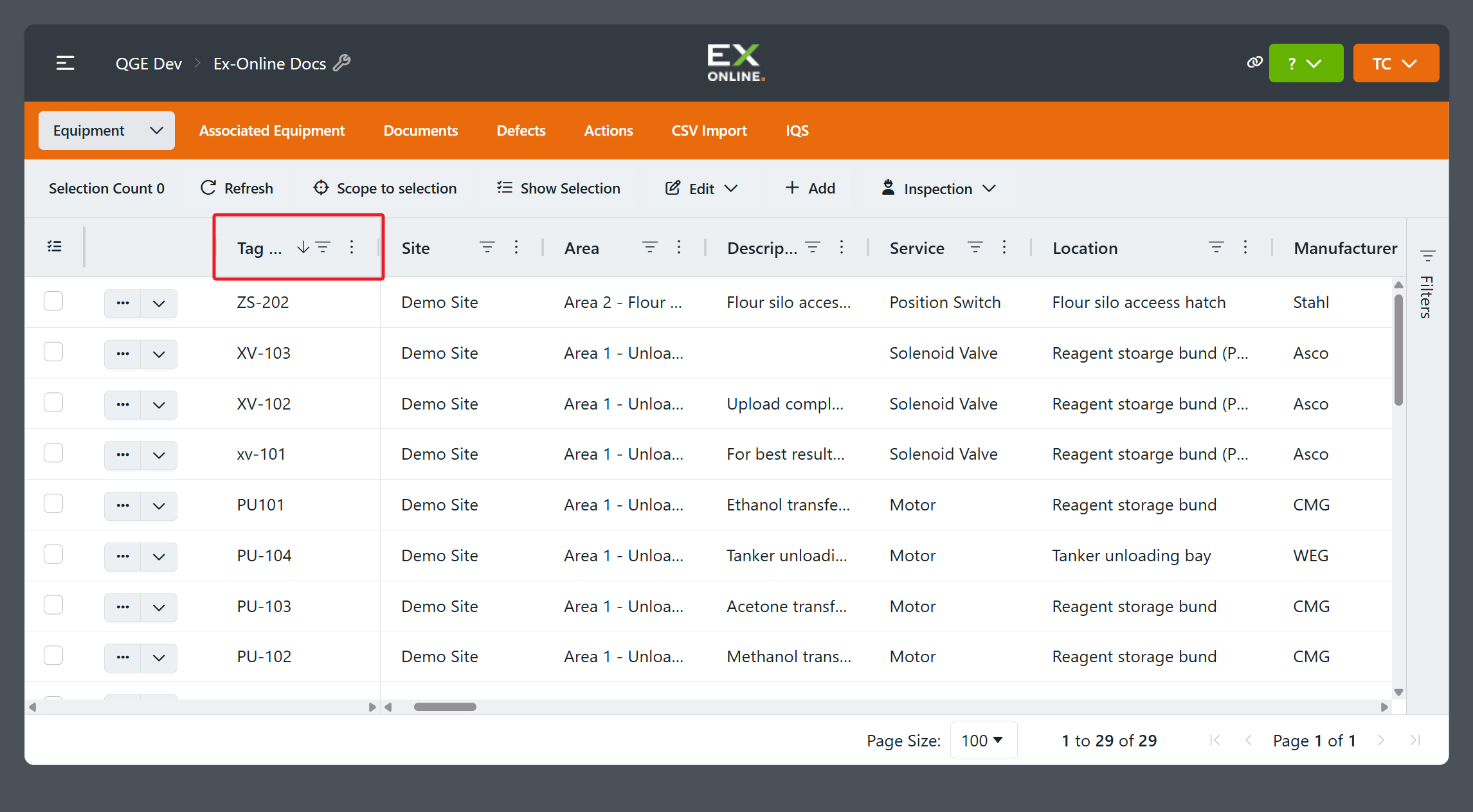
Second click — descending order. The arrow reverses.
-
Third click — sorting is cleared; the grid returns to its default order.
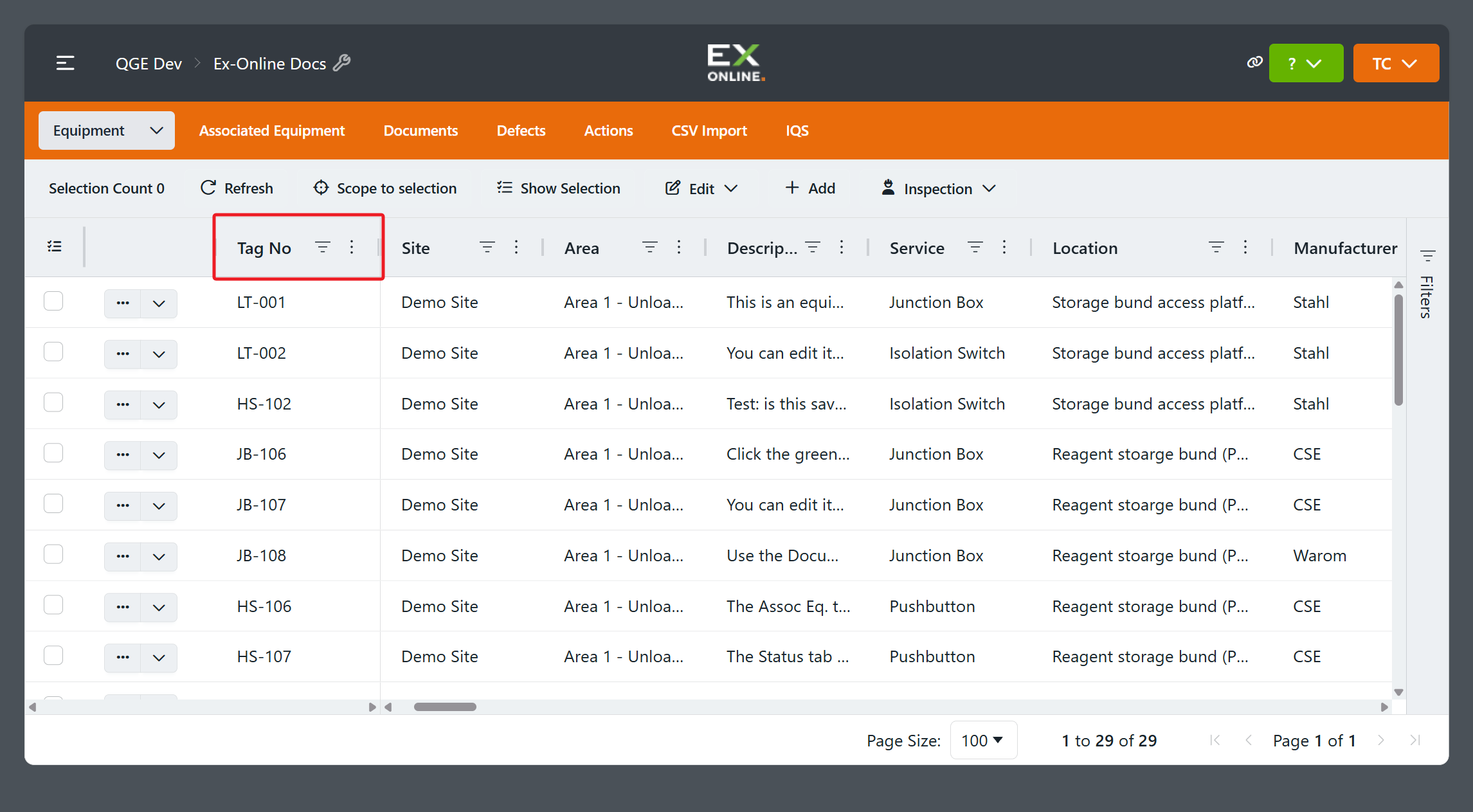
Clicking a different column header replaces the current sort with a new ascending sort on that column.
Sort by multiple columns
Section titled “Sort by multiple columns”Hold Shift and click additional column headers to stack sorts. Each sorted column shows its place in the order (1 = primary, 2 = secondary, and so on).
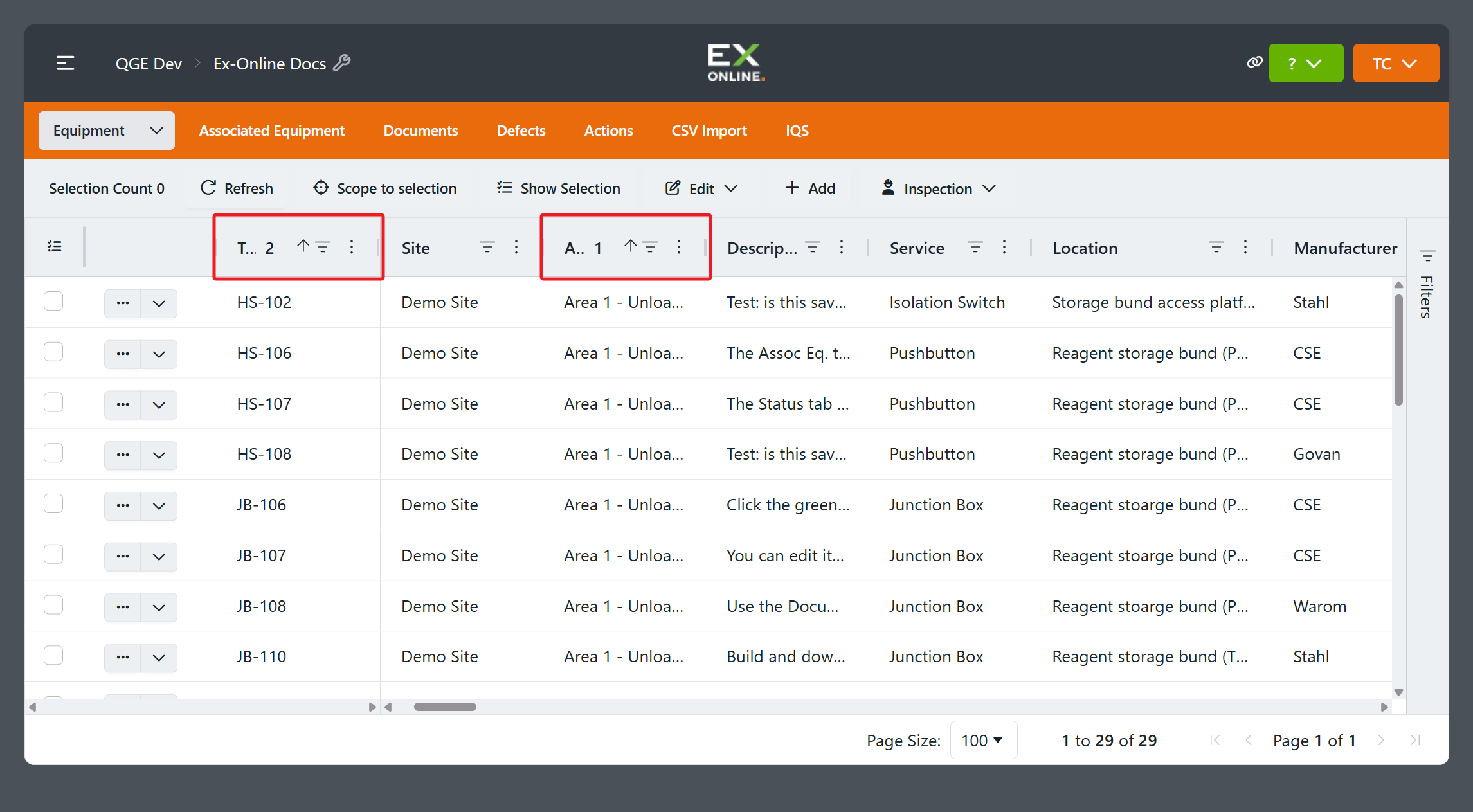
Click any column header without Shift to clear the stack and start a new single-column sort.
Related topics
Section titled “Related topics”- Selecting items — Select rows after you filter
- Filtering and Sorting — Filter controls and sort precedence
- Inline updates — Change field values on selected rows